
No sound on Windows 11 means audio is completely absent — speakers and headphones produce no output, the volume slider has no effect, or the speaker icon in the taskbar shows a red X. According to Microsoft’s official audio troubleshooting documentation, the most common causes are the wrong output device selected in Sound settings, a stopped Windows Audio service, or a corrupted audio driver following a Windows update.
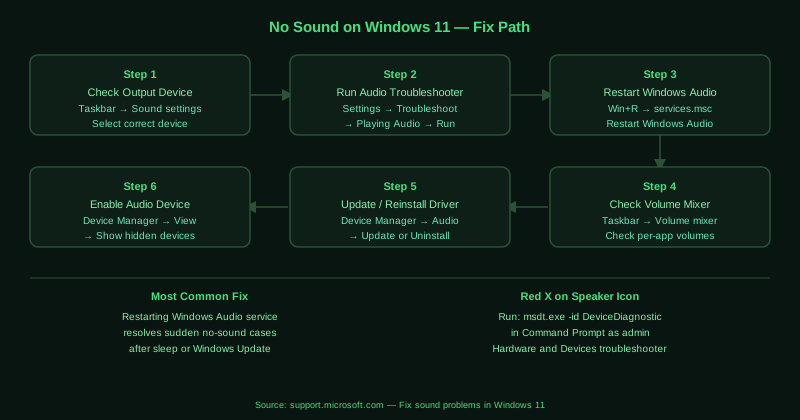
What causes no sound on Windows 11
Wrong output device selected — Windows 11 automatically switches the default audio output when new devices are connected. Plugging in a monitor with HDMI audio, a USB headset, or a Bluetooth speaker can silently redirect all audio to the new device, leaving the original speakers or headphones silent.
Windows Audio service stopped — The Windows Audio and Windows Audio Endpoint Builder services manage all sound output. These services occasionally stop after sleep or hibernation without warning, causing immediate and complete audio loss.
Corrupted or missing audio driver — Windows updates can replace manufacturer-specific audio drivers with generic versions that do not fully support the hardware. This is the most common cause of audio loss immediately after a Windows Update.
Audio device disabled — Device Manager allows audio devices to be disabled, either manually or by certain installation processes. A disabled device produces no audio and may not appear in Sound settings.
How to fix no sound on Windows 11
Work through the steps in order. Steps 1 and 3 resolve the majority of cases.
How to verify the fix
After each step, open a browser and play any video — YouTube is a reliable test. If audio plays at normal volume, the fix worked. If you hear audio from speakers but not headphones (or vice versa), the output device is set incorrectly — return to step 1 and select the correct device in Sound settings.
Known limitations
Microsoft’s audio troubleshooter does not detect hardware failures — a physically damaged speaker, a broken headphone jack, or a blown audio chip on the motherboard will pass all software diagnostics while producing no sound. If all software fixes fail and audio works on a different output device (such as Bluetooth headphones), the built-in audio hardware may have a physical fault that requires repair or replacement.
Step-by-step fix
Check the output device selection
Right-click the speaker icon in the taskbar and select Sound settings. Under Output, check which device is selected. Windows 11 sometimes switches to a different output device when a new audio device is connected — for example, a monitor with built-in speakers or a USB headset. Click the dropdown under Choose where to play audio and select your intended output device (your speakers or headphones). After selecting the correct device, play any audio to test.
Run the Windows Audio troubleshooter
Open Settings > System > Troubleshoot > Other troubleshooters. Find Playing Audio and click Run. The troubleshooter scans for common audio service problems, checks driver integrity, and applies available fixes automatically. Follow any prompts it shows. On Windows 11 version 22H2 and later, the troubleshooter also checks for Windows Update audio driver packages. After the troubleshooter completes, restart your computer and test audio.
Restart the Windows Audio service
Press Windows + R, type services.msc, and press Enter. In the Services window, scroll down to Windows Audio. Right-click it and select Restart. Also restart Windows Audio Endpoint Builder the same way. These services manage all audio output in Windows — they occasionally stop responding after sleep, hibernation, or a failed update without displaying any error. Restarting them restores audio without requiring a full system restart.
Check volume levels and mute status
Right-click the speaker icon in the taskbar and select Open volume mixer. Check that the master volume is not at zero and that the Mute button is not active. Also check the volume level for individual applications in the volume mixer — some apps have their own mute settings that are separate from the system volume. Additionally, check the physical volume control on external speakers or the function key volume control on laptops.
Update or reinstall the audio driver
Open Device Manager (right-click Start > Device Manager). Expand Sound, video and game controllers. Right-click your audio device — it is usually named after the manufacturer, such as Realtek High Definition Audio, Intel Smart Sound Technology, or your GPU name for HDMI audio. Select Update driver > Search automatically for drivers. If Windows finds no update, visit your laptop or motherboard manufacturer's website and download the audio driver for your specific model. To reinstall, right-click the device and select Uninstall device, then restart your computer — Windows reinstalls the driver on boot.
Enable the audio device if disabled
In Device Manager under Sound, video and game controllers, look for any audio device with a downward-pointing arrow icon — this indicates the device is disabled. Right-click it and select Enable device. Also check under Other devices for any entry showing a yellow exclamation mark — this indicates an audio device that Windows detected but could not install a driver for. Right-click it and select Update driver.