
Adobe Acrobat keeps crashing means the application opens but closes unexpectedly — during printing, saving, scrolling through a document, or sometimes just moments after launch. According to Adobe’s crash troubleshooting documentation, the leading cause of Acrobat crashes on Windows and Mac is hardware acceleration conflict with graphics drivers, followed by corrupted installation files and third-party plugin conflicts.
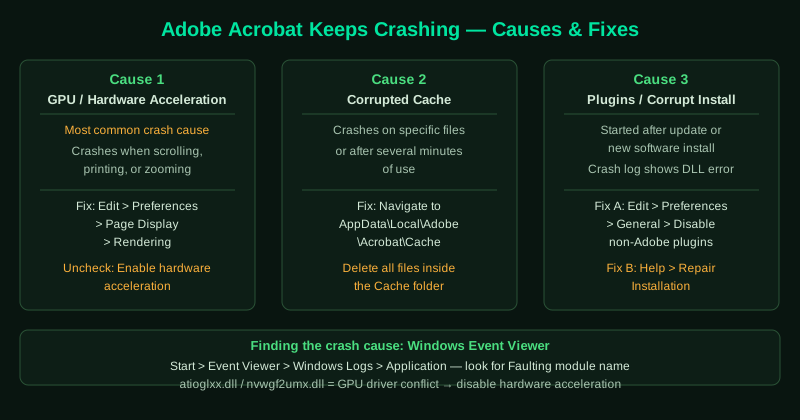
What causes Adobe Acrobat to keep crashing
Hardware acceleration conflict — Acrobat uses your GPU to accelerate PDF rendering. When your graphics driver is outdated or incompatible, the GPU operations cause Acrobat to crash. This is the most common cause of crashes, especially when scrolling or printing.
Corrupted cache — Acrobat’s rendering cache can accumulate corrupted entries. When Acrobat attempts to read this data, it crashes. Clearing the cache forces Acrobat to rebuild it cleanly.
Third-party plugin conflict — Enterprise PDF tools, digital signature applications, and document management plugins all integrate into Acrobat at a low level. After an Acrobat update, these plugins can trigger crashes until the plugin developer releases a compatible version.
Corrupted installation — Incomplete Windows updates, antivirus quarantine actions, or hard shutdowns can corrupt Acrobat’s executable or supporting DLL files.
How to fix Adobe Acrobat keeps crashing
Start with step 1. Disabling hardware acceleration resolves most crash reports and takes less than a minute.
How to verify the fix
Perform the action that previously caused the crash — printing, saving a large file, or scrolling through a complex document. If Acrobat completes the operation without closing unexpectedly, the fix worked. Monitor Acrobat across several sessions, as some crash triggers are intermittent.
Step-by-step fix
Disable hardware acceleration
Hardware acceleration offloads PDF rendering to your GPU. On systems with outdated or incompatible graphics drivers, this causes crashes. Open Acrobat, go to Edit > Preferences > Page Display > Rendering, and uncheck Enable hardware acceleration for Rendering or Use GPU. Click OK and restart Acrobat. This is the fix for the majority of Acrobat crashes, especially those that occur when scrolling, printing, or rendering complex PDFs.
Clear the Acrobat cache
Close Acrobat completely. Open File Explorer and navigate to C:\Users\[YourName]\AppData\Local\Adobe\Acrobat. Delete the contents of the Cache folder (do not delete the folder itself, only its contents). On a Mac, navigate to ~/Library/Caches/com.adobe.Acrobat and clear the cache. Restart Acrobat. A corrupted cache forces Acrobat to reprocess the same invalid data repeatedly, causing crashes.
Disable third-party plugins
Third-party Acrobat plugins (PDF editors, e-signature tools, or enterprise plugins) can conflict with newer Acrobat versions. Open Acrobat, go to Edit > Preferences > General, and click Manage Add-ons or Plug-ins (the option varies by version). Disable non-Adobe plugins one at a time, restarting Acrobat after each, until you identify the conflicting plugin.
Repair the Acrobat installation
Open Acrobat and go to Help > Repair Installation. If Acrobat crashes before you can reach this menu, open Control Panel > Programs and Features, find Adobe Acrobat or Acrobat Reader, click Change, and select Repair. The repair process replaces corrupted application files, DLLs, and registry entries without removing your settings or documents.
Update Adobe Acrobat
Adobe releases updates that address known crash bugs. Open Acrobat and go to Help > Check for Updates. Install all available updates and restart. If Acrobat crashes before reaching this menu, download the latest installer from Adobe's website and run it over the existing installation — the installer will update the existing version.