
Adobe Acrobat not responding means the application opens but stops accepting input — the title bar shows “Not Responding,” the cursor turns to a loading spinner, and clicking anywhere in the window has no effect. According to Adobe’s troubleshooting documentation, the most common cause of Acrobat freezing is a hardware acceleration conflict with the graphics driver, followed by cache corruption or insufficient memory when working with large PDF files.
What causes Adobe Acrobat to freeze or stop responding
Hardware acceleration conflict — Acrobat uses the GPU to render PDF content. If the graphics driver is outdated or incompatible, the GPU operation stalls and Acrobat freezes waiting for it to complete.
Corrupted cache — Acrobat’s rendering cache stores pre-processed content. A corrupted cache entry causes Acrobat to loop on reading invalid data, which manifests as a freeze.
Insufficient system memory — Very large PDFs with many images or embedded fonts can exceed available memory. Windows begins paging to disk, which slows Acrobat to the point where it appears frozen.
Plugin loading failure — A third-party plugin that hangs during loading will prevent Acrobat from finishing its startup sequence, causing it to appear frozen on the splash screen.
How to fix Adobe Acrobat not responding
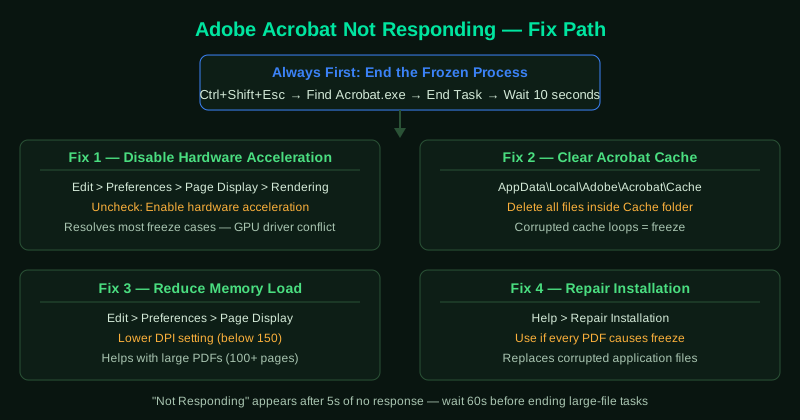
Always start by ending the frozen process in Task Manager, then apply fixes before reopening Acrobat.
How to verify the fix
Open the PDF that previously caused the freeze. Wait for it to fully render. Scroll through several pages and attempt any action that previously triggered the freeze. If Acrobat remains responsive throughout, the fix was successful. If Acrobat still freezes on the same file but works on others, the issue may be with that specific PDF — see Cannot Open PDF in Adobe Acrobat — Fix.
Step-by-step fix
End the frozen Acrobat process in Task Manager
Press Ctrl + Shift + Esc to open Task Manager. Find Acrobat.exe or AcroRd32.exe with the status Not Responding. Right-click it and select End Task. Wait 10 seconds for the process to fully close. Then reopen Acrobat. Ending the process allows a clean restart and is always the first step before applying any other fix.
Disable hardware acceleration
Hardware acceleration is the most common cause of Acrobat freezing. Open Acrobat, go to Edit > Preferences > Page Display > Rendering, and uncheck Enable hardware acceleration. Click OK and restart Acrobat. If Acrobat freezes before you reach the menu, use the registry: navigate to HKEY_CURRENT_USER\Software\Adobe\Acrobat Reader\<version>\AVGeneral and set bHardwareRendering to 0.
Clear the Acrobat cache
Close Acrobat. Navigate to C:\Users\[YourName]\AppData\Local\Adobe\Acrobat and delete the contents of the Cache folder. Do not delete the folder itself, only its contents. On Mac, go to ~/Library/Caches/com.adobe.Acrobat and clear the contents. A corrupted cache causes Acrobat to loop attempting to read invalid data, which freezes the application.
Increase Acrobat's virtual memory allocation
Large PDFs with many images or embedded fonts can exhaust Acrobat's memory allocation. Go to Edit > Preferences > Page Display and lower the Custom Rendering DPI setting if it is above 150. Also go to Edit > Preferences > Reading and set the Default layout and zoom to a lower setting. These changes reduce memory use when rendering large documents.
Repair the Acrobat installation
If Acrobat freezes consistently regardless of the PDF opened, the installation is likely corrupted. Go to Help > Repair Installation. Acrobat will download and replace damaged files. If Acrobat freezes before reaching the menu, open Control Panel > Programs and Features, find Adobe Acrobat, click Change, and select Repair.