
Cannot open PDF in Adobe Acrobat means Acrobat itself launches normally, but a specific PDF file fails to load — you see a blank page, an error message such as “file is damaged and cannot be repaired,” or the document appears empty. According to Adobe’s official troubleshooting guide, this problem is almost always caused by a corrupted or incomplete PDF file, a corrupted Acrobat cache, or a security setting blocking the file.
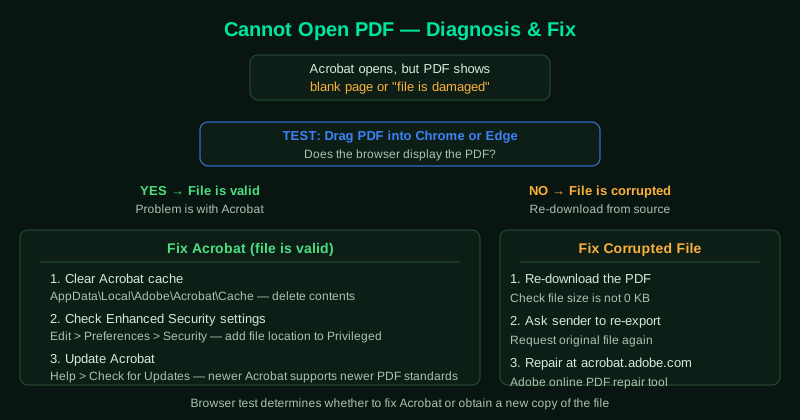
What causes “cannot open PDF” in Acrobat
Corrupted or incomplete PDF file — The most common cause. If the file was downloaded from the internet and the download was interrupted, or if the file was attached to an email and the attachment was not fully transferred, the PDF will be structurally invalid.
Corrupted Acrobat cache — Acrobat stores temporary rendering data in a cache folder. If this cache becomes corrupted, Acrobat may fail to display PDFs even when the files are perfectly valid.
Acrobat version too old for the PDF — PDFs are created with specific PDF standard versions. A PDF created with PDF 2.0 features may display incorrectly or fail entirely in older Acrobat versions.
Enhanced Security blocking the file — Acrobat’s Enhanced Security feature restricts access to PDFs from untrusted locations such as network drives, USB drives, or internet downloads. A blocked file may appear blank or trigger an error.
How to fix “cannot open PDF in Adobe Acrobat”
Work through the steps in order. If a browser can open the file but Acrobat cannot, skip directly to step 3 (clearing the cache) and step 5 (updating Acrobat).
How to verify the fix
After each step, close Acrobat completely, reopen it, and then open the PDF. If the document displays with all pages visible and content rendered correctly, the fix worked. If Acrobat itself still refuses to launch, see Adobe Acrobat Not Opening — Fix.
Step-by-step fix
Re-download or obtain the PDF from the source again
If the PDF was downloaded from a website or received by email, download or request it again. A partial download or a corrupted transfer is the most common cause of a blank page or 'file is damaged' error. Right-click the file and check Properties — if the file size is 0 KB or unexpectedly small, the download was incomplete.
Clear Adobe Acrobat's cache
A corrupted Acrobat cache can prevent PDF rendering even when the file itself is intact. Close Acrobat completely. Open File Explorer and navigate to C:\Users\[YourName]\AppData\Local\Adobe\Acrobat. Delete the contents of the Cache folder. On a Mac, navigate to ~/Library/Caches/com.adobe.Acrobat and delete the cache folder. Reopen Acrobat and try the PDF again.
Open the PDF in a different viewer to confirm the file
Drag the PDF file onto Google Chrome or Microsoft Edge. If the browser displays the PDF correctly, the file itself is valid and the problem is specific to Acrobat. If the browser also shows a blank page or error, the PDF file is genuinely corrupted and needs to be obtained again from the source.
Use Acrobat's built-in Repair PDF tool
Open Adobe Acrobat and go to Tools > Edit PDF > Crop Pages (for older versions) or use File > Reduce File Size to trigger a save operation that can fix minor corruption. For Acrobat Pro, go to File > Save As and save the file with a new name — this rewrites the internal PDF structure and resolves many rendering errors. Alternatively, use Adobe Acrobat's online PDF repair tool at acrobat.adobe.com.
Update Adobe Acrobat and check security settings
Outdated Acrobat versions cannot render PDFs created with newer PDF standards. Open Acrobat and go to Help > Check for Updates. Install any available updates. Also check Edit > Preferences > Security (Enhanced) — if Enhanced Security is blocking the PDF (common for PDFs from network drives or downloads), click Add Folder to add the file's location to the Privileged Locations list.