
Dropbox not syncing means files you add or edit in your local Dropbox folder are not uploading to your account, or changes made on other devices are not appearing on your computer. According to Dropbox’s official troubleshooting documentation, the most common causes are a paused sync, a bandwidth limit set too low, Selective Sync excluding the relevant folder, or a temporary error in the Dropbox desktop client.
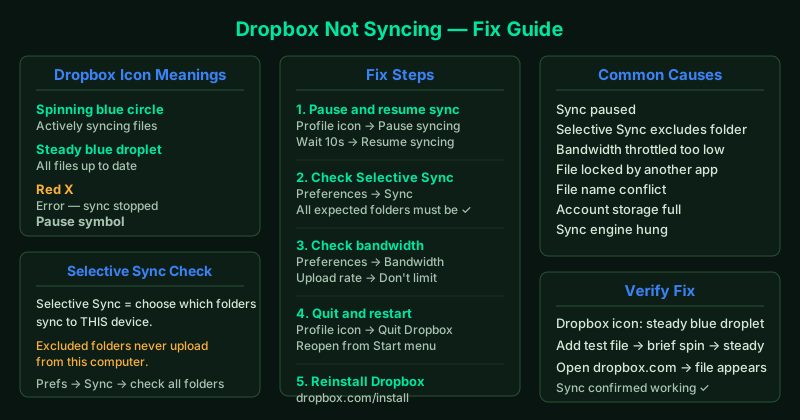
What causes Dropbox to stop syncing
Dropbox’s desktop client monitors your Dropbox folder for changes and syncs them automatically. Sync stops when:
- Sync is paused — manually or by Dropbox automatically after a connection error
- Selective Sync excludes the folder — the folder exists on disk but is not configured to sync from this device
- Bandwidth limit too low — the upload rate is throttled so aggressively that no progress is visible
- File is locked — another application has the file open exclusively
- File name conflict — Dropbox cannot resolve which version of a file is correct
- Dropbox client process hung — the application is running but the sync engine is stuck
- Account storage full — uploads stop when the account has no remaining space
How to fix Dropbox not syncing
Wrong page? If files you added on another device are not appearing here (download problem, not upload), see Dropbox not updating files instead. This page covers local changes that are not uploading to Dropbox.
Step 1 — Check the Dropbox sync icon
The system tray icon tells you the current state:
| Icon | Meaning |
|---|---|
| Spinning blue circle | Actively syncing |
| Steady blue droplet | All files synced |
| Red X | Error — sync stopped |
| Pause symbol | Sync is paused |
| Grey icon | Dropbox is not running |
Click the icon to open the activity panel. It shows:
- Files currently uploading or downloading
- Files that failed to sync (with the reason)
- The estimated time remaining
If no specific error is shown and the icon is just spinning indefinitely, proceed to Step 2.
Step 2 — Pause and resume syncing
- Click the Dropbox icon in the system tray
- Click your profile picture or initials at the top-right of the panel
- Select Pause syncing
- Wait 10 seconds
- Click the icon again → Resume syncing
This clears the current upload queue and forces Dropbox to restart syncing from the beginning. If the problem was a temporary network error or a transient file lock, this resolves it without further action.
Step 3 — Check Selective Sync settings
Selective Sync is a feature that lets you choose which Dropbox folders sync to your computer. If the folder containing your files is excluded, those files will never upload from that device — even though they exist in your Dropbox account online.
- Click the Dropbox icon in the system tray
- Click the gear icon (or your profile picture) → Preferences
- Go to the Sync tab
- Click Selective Sync (or Choose folders to sync)
- Review which folders have checkmarks — unchecked folders do not sync to this computer
- Check any folders that should be syncing and click Update
After updating Selective Sync, Dropbox begins downloading the newly included folders immediately.
Step 4 — Check bandwidth settings
Dropbox allows you to limit its upload and download speeds — but if these limits are too low, syncing appears to work while making no visible progress.
- Click the Dropbox icon → gear icon → Preferences
- Go to the Bandwidth tab
- Under Upload rate, select Don’t limit (or set a higher value)
- Under Download rate, do the same
- Click OK
After removing the bandwidth limit, open the Dropbox activity panel and watch — uploads should now show measurable progress.
Step 5 — Quit and restart Dropbox
A clean restart clears any hung state in the Dropbox sync engine:
- Click the Dropbox icon → your profile picture → Quit Dropbox
- Press Ctrl + Shift + Esc to open Task Manager
- Confirm Dropbox.exe is no longer in the process list — if it is, right-click it and select End task
- Reopen Dropbox from the Start menu (search “Dropbox”)
Dropbox resumes syncing from where it left off. This is less disruptive than a reset because it preserves your settings and account configuration.
Step 6 — Reinstall Dropbox
If none of the above steps resolved the problem, reinstall the Dropbox desktop client.
Step 1 — Uninstall:
- Make sure Dropbox is fully quit (Step 5)
- Go to Settings → Apps → Installed apps
- Find Dropbox and click Uninstall
Step 2 — Reinstall:
- Go to dropbox.com/install and download the installer
- Run the downloaded file and follow the setup prompts
- Sign in with your Dropbox account credentials
Your files in the Dropbox cloud are not affected by uninstalling the desktop client. After reinstalling and signing in, Dropbox re-downloads your files to the local Dropbox folder.
Dropbox not syncing on a specific device only
If Dropbox syncs correctly on other devices but not on one specific computer, the problem is with the local client installation — not the account. In this case:
- Check that the device is connected to the internet
- Confirm the local Dropbox folder path has not been moved (right-click the Dropbox icon → Preferences → Sync — the folder path is shown there)
- Run the reinstall steps above
How to verify the fix
- The Dropbox icon in the system tray should show a steady blue droplet (not spinning, not paused)
- Add a small test file to your Dropbox folder — the icon should spin briefly and return to steady
- Open dropbox.com in a browser and confirm the file appears there
- On another device with Dropbox, confirm the file also appears there