
Cloud storage sync errors stop your files from reaching the cloud — or stop changes made on one device from appearing on another. OneDrive, Dropbox, and Google Drive all fail in recognizable patterns: a spinning sync icon that never finishes, a “sync pending” status that persists for hours, or a client that simply stops updating files without showing any error.
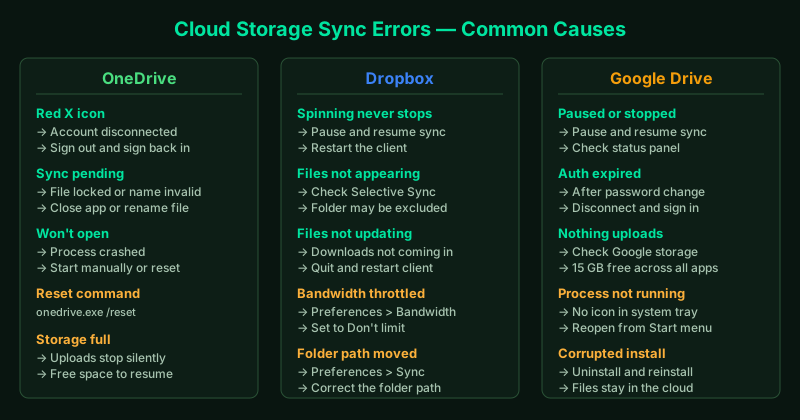
This hub covers the most common sync failures for each service. Select the guide that matches your situation.
OneDrive fix guides
OneDrive Not Syncing — Fix
The OneDrive sync icon in the system tray shows a spinning circle or a red X, and files are not uploading to or downloading from your OneDrive account. This guide covers signing out and back in, pausing and resuming sync, resetting the OneDrive client, and verifying your storage quota.
Best for: Red X on OneDrive icon, files stuck uploading, sync stopped after a Windows update or password change.
OneDrive Sync Pending — Fix
Files or folders show “Sync pending” indefinitely — the icon spins but nothing moves. This guide explains what causes the pending state (file name conflicts, path length limits, locked files) and how to clear it without losing data.
Best for: “Sync pending” that does not clear after hours, specific files stuck while others sync normally.
OneDrive Not Working — Fix
OneDrive does not open, does not appear in the system tray, or crashes on startup. This guide walks through restarting the OneDrive process, unlinking and relinking your account, resetting the client, and reinstalling as a last resort.
Best for: OneDrive missing from system tray, won’t start, showing account errors, not working after a Windows reinstall.
Dropbox fix guides
Dropbox Not Syncing — Fix
The Dropbox icon shows a syncing indicator that never completes, or files you added to the Dropbox folder are not appearing in your account online. This guide covers pausing and resuming sync, checking bandwidth settings, selective sync conflicts, and reinstalling the Dropbox client.
Best for: Dropbox stuck syncing, files not appearing online, green checkmark never appears on new files.
Dropbox Not Updating — Fix
Files added or edited on another device are not appearing in your local Dropbox folder, or changes you made locally are not reflecting in your Dropbox account. This guide covers checking the sync status icon, forcing a sync, checking selective sync settings, and restarting the client.
Best for: Changes on other devices not appearing locally, edited files not uploading, Dropbox appears connected but files are outdated.
Google Drive fix guides
Google Drive Not Syncing — Fix
Google Drive for Desktop stops syncing files to or from your computer — the status icon shows a pause or error, or files you added to the Google Drive folder are not appearing in your account. This guide covers restarting the client, signing out and back in, resetting sync preferences, and reinstalling.
Best for: Google Drive for Desktop not syncing, files stuck uploading, sync icon showing an error or pause.
How cloud sync works — and why it breaks
All three services work the same way: a background process watches a folder on your computer, detects changes, and uploads or downloads them to the cloud. Sync breaks when:
- The background process stops — after a crash, a sleep/wake cycle, or a system update
- An account credential expires — the client loses permission to write to your account
- A file is locked — another application has the file open and is blocking the sync client
- Storage quota is full — the cloud account has no space for new uploads
- A file name violates restrictions — characters like
?,:,*, or paths longer than 260 characters cause OneDrive to skip files silently - Selective sync excludes the folder — the folder exists on disk but is excluded from sync in the client settings
Understanding which of these applies to your situation makes the fix straightforward. Use the guides above to find the right path.
When to contact support
If you have worked through all relevant guides and files are still not syncing, contact the service directly:
- OneDrive: Microsoft Support
- Dropbox: Dropbox Help Center
- Google Drive: Google Drive Help