
OneDrive sync pending means OneDrive has queued a file for upload but has not started or cannot complete the transfer. According to Microsoft’s official documentation, “sync pending” is not the same as an error — it means OneDrive is waiting for a condition to be met before it can proceed. The most common conditions are another application holding the file open, an unsupported character in the file name, or the upload queue being blocked by a single large file ahead of it.
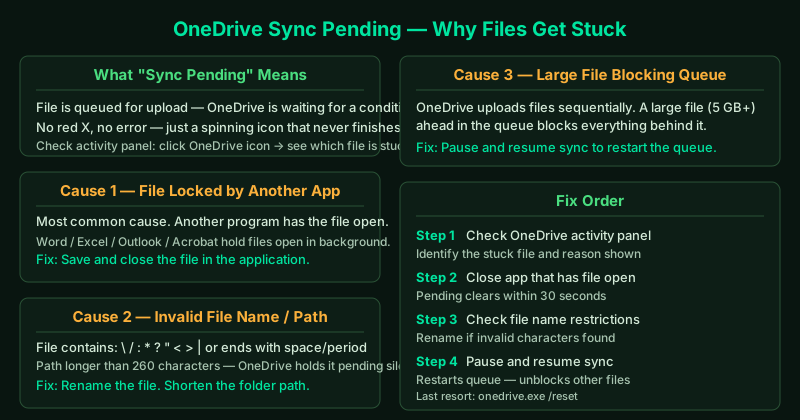
What “sync pending” means
When a file shows “sync pending” in the OneDrive activity panel, it means the file is in the upload queue but OneDrive has not been able to start or complete the transfer. This is different from a sync error — no red X, no warning message, just a persistent spinning icon on the file or folder.
Sync pending persists when:
- The file is locked — another application has the file open in exclusive write mode
- The file name contains unsupported characters — OneDrive silently holds it pending rather than skipping it outright
- The path is too long — the total path including all folder names exceeds 260 characters
- A large file is ahead in the queue — OneDrive uploads files sequentially; a 10 GB file blocks everything behind it
- Network is throttled or paused — sync is paused manually or by a scheduled bandwidth limit
How to fix OneDrive sync pending
Step 1 — Identify which file is stuck
Click the OneDrive icon in the system tray (bottom-right corner, may be hidden behind the arrow).
The activity panel shows:
- Which files are currently syncing (with a progress bar)
- Which files are in the “pending” state (listed below the active upload)
- How long each file has been waiting
If a specific file has been showing “sync pending” for more than 10 minutes while other files sync normally, that file is the problem. Note its name and folder location.
Step 2 — Close the application that has the file open
The most common cause of sync pending is another application holding the file open. OneDrive cannot upload a file that is being written to by another process — it waits indefinitely for the file to be released.
Common culprits:
- Microsoft Word / Excel / PowerPoint — autosave files (
.docx,.xlsx) are held open until you close the application or the document - Microsoft Outlook —
.pstand.ostfiles are held open whenever Outlook is running; these files should be excluded from OneDrive sync entirely - Adobe Acrobat — open PDF files
- Any database application —
.db,.sqlite,.accdbfiles
To resolve:
- Save and close the document in the application
- If unsure which application has the file open, restart your PC — this releases all file locks
After closing the application, the pending status clears within 30 seconds.
Step 3 — Check for file name and path restrictions
OneDrive has strict rules about file names and folder path lengths. Files that violate these rules are held as “sync pending” without a clear error message.
Characters not allowed in file or folder names:
\ / : * ? " < > |
Other restrictions:
- File name cannot end with a space or period
- Full path (all folder names combined + file name + extension) cannot exceed 260 characters
- File size cannot exceed 250 GB per file
To check:
- Open the file’s location in File Explorer
- Look at the address bar — if the path is already 200+ characters, moving the file to a shorter path (e.g., directly to
C:\Users\Name\OneDrive\) will fix it - Rename the file to remove any unsupported characters
After renaming or moving, OneDrive picks up the file on its next scan (usually within 60 seconds).
Step 4 — Pause and resume sync
If the file name and lock issues are not the cause, resetting the sync queue often helps:
- Right-click the OneDrive icon in the system tray
- Select Pause syncing → 2 hours
- Wait 10 seconds
- Right-click again → Resume syncing
This forces OneDrive to abandon its current queue and restart evaluation from the beginning. Files that were stuck behind a large upload will now proceed.
Step 5 — Reset OneDrive
If multiple files are stuck, or if pause/resume did not help, reset the OneDrive client:
- Press Win + R
- Paste and run:
%localappdata%\Microsoft\OneDrive\onedrive.exe /reset- Wait 2 minutes
- If OneDrive does not reopen automatically, press Win + R again and run:
%localappdata%\Microsoft\OneDrive\onedrive.exeThe reset clears the sync database and rebuilds it from scratch. All pending files are re-evaluated and most will begin syncing immediately.
Files that should not be in OneDrive
Some file types cause persistent sync pending because they are always in use:
- Outlook data files (
.pst,.ost) — always held open by Outlook; Microsoft specifically recommends excluding these from OneDrive - Virtual machine disks (
.vmdk,.vhd) — too large and continuously written to - Database files (
.db,.sqlite,.accdb) — held open by the database application
To exclude a file type from sync, move it out of the OneDrive folder, or add an exception in OneDrive settings.
How to verify the fix
- Click the OneDrive icon — the activity panel should show files uploading, not stuck on pending
- Add a small test file to the OneDrive folder and watch it sync within 60 seconds
- Confirm on onedrive.live.com that the previously pending files now appear in your account online