
Dropbox not updating means files added or edited on another device — a second computer, a phone, or a web browser — are not appearing in your local Dropbox folder. The files exist in your Dropbox account online, but the desktop client on this computer has not downloaded the new versions. According to Dropbox’s official documentation, this is typically caused by a paused sync, a Selective Sync exclusion, or the Dropbox client not checking in with the server.
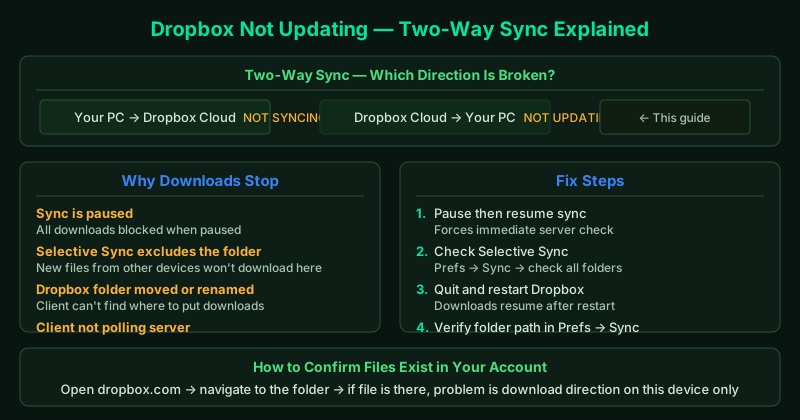
The difference between “not syncing” and “not updating”
- Not syncing — your local changes are not uploading to Dropbox
- Not updating — changes from other devices are not downloading to your local folder
Both involve sync, but they point to different causes. Not updating almost always means the download direction is broken: either the client is paused, the folder is excluded from Selective Sync, or the client has not checked in with the Dropbox server recently.
If your problem is the opposite — local changes not uploading to Dropbox — see Dropbox not syncing fixes instead.
What causes Dropbox to stop updating
- Sync is paused — all downloads stop when sync is paused
- Selective Sync exclusion — the folder containing the new files is not configured to sync on this device
- Dropbox folder moved or renamed — the client cannot find where to place downloaded files
- The Dropbox process is in a stalled state — the client is running but not polling the server for changes
- Bandwidth download limit set too low — downloads are throttled to the point of appearing non-functional
- Account storage full — in some cases, storage issues affect both uploads and downloads
How to fix Dropbox not updating
Step 1 — Check the Dropbox sync icon and activity panel
Click the Dropbox icon in the system tray.
What the icon tells you:
| Icon | What it means |
|---|---|
| Steady blue droplet | Dropbox thinks everything is synced |
| Spinning blue circle | Actively downloading or uploading |
| Pause symbol | Sync is paused — this blocks all updates |
| Red X | An error is preventing sync |
If the icon shows a steady blue droplet but files from other devices are missing, Dropbox believes it is up to date when it is not. Proceed to Step 2 to force a re-check.
Click the icon and look for:
- Last synced timestamp — if it shows hours ago, the client has not checked in recently
- Files pending — any files listed here are queued to download
Step 2 — Force an immediate sync
Dropbox polls its servers at intervals (typically every few minutes). To force an immediate check:
- Click the Dropbox icon in the system tray
- Click your profile picture → Pause syncing
- Wait 5 seconds
- Click the icon → Resume syncing
After resuming, Dropbox immediately contacts its servers and downloads all pending changes. New files from other devices should appear in your Dropbox folder within 60 seconds for small files.
Step 3 — Verify Selective Sync settings
Selective Sync lets you choose which Dropbox folders sync to a specific computer. If the folder containing the files you are looking for is excluded on this device, the files will not download here — even though they are visible in your Dropbox account online.
- Click the Dropbox icon → gear icon → Preferences
- Click the Sync tab
- Click Selective Sync (or Choose folders to sync)
- Look for folders without a checkmark — these are excluded from this device
- Check the missing folders and click Update
Dropbox immediately begins downloading the previously excluded folders.
Step 4 — Quit and restart the Dropbox client
A full restart forces Dropbox to reconnect to its servers and download all pending changes:
- Click the Dropbox icon → profile picture → Quit Dropbox
- Wait 10 seconds
- Open Task Manager (Ctrl + Shift + Esc) and confirm Dropbox.exe is no longer running
- Reopen Dropbox from the Start menu
After restarting, the activity panel shows any files being downloaded. New files from other devices appear within a few minutes for most account sizes.
Step 5 — Verify the Dropbox folder path
If you recently moved or renamed your Dropbox folder in File Explorer, the Dropbox client loses track of where to place downloaded files. It will appear to work — the icon shows a steady droplet — but nothing is actually being written to disk.
- Click the Dropbox icon → gear icon → Preferences
- Click the Sync tab
- Look at the Dropbox folder location shown — confirm it matches the folder you are checking
- If the path is wrong, click Move Dropbox folder and navigate to the correct location
After correcting the path, Dropbox rescans the folder and downloads all missing files.
Step 6 — Check bandwidth download settings
If downloads are throttled:
- Click Dropbox icon → gear icon → Preferences → Bandwidth
- Under Download rate, select Don’t limit
- Click OK
With no download limit, Dropbox downloads pending files at full speed.
Checking Dropbox online to confirm files exist
Before spending time troubleshooting, confirm the files exist in your Dropbox account:
- Go to dropbox.com in a browser and sign in
- Navigate to the folder where the files should be
- If the files are not there, the problem is on the other device (the files were not uploaded, not downloaded)
- If the files are there, the problem is on this device (download is failing)
This distinction tells you which device to troubleshoot.
How to verify the fix
- Open dropbox.com and note the timestamp on a recently changed file
- Check your local Dropbox folder — the same file should show the same modification date
- Add a file on a different device (or via the Dropbox website) and confirm it appears in your local folder within 2 minutes