
Google Drive not syncing means files you place in your Google Drive folder are not uploading to your account, or changes made in Google Drive online are not appearing on your computer. According to Google’s official documentation, the most common causes are a paused sync, expired Google account credentials, or an error in the Google Drive for Desktop client.
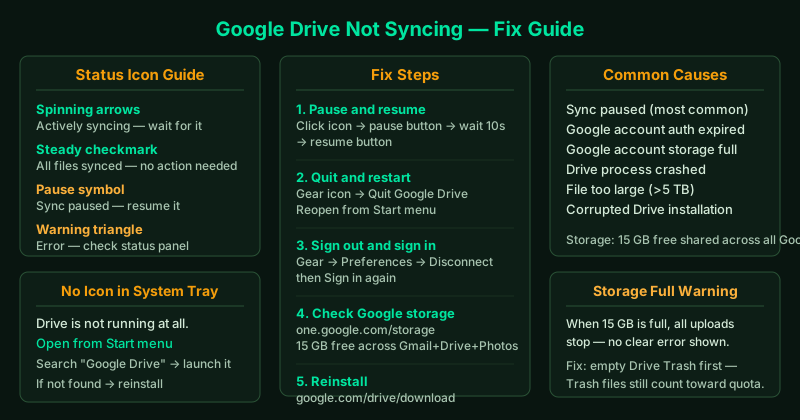
What Google Drive for Desktop does
Google Drive for Desktop (previously Backup and Sync, and before that Google Drive) creates a virtual Google Drive folder on your computer. Files you add to this folder upload to your Google account automatically. Changes you make in Google Drive online download to your computer automatically.
When sync breaks, this two-way flow stops.
What causes Google Drive to stop syncing
- Sync is paused — the most common cause; Drive can pause itself after a network error
- Authentication expired — the Google account session has expired, typically after a password change
- Google account storage full — Google offers 15 GB free across Gmail, Drive, and Photos; when full, uploads stop
- A file violates Google Drive restrictions — files larger than 5 TB, or files Google cannot process, are skipped
- The Drive for Desktop process crashed — the background sync process is no longer running
- Corrupted Drive installation — the Drive application files are damaged
How to fix Google Drive not syncing
Step 1 — Check the Google Drive status icon
Click the Google Drive icon in the system tray (a triangle in blue, green, and yellow).
What the icon means:
| Icon | Meaning |
|---|---|
| Spinning arrows | Actively syncing |
| Steady checkmark | All files synced |
| Pause symbol | Sync is paused |
| Warning triangle | Error — check the status panel |
| No icon | Google Drive is not running |
Click the icon to open the status panel. It shows:
- Files currently uploading or downloading
- Files that encountered errors (with a reason)
- How long since Drive last checked in with Google servers
If Drive shows an error message, note the exact text — it often identifies the specific cause (storage full, authentication error, or a specific file that failed).
Step 2 — Pause and resume syncing
- Click the Google Drive icon in the system tray
- Click the Pause button (two vertical bars at the top of the panel)
- Wait 10 seconds
- Click the Resume button (play triangle)
After resuming, Drive immediately checks Google servers for pending changes and restarts any stalled uploads. If a temporary network error was the cause, this alone resolves the problem.
Step 3 — Quit and restart Google Drive for Desktop
A full restart clears any hung process state:
- Click the Google Drive icon → gear icon → Quit Google Drive
- Open Task Manager (Ctrl + Shift + Esc)
- Look for googledrivesync.exe or GoogleDriveFS.exe — if found, right-click → End task
- Reopen Google Drive from the Start menu (search “Google Drive”)
After restarting, Drive reconnects to Google’s servers and downloads or uploads any pending files.
Step 4 — Sign out and sign back in
If Drive shows a sign-in error or if syncing stopped after a Google account password change:
- Click the Google Drive icon → gear icon → Preferences
- In the Preferences window, click your Google account name
- Select Disconnect account and confirm
Drive disconnects from your account and removes its local authentication token. To reconnect:
- Click the Google Drive icon — it will prompt you to sign in
- Click Sign in and complete Google’s authentication in the browser
- Choose your Google Drive folder location when prompted (use the same location as before)
After signing back in, Drive resumes syncing. It compares the local folder with your Google Drive account and only uploads or downloads what is different.
Step 5 — Check Google account storage
Google provides 15 GB of free storage shared across Gmail, Google Drive, and Google Photos. When storage is full, new uploads stop immediately.
- Go to one.google.com/storage and sign in
- Check the storage indicator
- If storage is at or near 100%, free space by:
- Deleting large files from Google Drive online
- Emptying the Google Drive Trash (files in Trash still count toward your quota)
- Removing large email attachments in Gmail
- Purchasing additional Google One storage
After freeing space, Drive resumes uploads automatically within a few minutes.
Step 6 — Reinstall Google Drive for Desktop
If none of the above steps resolved the issue, reinstall the client:
Uninstall:
- Make sure Drive is fully quit
- Go to Settings → Apps → Installed apps
- Find Google Drive and click Uninstall
Reinstall:
- Go to google.com/drive/download
- Download and run GoogleDriveSetup.exe
- Sign in with your Google account during setup
Your files in Google Drive are not affected by reinstalling — they remain in your Google account and re-sync after setup.
Checking which files are failing to sync
To see a detailed list of files that Drive could not sync:
- Click the Google Drive icon → gear icon → View sync errors (or check the status panel for a list of failed files)
- Common reasons shown:
- File too large — maximum file size is 5 TB
- Unsupported file type — some system files are excluded
- Insufficient permission — the file is locked or in a protected folder
Files that fail due to permissions or size limitations cannot be synced and should be moved out of the Drive folder.
How to verify the fix
- The Google Drive icon should show a steady checkmark (not spinning, not paused)
- Add a small test file to your Google Drive folder — the icon should spin briefly and then show a checkmark
- Open drive.google.com in a browser and confirm the test file appears there
- On a second device, open Google Drive and confirm the file is visible there as well