
OneDrive not syncing means files you add or edit on your computer are not uploading to your OneDrive account, or changes from other devices are not downloading to your PC. According to Microsoft’s official sync troubleshooting documentation, the most common causes are an expired account session, a corrupted sync database, a file with an unsupported name, or a full storage quota.
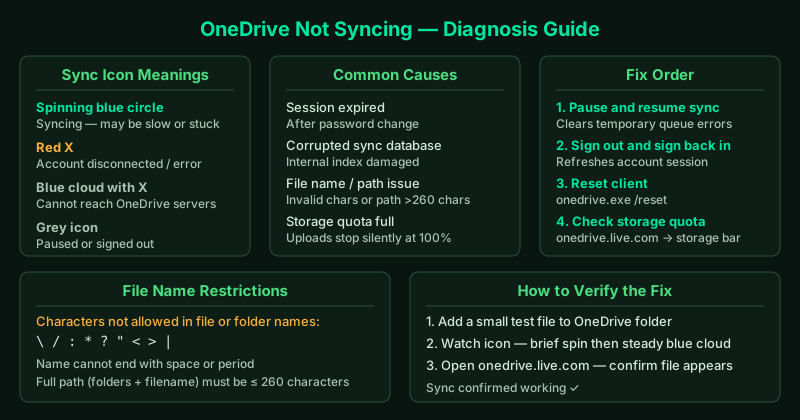
What causes OneDrive to stop syncing
OneDrive’s sync client runs as a background process. It fails when:
- Account session expired — after a password change or after a long period without signing in
- Corrupted sync database — the local index OneDrive uses to track file states becomes damaged
- File name or path restriction — files with characters like
?,",:,*,<,>,|in the name, or with a full path longer than 260 characters, are silently skipped - File locked by another application — OneDrive cannot upload a file that another program has open exclusively (common with
.pstfiles and some database files) - Storage quota full — uploads stop completely when the account reaches its storage limit
- OneDrive process crashed — the background sync process stopped and did not restart
How to fix OneDrive not syncing
Step 1 — Check the OneDrive sync icon
Click the OneDrive icon in the system tray (bottom-right corner of the taskbar — you may need to click the arrow to show hidden icons).
The icon tells you what is wrong:
| Icon | Meaning |
|---|---|
| Blue spinning circle | Syncing in progress — may be a large file or slow connection |
| Red X | Account disconnected or error — sign in required |
| Blue cloud with X | Cannot connect to OneDrive servers |
| Grey icon | OneDrive is paused or you are signed out |
Click the icon to open the activity panel. It shows which files are syncing, which are blocked, and a brief reason for any errors. This is the fastest way to identify the specific cause.
Step 2 — Pause and resume syncing
A stuck sync queue often clears itself when you pause and resume:
- Right-click the OneDrive icon in the system tray
- Select Pause syncing → choose 2 hours
- Wait 10 seconds
- Right-click the icon again and select Resume syncing
OneDrive restarts its upload queue from scratch. If the stuck file was caused by a temporary network hiccup or a brief file lock, this resolves it without any further action.
Step 3 — Sign out and sign back in
If the icon shows a red X or a “sign-in required” message, your OneDrive session has expired — typically after a password change or a long gap between uses.
- Click the OneDrive icon in the system tray
- Click the Settings gear → Settings
- Go to the Account tab
- Click Unlink this PC → confirm
OneDrive closes. To reconnect:
- Open OneDrive from the Start menu (search “OneDrive”)
- Sign in with your Microsoft account credentials
- When asked for the folder location, choose the same folder (e.g.,
C:\Users\YourName\OneDrive) - Let OneDrive finish its initial scan — this may take several minutes for large libraries
Your local files are not deleted during this process. OneDrive compares what is on disk with what is in the cloud and only uploads what is missing.
Step 4 — Reset the OneDrive client
If signing out did not fix the problem, reset the client. This clears OneDrive’s sync database — the internal index that tracks which files have been synced — without deleting any of your files.
- Press Win + R to open the Run dialog
- Paste the following command exactly and press Enter:
%localappdata%\Microsoft\OneDrive\onedrive.exe /reset- The OneDrive icon will disappear from the system tray — this is expected
- Wait 2 minutes
- If OneDrive does not restart automatically, press Win + R again and run:
%localappdata%\Microsoft\OneDrive\onedrive.exeAfter the reset, OneDrive re-scans all files in your OneDrive folder and rebuilds the sync database. This process can take 10–30 minutes for large accounts.
Step 5 — Check your storage quota
A full OneDrive account stops uploading silently — no obvious error message, just a persistent red X.
- Go to onedrive.live.com in a browser and sign in
- Look at the storage indicator in the bottom-left corner
- If it shows 100% or “Storage full”, that is the cause
To free space:
- Delete files or folders you no longer need from OneDrive online
- Empty the OneDrive Recycle Bin (deleted files count against your quota until the bin is emptied)
- Move files from OneDrive to local storage if you do not need cloud backup for them
Once space is available, syncing resumes automatically within a few minutes.
How to find files that OneDrive is skipping
OneDrive silently skips files with unsupported characters in their name or path. To check:
- Click the OneDrive icon → Help & Settings → View sync problems
- This opens a window listing every file OneDrive is failing to sync and the reason
Common file name problems:
- Characters not allowed:
\ / : * ? " < > | - File name ends with a space or period
- Full path (folder + file name) longer than 260 characters
- Temporary files (files starting with
~$) — these are usually safe to ignore
Rename or move the affected files, and OneDrive will pick them up on the next sync cycle.
How to verify the fix
- Add a small test file (a new text document) to your OneDrive folder
- Watch the OneDrive icon in the system tray — it should show a spinning circle briefly, then return to the steady blue cloud
- Open onedrive.live.com in a browser and confirm the file appears there
- If the file appears online, sync is working correctly