
OneDrive not working covers several different symptoms: the OneDrive icon is missing from the system tray, the application crashes on startup, it shows account errors, or it opens but refuses to sync anything. According to Microsoft’s official troubleshooting documentation, these problems are most commonly caused by a crashed OneDrive process, an expired account session, or corrupted OneDrive installation files.
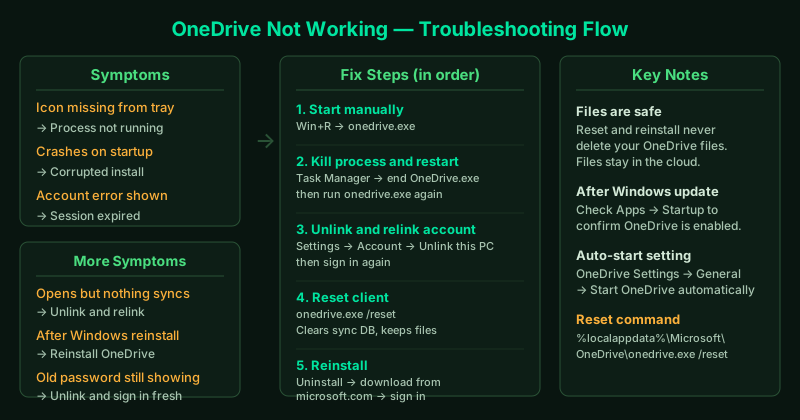
What “OneDrive not working” looks like
The symptoms range in severity:
- OneDrive icon missing from system tray — the process is not running
- OneDrive crashes immediately on startup — corrupted installation or conflicting software
- “You’re not signed in” or account error — session expired or account credentials changed
- OneDrive opens but nothing syncs — the sync service is running but failing silently
- OneDrive not working after Windows update — the update replaced or reset OneDrive components
How to fix OneDrive not working
Step 1 — Start OneDrive manually
If the OneDrive icon is missing from the system tray, the process may have simply not started at login.
- Press Win + R to open the Run dialog
- Type or paste the following and press Enter:
%localappdata%\Microsoft\OneDrive\onedrive.exeIf OneDrive opens and appears in the system tray, it was not set to start automatically. To fix this:
- Click the OneDrive icon → Settings gear → Settings
- Go to the General tab
- Check Start OneDrive automatically when I sign in to Windows
Alternatively, go to Settings → Apps → Startup and make sure Microsoft OneDrive is enabled.
Step 2 — End the OneDrive process and restart it
If OneDrive is running but not functioning correctly, the process may be in a hung or error state.
- Press Ctrl + Shift + Esc to open Task Manager
- Click the Details tab
- Find OneDrive.exe in the list
- Right-click it and select End task — confirm if prompted
- Press Win + R and run:
%localappdata%\Microsoft\OneDrive\onedrive.exeThis gives OneDrive a clean start. Most issues caused by a hung process are resolved by this alone.
Step 3 — Unlink and relink your account
If OneDrive shows an account error, a “sign-in required” message, or a red X that persists after restarting, the account session has expired. This happens after a password change, after a long period without using OneDrive, or after a Windows account change.
- Click the OneDrive icon in the system tray
- Click the Settings gear → Settings
- Go to the Account tab
- Click Unlink this PC and confirm
OneDrive closes and removes its local account configuration. To reconnect:
- Open OneDrive from the Start menu
- Sign in with your Microsoft account (the same account your files are stored in)
- When prompted for a folder location, choose the same folder you were using before (e.g.,
C:\Users\YourName\OneDrive) - Allow OneDrive to complete its initial scan
Your local files are not deleted. OneDrive compares what is on disk with what is in the cloud and syncs the differences.
Step 4 — Reset the OneDrive client
If unlinking did not resolve the issue, reset the client. This clears all OneDrive settings and rebuilds the sync database — without deleting your files.
- Press Win + R
- Run:
%localappdata%\Microsoft\OneDrive\onedrive.exe /reset- The OneDrive icon disappears — this is expected
- Wait 2 minutes
- If OneDrive does not restart automatically, open Run again and execute:
%localappdata%\Microsoft\OneDrive\onedrive.exeAfter the reset, OneDrive signs you in automatically using your stored credentials and begins re-syncing all files.
Step 5 — Reinstall OneDrive
If OneDrive crashes on startup or if the reset does not work, the installation files may be corrupted.
Uninstall OneDrive:
- Go to Settings → Apps → Installed apps
- Search for Microsoft OneDrive
- Click the three-dot menu → Uninstall → confirm
Reinstall OneDrive:
- Go to microsoft.com and download the latest OneDrive installer
- Run the downloaded
OneDriveSetup.exe - Sign in with your Microsoft account when prompted
- Choose your OneDrive folder location
Reinstalling replaces all program files and resets the application to a clean state. Your cloud files are not affected — they remain in your OneDrive account and re-sync after setup.
OneDrive not working after a Windows update
Windows updates occasionally reset OneDrive settings or replace the OneDrive binary with an older version. If OneDrive stopped working after a Windows update:
- Check if OneDrive is still installed: search for “OneDrive” in the Start menu
- If not found, reinstall using the link above
- If found but not working, run the reset command (Step 4)
- Also check Settings → Apps → Startup to confirm OneDrive is enabled to start automatically
How to verify the fix
- The OneDrive icon should appear as a steady blue cloud in the system tray
- Click the icon — it should show your account name and storage usage, not an error
- Add a small test file to your OneDrive folder and confirm it uploads (the icon shows a spinning circle briefly, then returns to steady blue)
- Open onedrive.live.com and confirm the test file appears there