
Excel file not opening means the application launches but a specific spreadsheet fails to load — you see an error message such as “Excel cannot open the file because the format or extension is not valid,” a blank screen, or the file appears to open but shows no content. According to Microsoft’s Office support documentation, this problem is almost always caused by file corruption, a Protected View restriction, or a format mismatch between the file’s extension and its actual content.
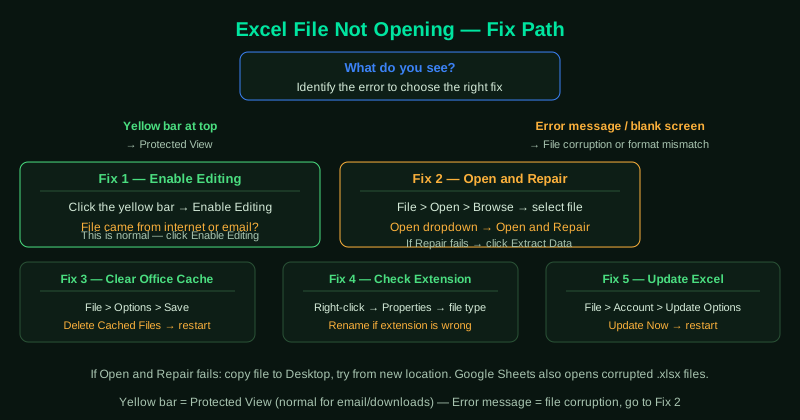
What causes Excel files not to open
Protected View blocking the file — Excel quarantines files from the internet, email attachments, and untrusted locations in Protected View. These files open in a read-only sandbox and display a yellow warning bar. Clicking Enable Editing exits Protected View and opens the file normally.
Corrupted file structure — Incomplete downloads, abrupt power loss during save, or storage media errors can corrupt an .xlsx file’s internal ZIP structure. Excel cannot read a damaged file and displays an error instead of opening it.
Format and extension mismatch — Files created by third-party software and labeled as .xlsx sometimes use an incompatible internal format. Excel detects the mismatch and refuses to open the file.
Outdated Excel version — Microsoft regularly introduces new Excel features and functions. A file created with a newer Excel version may use functions or formatting that an older version cannot parse, resulting in an error on open.
How to fix Excel file not opening
Start with step 1 (Protected View) — this resolves the majority of cases involving downloaded or emailed files. If no Protected View bar appears, proceed directly to step 2 (Open and Repair).
How to verify the fix
After applying each step, try opening the file and check that all sheets, data, and formatting are visible and intact. If the file opens but some data appears missing, use File > Open > Open and Repair > Extract Data to recover the full content.
Step-by-step fix
Check if the file is blocked by Protected View
Excel's Protected View quarantines files downloaded from the internet or received by email. When a file opens in Protected View, a yellow warning bar appears at the top. Click Enable Editing to open the file normally. If no yellow bar appears and Excel shows an error instead, Protected View is not the issue — proceed to the next step. To permanently allow files from specific locations, go to File > Options > Trust Center > Trust Center Settings > Trusted Locations.
Use Excel's built-in Open and Repair
Open Excel without opening any file. Go to File > Open > Browse, navigate to the problem file, but do not double-click it. Instead, click the dropdown arrow next to the Open button and select Open and Repair. In the dialog that appears, click Repair first. If Repair fails, repeat the process and click Extract Data instead — this recovers the cell values and formulas even from severely corrupted workbooks.
Clear the Office document cache
A corrupted Office cache can cause Excel to fail on files it previously opened successfully. Open the Office Upload Center (search for it in the Start menu) or open any Office application, go to File > Options > Save, and click Delete Cached Files. Alternatively, navigate to C:\Users\[YourName]\AppData\Local\Microsoft\Office\16.0\OfficeFileCache and delete all files inside. Restart Excel and try opening the file again.
Check the file extension and format
A file saved as .xlsx but containing .xls content (or vice versa) causes Excel to display a format mismatch error. Right-click the file in File Explorer, select Properties, and check the file type. If the extension does not match the actual format, rename the file with the correct extension. Also check if the file was created by a non-Microsoft application — some accounting or ERP systems export files labeled as .xlsx that use an incompatible format.
Update Microsoft Excel
Older Excel versions cannot open files created with newer Office features or saved in newer formats. Open any Excel file, go to File > Account > Update Options > Update Now. Install all available updates and restart. If Excel is managed by your organization and updates are restricted, contact your IT administrator — the file may require a newer Excel version than the one deployed in your organization.