
Excel not responding means the application freezes and stops accepting input — the title bar displays “Not Responding,” scrolling halts, and clicking anywhere in the Excel window has no effect. According to Microsoft’s official Excel troubleshooting documentation, the most common causes are third-party add-ins conflicting with Excel, hardware acceleration incompatibility, or insufficient system memory when working with large workbooks.
What causes Excel to freeze and stop responding
Add-in conflict — Third-party Excel add-ins (data analysis tools, CRM integrations, PDF exporters) inject code into the Excel process. After an Office update, these add-ins can trigger freezes because they were built for an older Excel version.
Hardware acceleration mismatch — Excel uses the GPU to render large spreadsheets. On systems with outdated graphics drivers, this causes the rendering to stall, locking the entire application.
Large workbook processing — A workbook with thousands of rows, complex array formulas, or many conditional formatting rules can take minutes to recalculate. During this time, Excel’s window becomes unresponsive even though the application is actively working.
Corrupted Office installation — Incomplete updates or antivirus quarantine actions can corrupt Excel’s executable or supporting DLL files, causing intermittent freezes with no clear trigger.
How to fix Excel not responding
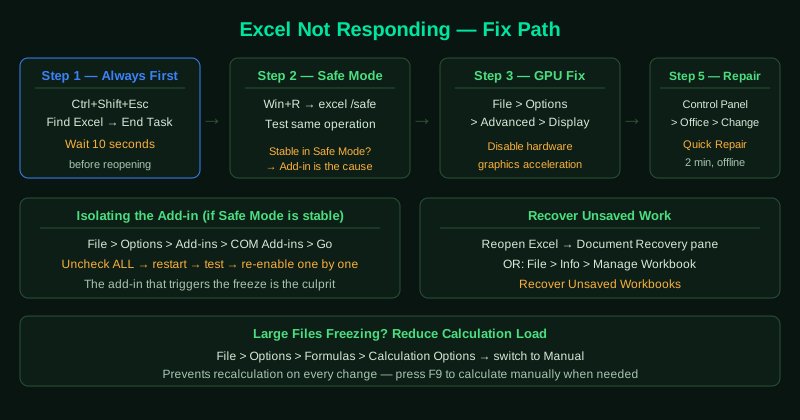
Work through these steps in order. Most freezes are resolved at step 2 (Safe Mode add-in test) or step 5 (Office Repair).
How to verify the fix
Reopen the file that previously caused the freeze. Scroll through several sheets, perform a save, and apply a filter to a large dataset. If Excel remains responsive throughout, the fix worked. If a specific file still causes freezing but others do not, the issue is with that file — try opening it via File > Open > and selecting Open and Repair from the dropdown arrow next to the Open button.
Step-by-step fix
End the frozen Excel process in Task Manager
Press Ctrl + Shift + Esc to open Task Manager. Find Microsoft Excel in the list — its status will show Not Responding. Right-click it and select End Task. Wait 10 seconds for the process to fully close. This is always the first step — ending the frozen process allows a clean restart and prevents Windows from accumulating multiple stuck Excel instances.
Open Excel in Safe Mode to isolate add-ins
Hold the Ctrl key and double-click the Excel shortcut (or press Windows + R, type excel /safe, and press Enter). Excel Safe Mode disables all add-ins and custom toolbars. If Excel runs normally in Safe Mode but freezes in normal mode, a third-party add-in is causing the problem. Go to File > Options > Add-ins, set the dropdown to COM Add-ins, click Go, and uncheck each add-in one at a time to find the culprit.
Disable hardware acceleration
Go to File > Options > Advanced. Scroll down to the Display section and check Disable hardware graphics acceleration. Click OK and restart Excel. Hardware acceleration offloads rendering to the GPU, but on systems with outdated or incompatible drivers, this causes Excel to freeze — especially when scrolling through large spreadsheets or switching between sheets.
Check and free up available memory
Large Excel files with many formulas, pivot tables, or conditional formatting rules consume significant memory. Open Task Manager and check the Memory column — if your system is above 85% memory usage, Excel will freeze frequently. Close other applications to free memory. In Excel, go to File > Options > Formulas and switch from Automatic to Manual calculation to prevent Excel from recalculating the entire workbook on every change.
Repair the Microsoft Office installation
Go to Control Panel > Programs and Features. Find Microsoft 365 or Microsoft Office in the list, click Change, and select Quick Repair. Click Repair and wait for the process to complete (about 2 minutes). Quick Repair runs without internet access and replaces corrupted Office files. If the freeze continues, run Online Repair instead — it downloads fresh Office files from Microsoft and performs a more thorough repair.