
Excel keeps crashing means the application closes unexpectedly without a warning — you are working in a spreadsheet and Excel simply disappears, or it crashes specifically when saving, printing, or performing certain operations. According to Microsoft’s Office troubleshooting documentation, the most common causes of Excel crashes are COM add-in conflicts, hardware acceleration issues with graphics drivers, and real-time antivirus interference during file save operations.
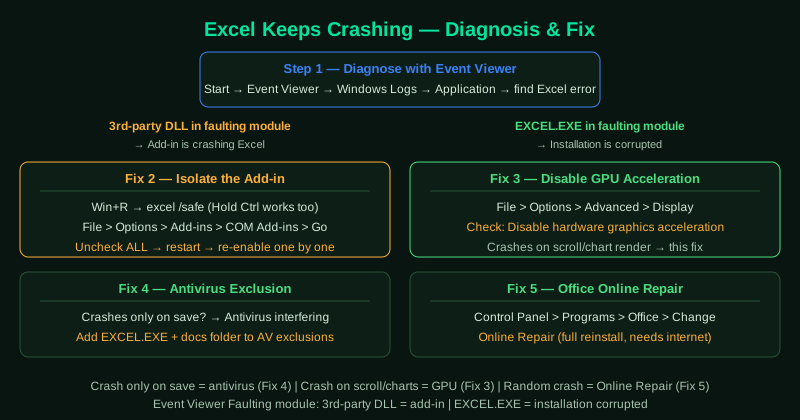
What causes Excel to keep crashing
COM add-in conflict — Excel add-ins run inside the Excel process and can crash it entirely when they encounter errors. After an Office update, add-ins built for an older Excel version often become unstable and cause crashes during specific operations.
Antivirus interference during save — Real-time antivirus protection scans files as they are written to disk. When antivirus blocks or delays Excel’s write operation, Excel’s file-writing routine times out and crashes.
Hardware acceleration driver bug — GPU rendering crashes are typically triggered by a specific operation — scrolling through a large spreadsheet, rendering a chart, or applying conditional formatting to a large range. These crashes are reproducible and always happen at the same point.
Corrupted installation — Incomplete Office updates or antivirus quarantine actions that remove Office files cause Excel to crash at random points with no consistent trigger.
How to fix Excel keeps crashing
Start with step 1 — checking Event Viewer takes 2 minutes and immediately tells you whether an add-in or the installation is the cause, saving you from applying the wrong fix.
How to verify the fix
Perform the exact operation that previously caused the crash — save the file, print a sheet, or open the specific spreadsheet that triggered it. If Excel completes the operation without closing, the fix worked. Monitor Excel across several sessions, as some crash triggers are intermittent.
Step-by-step fix
Identify the crash trigger
Open Windows Event Viewer (search in Start menu). Go to Windows Logs > Application and look for Error events with Source listed as Microsoft Excel or Application Error. The Faulting module name in the event details identifies the cause: if it shows a third-party DLL name (not EXCEL.EXE or Microsoft DLL), an add-in is crashing Excel. If the faulting module is EXCEL.EXE itself, the installation is corrupted. This diagnosis saves time by pointing directly to the correct fix.
Disable all add-ins and test
Open Excel in Safe Mode by holding Ctrl while launching, or press Windows + R, type excel /safe, and press Enter. Work normally in Safe Mode — open a file, save it, and perform the action that previously caused the crash. If Excel does not crash in Safe Mode, a COM add-in is the cause. Go to File > Options > Add-ins > COM Add-ins > Go, uncheck all add-ins, and restart Excel normally. Re-enable add-ins one at a time to identify which one crashes Excel.
Disable hardware acceleration
Go to File > Options > Advanced. Scroll to the Display section and check Disable hardware graphics acceleration. Click OK and restart Excel. A GPU driver conflict is a common cause of crashes when Excel is scrolling through large spreadsheets, applying cell formatting to large ranges, or rendering charts with many data points.
Check for conflicting third-party software
Antivirus software that scans files in real time can conflict with Excel during save operations, causing Excel to crash when it tries to write to disk. Temporarily disable real-time protection and attempt the operation that previously caused the crash. If Excel stops crashing, add the Excel executable (EXCEL.EXE) and your documents folder to the antivirus exclusion list. Also check if any screen recording, clipboard manager, or remote desktop tools are running — these can intercept Excel's rendering calls and cause crashes.
Run Office Online Repair
Go to Control Panel > Programs and Features, find Microsoft 365 or Microsoft Office, click Change, and select Online Repair. Unlike Quick Repair, Online Repair downloads fresh Office files from Microsoft's servers and performs a complete reinstallation of Office components. This resolves crashes caused by corrupted installation files that Quick Repair cannot fix. After Online Repair completes, restart your computer before testing.