
Malwarebytes not opening on Windows 11 means clicking the Malwarebytes icon produces no response, Malwarebytes opens briefly and then closes, or the application reports that the Malwarebytes Service is not running. According to Malwarebytes’ official support documentation, this failure pattern is caused by a break between Malwarebytes’ two components — the background protection service (MBAMService.exe) and the user interface (mbam.exe) — rather than a single corrupted file, which is why the standard fix is re-establishing that connection through a service restart or reinstall.
What causes Malwarebytes not opening on Windows 11
MBAMService stopped or crashed — Malwarebytes Premium separates its protection engine into a background service (MBAMService) and a user interface (mbam.exe). If MBAMService stops — due to a Windows Update, a crash, or resource constraints — the interface cannot connect to the engine and reports an error. The service stopping silently in the background is the most common cause of Malwarebytes appearing to “not open.”
Corrupted installation after Windows update — Major Windows 11 feature updates modify system components in ways that can corrupt third-party application installations. Malwarebytes’ protection driver (mbam.sys) is particularly vulnerable because it operates at the kernel level — if the driver’s registry registration becomes invalid after an update, MBAMService cannot load it and will fail to start.
Conflict with another security product — If a full antivirus product (Norton, McAfee, Kaspersky) is installed alongside Malwarebytes, it may classify Malwarebytes’ heuristic engine behaviour as suspicious and block its launch. This is a known issue with aggressive antivirus products that monitor all processes for suspicious activity.
Corrupted self-protection driver remnants — Malwarebytes installs a self-protection driver (MBAMChameleon) that prevents malware from disabling it. If Malwarebytes was previously uninstalled incompletely, the remnants of this driver can block fresh installations from initialising correctly — the new install’s driver conflicts with the orphaned old driver registration.
How to fix Malwarebytes not opening on Windows 11
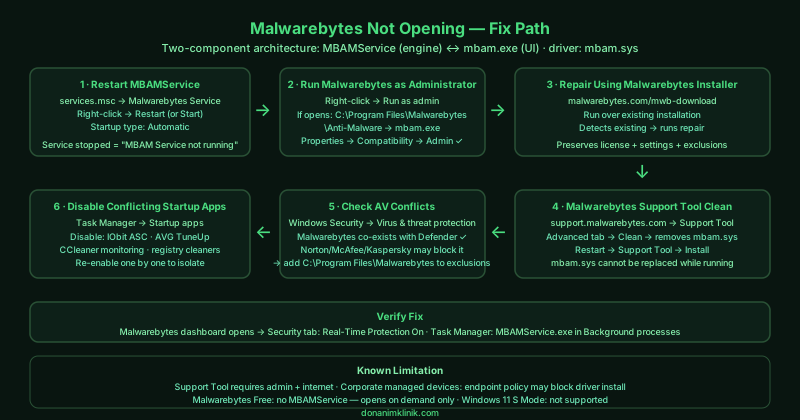
Work through the steps in order. Steps 1–2 are quick; the Support Tool (step 4) resolves all installation-related causes.
How to verify the fix
After each fix attempt, open Malwarebytes from the Start menu. The main dashboard should load and display Your protection status — scan result and date of last scan should be visible. For Malwarebytes Premium, check that Real-Time Protection is toggled on under the Security tab. Open Task Manager and confirm MBAMService.exe appears under Background processes. In Windows Security, Malwarebytes should appear listed under Virus & threat protection as active (alongside Windows Defender).
Known limitations
The Malwarebytes Support Tool’s Clean function requires administrator access and an active internet connection to download the latest installer after cleaning. On corporate devices managed by IT policy, Malwarebytes may be blocked from running its self-protection driver by endpoint management software — reinstallation through the Support Tool may require IT approval. Malwarebytes Free has no background service to restart — if Free is installed, the app opens on demand and the service-related steps in this guide do not apply. Additionally, Malwarebytes does not support Windows 11 S Mode, which restricts all applications to the Microsoft Store — Malwarebytes is not available through the Microsoft Store and cannot be installed on S Mode devices.
Step-by-step fix
Restart the Malwarebytes Service from Windows Service Manager
Press Windows + R, type services.msc, and press Enter. Look for Malwarebytes Service (MBAMService). Right-click it and select Restart. If the service shows Stopped status, right-click and select Start. Also verify its Startup type is set to Automatic — right-click, select Properties, and check the Startup type dropdown. Malwarebytes separates its protection engine (the MBAMService, running as a background service) from its user interface (MBAMGui.exe). If MBAMService is stopped, the user interface cannot connect to the protection engine and will fail to open or will report 'Malwarebytes Service is not running.' After restarting the service, try opening Malwarebytes from the Start menu.
Run Malwarebytes as administrator
Right-click the Malwarebytes icon in the taskbar, system tray, or Start menu and select Run as administrator. Windows 11 security changes introduced after certain cumulative updates can prevent Malwarebytes from accessing its own service without elevation. If Malwarebytes opens successfully when run as administrator, navigate to the Malwarebytes installation directory — typically C:\Program Files\Malwarebytes\Anti-Malware. Right-click mbam.exe, select Properties > Compatibility, and check Run this program as an administrator to make elevated access permanent. Malwarebytes Premium specifically requires consistent administrator access to manage its real-time protection components.
Repair Malwarebytes using its installer
Download the latest Malwarebytes installer from malwarebytes.com/mwb-download. Run the installer over the existing Malwarebytes installation — the installer detects the existing installation and performs a repair sequence rather than a fresh install. This re-registers Malwarebytes with Windows, replaces any corrupted files, and re-establishes the connection between the MBAMService and the user interface. The repair preserves your license, settings, and exclusions. If the installer reports it cannot repair the current installation (which happens when core files are missing or the MBAMService registration is corrupted), proceed to the Support Tool in the next step.
Download and run the Malwarebytes Support Tool for a clean reinstall
The Malwarebytes Support Tool is the official deep-removal and reinstallation utility. Download it from Malwarebytes' support site (support.malwarebytes.com, search 'Malwarebytes Support Tool'). Run the tool and select Advanced tab > Clean. The Clean option removes all Malwarebytes components including its self-protection driver (mbam.sys), registry entries under HKLM\SYSTEM\CurrentControlSet\Services\MBAMChameleon and related keys, and application data. After the clean completes, the tool prompts you to restart. After restarting, run the Support Tool again and select Install to install the latest version of Malwarebytes. This process reinstalls the driver cleanly, which is the key difference from the standard installer — mbam.sys cannot be unloaded and replaced while Windows is running.
Check for conflicts with Windows Defender or another antivirus
Malwarebytes is designed to run alongside Windows Defender — it registers as an anti-malware tool rather than a primary antivirus, which allows co-existence without Windows Security Centre disabling Defender. However, if another full antivirus (Norton, McAfee, Kaspersky) is installed alongside Malwarebytes, the combination can cause Malwarebytes to fail to initialise. Open Windows Security > Virus & threat protection to check which products are registered. If a third-party antivirus other than Malwarebytes is listed as the primary provider, check its exclusions settings and add the Malwarebytes installation directory (C:\Program Files\Malwarebytes) as an exclusion — some antivirus products flag Malwarebytes' heuristic engine as suspicious.
Reinstall Malwarebytes after checking for software conflicts
Some system optimisers, cleanup tools, and 'PC speedup' applications interfere with Malwarebytes' initialisation. Open Task Manager > Startup apps tab and temporarily disable any non-Windows and non-essential startup programs. Restart your computer and try opening Malwarebytes before re-enabling other startup apps. Common conflict sources include IObit Advanced SystemCare, AVG TuneUp, CCleaner's monitoring service, and registry cleaners that delete entries Malwarebytes stores for its service configuration. If Malwarebytes opens after disabling startup programs, re-enable them one at a time to identify the conflicting application.