
McAfee not opening on Windows 11 means the McAfee Total Protection or McAfee LiveSafe application does not respond when its icon is clicked, launches briefly then disappears, or the interface fails to load while McAfee’s background services continue running. According to McAfee’s official support documentation, this class of failure is almost always caused by a corrupted component in McAfee’s multi-layer architecture — the security engine may be active and protecting the computer while the interface cannot connect to it.
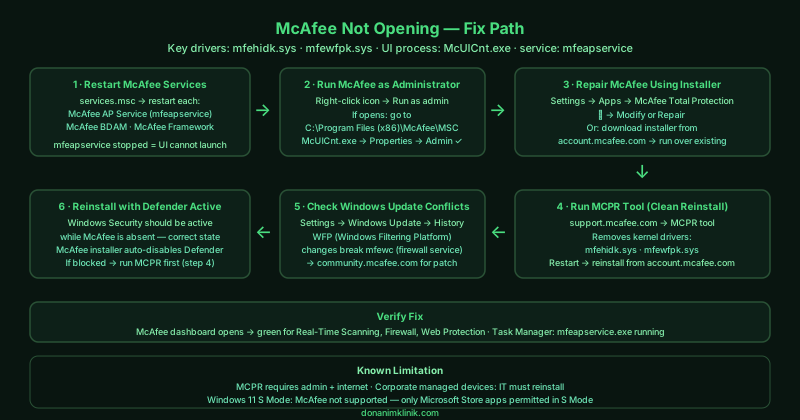
What causes McAfee not opening on Windows 11
Corrupted McAfee service — McAfee runs multiple interdependent Windows services. The AP Service (mfeapservice) is the primary orchestration service that the UI connects to — if this service fails to start, the McAfee interface cannot load regardless of the other services’ states.
Kernel-level driver conflict — McAfee installs drivers at the Windows kernel level (mfehidk.sys, mfewfpk.sys) that load before Windows completes startup. Windows Update changes that affect the Windows Filtering Platform (WFP) can leave these drivers in an incompatible state, preventing the associated services from initialising.
Failed update or incomplete installation — McAfee updates its components silently in the background. If an update is interrupted — by a restart, power interruption, or network loss — the installation can be left partially applied, with some components at the new version and others at the old version, causing initialisation failures.
Leftover remnants from a previous installation — If McAfee was previously installed, partially uninstalled, and reinstalled, the standard uninstaller often leaves driver files and registry entries from the previous installation that conflict with the new one.
How to fix McAfee not opening on Windows 11
Work through the steps in order. For most users, steps 1–3 are faster to attempt first. The MCPR tool (step 4) reliably resolves all installation-related causes.
How to verify the fix
After each fix attempt, open McAfee Total Protection from the Start menu. The main dashboard should load showing your protection status — green indicators for Real-Time Scanning, Firewall, and Web Protection. Check that the subscription expiry date shown matches your account at account.mcafee.com. Open Task Manager and confirm mfeapservice.exe appears under Background processes.
Known limitations
McAfee’s MCPR tool requires administrator access and an active internet connection to download McAfee’s current installer during reinstallation. On corporate-managed computers where software installation requires IT approval, MCPR may be blocked by endpoint management policies — the IT department must perform the reinstallation through the managed deployment system. Additionally, McAfee does not support Windows 11 in S Mode — S Mode restricts all software to Microsoft Store applications, which excludes McAfee. If the device runs Windows 11 S Mode, McAfee cannot be installed; switching out of S Mode is permanent and requires signing into a Microsoft account.
Step-by-step fix
Restart McAfee services in Windows Service Manager
Press Windows + R, type services.msc, and press Enter. Look for services prefixed with 'McAfee' — common ones include McAfee AP Service (mfeapservice), McAfee BDAM (mfebdam), McAfee Framework Service (mcafeeframework), and McAfee Core Threat Intelligence Service. Right-click each McAfee service that is not running and select Start. If a service shows an error status, right-click it and select Restart. McAfee's UI depends on its AP Service being active — if mfeapservice is stopped, the McAfee interface cannot launch. After starting stopped services, try opening McAfee from the Start menu or taskbar.
Run McAfee as administrator
Right-click the McAfee icon in the taskbar system tray or Start menu and select Run as administrator. On Windows 11, permission changes from Windows Update can prevent McAfee from accessing the elevated privileges it requires to initialise. If McAfee opens successfully when run as administrator, go to the McAfee executable in Program Files (usually C:\Program Files\McAfee\WebAdvisor or C:\Program Files (x86)\McAfee Security Scan), right-click McUICnt.exe, select Properties > Compatibility, and check Run this program as an administrator.
Repair McAfee using its installer
Open Settings > Apps > Installed apps. Search for McAfee Total Protection and click the three-dot menu next to it. If a Modify or Repair option is available, select it and follow the prompts. If only Uninstall appears, download the latest McAfee installer from account.mcafee.com after signing in — running the installer over an existing installation triggers a repair sequence. The repair re-registers McAfee's components with Windows and replaces missing files without requiring a full reinstall or removing your settings.
Download and run the MCPR tool for a clean reinstall
The McAfee Consumer Product Removal (MCPR) tool is McAfee's official deep-removal utility. Download it from McAfee's support site (search 'MCPR tool' on support.mcafee.com). Before running MCPR, close all applications and disconnect any VPN. Run MCPR as administrator, accept the license agreement, complete the CAPTCHA, and click Remove. After removal, restart your computer. Then sign in to account.mcafee.com, go to My Account > Subscriptions, and download and reinstall McAfee from your account. MCPR removes components that the standard uninstaller misses — including kernel-level drivers (mfehidk.sys, mfewfpk.sys) that can persist and block reinstallation.
Check for Windows Update conflicts
Certain Windows 11 cumulative updates modify the Windows Filtering Platform (WFP) — the kernel-level network filtering API that McAfee's firewall component integrates with. After these updates, McAfee's firewall service (mfewc) can fail to start, which cascades into the entire McAfee interface failing to load. Open Windows Update history (Settings > Windows Update > Update history) and note any update installed on the day McAfee stopped working. Check McAfee's community forums (community.mcafee.com) for any reported issues with that specific update — McAfee typically releases a patch within days.
Reinstall McAfee with Windows Defender temporarily active
When McAfee is not running, Windows Defender may have re-enabled itself to provide protection. Before reinstalling McAfee, verify Windows Defender is active by opening Windows Security — this is the correct state. Download McAfee's installer from account.mcafee.com and install it. During installation, McAfee will automatically disable Windows Defender and register itself as the active security provider. If the installer reports that another antivirus is blocking installation, run MCPR first (step 4) to ensure no McAfee remnants are causing the conflict.