
McAfee slowing down your computer means the system becomes noticeably sluggish after installing McAfee Total Protection — programs open slowly, file operations lag, startup takes longer, or Task Manager shows McAfee processes using sustained high CPU or disk. According to McAfee’s official support documentation, the primary driver of McAfee-related performance impact is the scan engine (mcshield.exe) competing for disk I/O with active applications, either through scheduled full scans running during working hours or real-time scanning of high-activity directories.
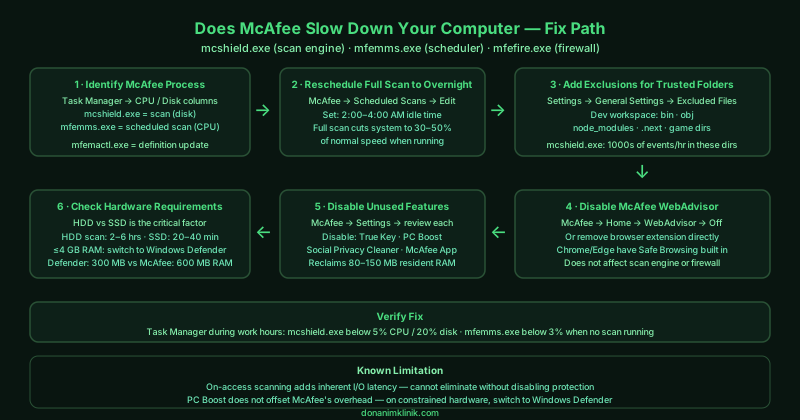
What causes McAfee to slow down your computer
Scan engine disk I/O during working hours — McAfee’s scheduled full-system scan (driven by mcshield.exe via mfemms.exe) reads every file on the primary drive sequentially. On spinning hard drives, this saturates the drive’s read throughput for the entire scan duration. On SSDs, it still competes with foreground application I/O and causes measurable latency. The scan’s timing is controlled by McAfee’s scheduler — if it runs during the day, the impact is directly felt.
Real-time scanning of high-activity directories — mcshield.exe intercepts every file read, write, and execute operation system-wide. Code compilation directories, download folders, game directories, and video editing working files can generate tens of thousands of file events per hour. McAfee scans each one, adding latency to every operation in those folders.
WebAdvisor browser overhead — McAfee WebAdvisor performs URL and page content inspection within the browser on every navigation. On pages with many third-party resources, WebAdvisor’s checks add perceptible loading delays.
Background feature services consuming resident memory — McAfee’s feature set beyond antivirus (True Key, PC Boost, Social Privacy Cleaner) all maintain background services that consume RAM even when not actively used, leaving less memory available for applications on systems near their RAM limit.
How to fix McAfee slowing down your computer
Work through the steps in order. Step 2 (rescheduling the full scan) and step 3 (adding exclusions) provide the most immediate improvement for most users.
How to verify the fix
After adjusting the scan schedule and adding exclusions, monitor Task Manager during normal working hours. mcshield.exe disk usage should stay below 5% outside of active scan periods. mfemms.exe CPU should remain below 3% when no scan is running. If startup is slow, compare the McAfee service startup times in Event Viewer (Windows Logs > System) before and after changes — look for entries from McAfee services to see their initialisation time.
Known limitations
Optimising McAfee’s scan schedule and exclusions reduces the performance impact but cannot eliminate it. McAfee’s real-time scan engine intercepts every file operation by design — this is the fundamental mechanism of on-access scanning and cannot be configured away without disabling real-time protection. On computers with 4 GB RAM or less, or with a spinning hard drive, McAfee’s baseline memory footprint leaves insufficient headroom for smooth multitasking. In these hardware configurations, switching to Windows Security (Windows Defender, built into Windows 11, no additional overhead) is a more effective performance solution than any McAfee configuration change. McAfee’s PC Boost feature — which claims to improve system performance — does not compensate for the overhead McAfee itself introduces; in practice it adds a background monitoring service without measurable user-facing benefit on systems already under resource pressure.
Step-by-step fix
Identify which McAfee process is causing high CPU or disk usage
Open Task Manager (Ctrl + Shift + Esc) and click the CPU or Disk column to sort by usage. McAfee runs several processes with distinct roles: mcshield.exe is the real-time scan engine — if this shows high disk usage, McAfee is actively scanning files being read or written. mfemms.exe is the McAfee Service Host managing background tasks including scheduled scans. mfefire.exe handles the McAfee firewall. mfemactl.exe manages McAfee's auto-updates and definition downloads. Identifying which process is responsible tells you exactly which McAfee component to address — high mcshield.exe disk usage during working hours is almost always caused by real-time scanning of high-activity directories, while high mfemms.exe CPU indicates an active scheduled scan.
Reschedule the McAfee full scan to run overnight
Open McAfee Total Protection. Go to the Scheduled Scans section — the exact path depends on version, but it is typically under Protection > Virus and Spyware Protection > Scheduled Scans. If you see a default scan scheduled to run automatically at a fixed time (often midday), click Edit and change it to a time when the computer is idle — 2:00 AM to 4:00 AM on a weekday morning works well. If the computer is off at the scheduled time, McAfee will run the scan during the next period of inactivity instead. The full scan in McAfee reads every file on the primary storage drive and is the single most resource-intensive operation McAfee performs — the impact during the scan can reduce system responsiveness to 30–50% of normal.
Add exclusions for trusted high-activity directories
McAfee's real-time scan engine (mcshield.exe) inspects every file as it is read, written, or executed. In high-activity folders — IDE project directories, compiler output folders, download directories, game installation folders, and video editing project directories — mcshield.exe generates thousands of scan events per hour. Open McAfee Total Protection > Settings (gear icon) > General Settings and Alerts. Scroll down to Excluded Files and Folders and click Add File or Folder. Add any directories you create and fully control: for software developers, the project workspace and build output directories (bin, obj, node_modules, .next) account for the majority of scan overhead. Never exclude system directories, the Downloads folder permanently, or any directory where untrusted files arrive automatically.
Disable McAfee WebAdvisor if you use a browser with built-in protection
McAfee WebAdvisor installs as a browser extension and scans every URL and web page as it loads, adding latency to page loading and consuming CPU during browsing sessions. Chrome, Firefox, and Edge all include built-in phishing and malware protection that covers the same threat category. If you use any of these browsers with Safe Browsing (Chrome/Firefox) or SmartScreen (Edge) enabled, WebAdvisor provides redundant protection at a measurable performance cost. To disable it: open McAfee > Home > McAfee WebAdvisor and toggle it off, or open your browser's extensions page and disable or remove the McAfee WebAdvisor extension directly. Disabling WebAdvisor does not affect McAfee's real-time file scanning or firewall.
Turn off McAfee features you do not actively use
McAfee Total Protection includes features beyond antivirus that run background processes: File Shredder, True Key (password manager), PC Boost (application optimiser), Social Privacy Cleaner, and the McAfee App. Each active feature adds resident memory usage and occasional CPU load. Open McAfee Total Protection and go to Settings. Review each section and disable features that you do not use. The PC Boost feature specifically — which claims to improve gaming performance — runs a background service that monitors process priorities and actually adds CPU overhead for non-gaming workloads. Disabling unused features reclaims between 80–150 MB of RAM that McAfee allocates to dormant feature services.
Check whether your hardware meets McAfee's performance requirements
McAfee Total Protection's performance varies dramatically based on storage type. On a computer with 8 GB RAM and an SSD, McAfee's real-time scanning adds a nearly imperceptible overhead of 1–3 ms per file operation. On a computer with 4 GB RAM and a spinning hard drive, McAfee's full-scan I/O can fully saturate the drive's read throughput (typically 80–120 MB/s) for 2–4 hours, making the system nearly unusable during the scan. If the computer has a spinning hard drive (not an SSD), upgrading to an SSD reduces McAfee's perceived performance impact more than any McAfee setting change — the scan that takes 4 hours on an HDD completes in 20–40 minutes on an SSD.