
McAfee won’t uninstall on Windows 11 means the standard Windows uninstaller fails to remove McAfee, the uninstall process freezes or shows an error, or McAfee reappears after appearing to uninstall successfully. According to McAfee’s official support documentation, the standard Windows uninstaller is not designed to remove McAfee completely — McAfee’s architecture includes kernel-level drivers and protected service registrations that require the dedicated MCPR (McAfee Consumer Product Removal) tool to remove cleanly.
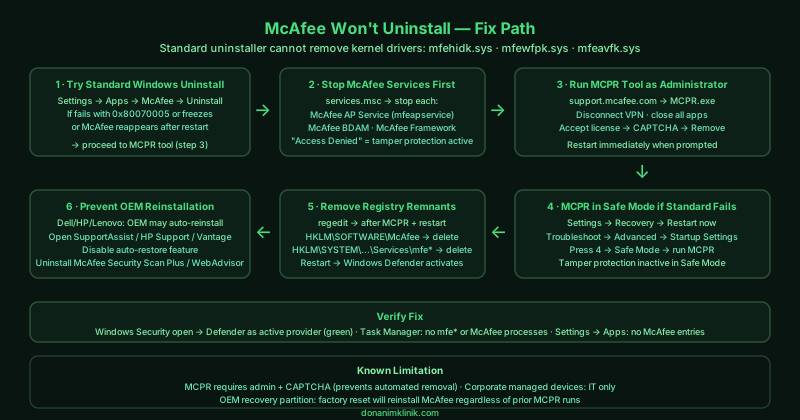
What causes McAfee not uninstalling on Windows 11
Tamper protection blocking removal — McAfee’s self-protection mechanism prevents its own processes, files, and registry entries from being modified or deleted by anything other than McAfee’s own authorised tools. This protection cannot distinguish between malicious removal (ransomware disabling antivirus) and legitimate user uninstalls, so it blocks both equally.
Kernel-level drivers that cannot be removed while running — McAfee installs network filter drivers (mfehidk.sys, mfewfpk.sys) and file system filter drivers (mfeavfk.sys) that load before Windows completes startup. These drivers cannot be unloaded while Windows is running — they can only be removed during the boot sequence, which is why MCPR works but the standard uninstaller does not.
OEM reinstallation mechanism — On Dell, HP, and Lenovo computers sold with McAfee pre-installed, the manufacturer’s software management layer monitors for McAfee’s removal and reinstalls it automatically. This explains cases where McAfee “comes back” after the user removes it.
Windows Security Centre registration conflict — After an incomplete uninstall, McAfee’s Security Centre registration persists, keeping Windows Defender disabled. Windows believes a third-party antivirus is still active even though the McAfee application is gone.
How to fix McAfee not uninstalling on Windows 11
Work through the steps in order. The MCPR tool (step 3) is the definitive fix — steps 1–2 are preparatory actions that improve MCPR’s chances of completing without errors.
How to verify the fix
After running MCPR and restarting, open Windows Security from the Start menu. It should open and show Windows Defender as the active protection provider with green status indicators. Verify no McAfee processes appear in Task Manager (sort by Name and check for any entries starting with ‘mfe’ or ‘McAfee’). Open Settings > Apps > Installed apps and search for McAfee — no results should appear.
Known limitations
MCPR requires administrator access and will not run under a standard user account. On corporate managed devices where the IT department controls software installation, MCPR may be blocked by endpoint management policies — only the IT department can remove McAfee from these devices. MCPR also requires completing a CAPTCHA verification, which prevents automated removal scripts from using it. On some OEM devices with deep factory restore integration (particularly entry-level Dell and HP laptops sold with a McAfee subscription bundled into the purchase price), McAfee may reinstall through the Windows Out-of-Box Experience recovery process even after MCPR removes it — in these cases, the OEM recovery partition must be modified or replaced, which voids the manufacturer’s recovery option.
Step-by-step fix
Try uninstalling McAfee from Windows Settings first
Before using the MCPR tool, attempt the standard uninstall: open Settings > Apps > Installed apps. Search for McAfee and click the three-dot menu next to McAfee Total Protection (or McAfee LiveSafe). Select Uninstall. If the uninstaller opens and runs to completion without errors, restart your computer and check whether McAfee remains. If the uninstaller freezes, shows an error code (such as 'Removal failed' or error 0x80070005), or McAfee reappears after restart — which is common on OEM devices with pre-installed McAfee — proceed to the MCPR tool. The standard uninstaller leaves McAfee's kernel-level drivers and security infrastructure in place; MCPR is required to remove these.
End McAfee processes before attempting removal
McAfee's self-protection mechanism (McAfee's tamper protection) prevents its own processes from being terminated by external tools, but its services can interfere with the uninstaller. Before running any removal tool, open services.msc (Windows + R, then type services.msc). Find all McAfee services and right-click each one to Stop it: McAfee AP Service (mfeapservice), McAfee BDAM (mfebdam), McAfee Framework Service, McAfee Core Threat Intelligence Service. Stopping the services before removal reduces the chance of the uninstaller freezing mid-process. If any McAfee service shows 'Access Denied' when you try to stop it, this is expected — McAfee's tamper protection is active and MCPR is the correct tool to bypass it.
Download and run the McAfee Consumer Product Removal (MCPR) tool
MCPR is McAfee's official deep-removal utility, separate from the standard uninstaller. Download it from McAfee's support site by searching 'MCPR' at support.mcafee.com. Before running MCPR: disconnect from any VPN, close all applications, and disable any other security software. Right-click the downloaded MCPR.exe and select Run as administrator. Accept the license agreement, complete the CAPTCHA verification (this confirms you are intentionally removing McAfee, not malware removing it), and click Remove. MCPR will show a progress bar — the removal takes 5–10 minutes. Do not interrupt the process or close the window. After MCPR completes, it will prompt you to restart. Restart immediately — do not skip the restart, as some McAfee drivers are only removable during the Windows boot sequence.
Use MCPR's advanced cleanup mode if standard MCPR fails
If MCPR itself fails — reporting an error during removal or freezing — boot into Windows Safe Mode first and then run MCPR. To enter Safe Mode: open Settings > System > Recovery > Advanced startup > Restart now. Select Troubleshoot > Advanced options > Startup Settings > Restart. Press 4 or F4 to start in Safe Mode. In Safe Mode, McAfee's services do not start, which means its tamper protection is inactive. Run MCPR as administrator in Safe Mode. If MCPR is unavailable, the McAfee removal in Safe Mode can also be initiated by downloading the McAfee Removal Tool from McAfee's support site directly (separate from the MCPR consumer version — the enterprise version MCPR handles OEM variants).
Remove McAfee registry remnants after MCPR
After MCPR completes and you have restarted, open Registry Editor (Windows + R, type regedit, press Enter, approve UAC). Navigate to HKEY_LOCAL_MACHINE\SOFTWARE\McAfee and check whether the key still exists. If it does, MCPR left some entries behind — right-click the McAfee folder and select Delete. Also check HKEY_LOCAL_MACHINE\SYSTEM\CurrentControlSet\Services and look for any entries starting with 'mfe' (mfehidk, mfewfpk, mfeavfk, mfefirek) — these are McAfee kernel driver registrations. Right-click any remaining mfe* entries and select Delete. Restart your computer after deleting registry entries. After this, open Windows Security — it should now show Windows Defender as the active protection provider.
Prevent McAfee from reinstalling itself on OEM devices
On computers sold by Dell, HP, and Lenovo with pre-installed McAfee trials, the manufacturer's recovery partition or bloatware restoration service may reinstall McAfee automatically — this is why McAfee 'comes back' after removal on these devices. After running MCPR, open Settings > Apps > Installed apps and search for any McAfee-related entries (McAfee Security Scan Plus, McAfee WebAdvisor, McAfee LiveSafe). Uninstall each one individually. Then check the manufacturer's software (Dell SupportAssist, HP Support Assistant, Lenovo Vantage) — these applications sometimes have a setting to restore pre-installed software. Disable any auto-restore option in the manufacturer's app. If McAfee is managed through your employer's device management system, MCPR alone cannot prevent reinstallation — the IT department controls software installation on managed devices.