
Microsoft Teams audio not working — whether you cannot hear other participants, they cannot hear you, or audio cuts out during meetings — is almost always caused by the wrong audio device being selected in Teams or by Windows blocking Teams’ access to your microphone. According to Microsoft’s Teams troubleshooting documentation, using the Make a test call button in Teams Settings resolves the majority of Teams audio failures in under two minutes.
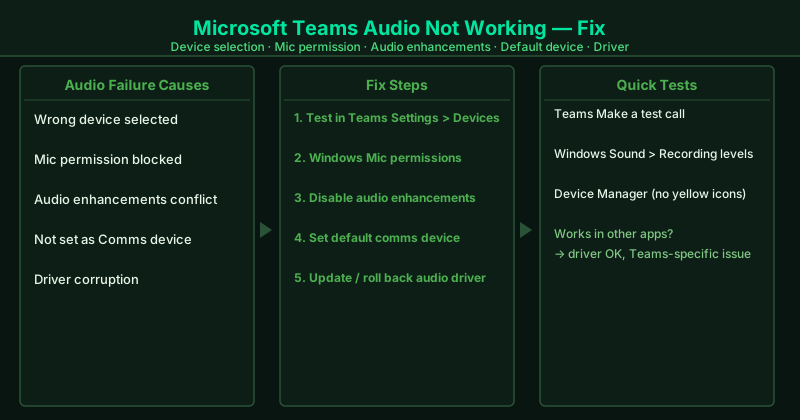
What causes Microsoft Teams audio to stop working
Wrong device selected in Teams — When you connect a new headset, USB audio device, or Bluetooth headset, Windows may set it as the new default playback device while Teams continues using the previously selected device. Teams does not automatically switch to newly connected devices — you must manually select the new device in Teams Settings > Devices.
Windows microphone permissions blocked — A Windows Update, a privacy settings change, or a Teams reinstall can revoke Teams’ microphone access without any visible notification. When this happens, Teams receives no microphone input — the level bar shows no movement and other participants hear nothing from you, even though the microphone works perfectly in other applications.
Audio enhancements conflict — Windows audio enhancements process audio at the driver level before Teams receives it. When both Windows and Teams apply noise cancellation, echo reduction, or equalization simultaneously, the combined processing causes artifacts — robotic voices, intermittent dropouts, or complete silence.
Default Communication Device mismatch — Windows maintains two separate audio routing paths: Default Playback Device (used by music and video) and Default Communication Device (used by calls and meetings). Teams routes audio through the Default Communication Device. When these are set to different hardware, Teams sends and receives audio through a different device than expected.
Outdated or corrupted audio driver — Audio drivers manage the interface between Windows and your audio hardware. A corrupted or outdated driver causes audio failures that cannot be resolved by changing settings — the driver itself must be updated or reinstalled.
How to fix Microsoft Teams audio not working
Work through the steps in order. Step 1 takes under two minutes and immediately identifies whether the problem is inside Teams or in Windows.
How to verify the fix
After completing each step, return to Teams Settings > Devices and click Make a test call. The test call plays a tone through your speaker — you should hear it clearly. It then records five seconds of audio from your microphone and plays it back — you should hear your own voice. If both tests pass, join a live Teams call or meeting to confirm audio works end-to-end with other participants.
Step-by-step fix
Test audio in Teams Devices settings using Make a test call
Click the gear icon in Teams (or click your profile picture > Settings) and go to Devices. Under Audio devices, use the Speaker and Microphone dropdown menus to confirm which devices Teams is currently using. Click Make a test call — Teams places an automated call that plays a tone through your selected speaker and records a short clip from your microphone, then plays it back. If the speaker tone does not play, Teams cannot reach your output device — select a different speaker from the dropdown. If the recorded clip plays back silent, Teams cannot access your microphone — select a different microphone or continue to step 2 to fix permissions.
Check Windows microphone permissions for Teams
Press Win+I to open Windows Settings. Go to Privacy & Security > Microphone. Confirm Microphone access is On at the top of the page. Confirm Let desktop apps access your microphone is also On. If Teams was recently installed, updated, or if Windows was updated, the microphone permission for desktop apps may have been reset to Off without notification. After changing any permission, right-click the Teams icon in the taskbar notification area, select Quit, then relaunch Teams. Teams reads microphone permissions at startup — changes do not take effect until Teams restarts.
Disable audio enhancements on your playback and recording devices
Right-click the speaker icon in the taskbar and select Sounds. In the Playback tab, select your default speaker or headphones and click Properties. Go to the Enhancements tab and check Disable all enhancements. Click OK. Return to the Sounds window, go to the Recording tab, select your microphone, click Properties, go to the Enhancements tab, and check Disable all enhancements. Click OK. Windows audio enhancements — including noise cancellation, bass boost, room correction, and loudness equalization — can conflict with Teams' own audio processing pipeline, causing echo, robotic voice quality, intermittent audio drops, or complete silence.
Set your audio device as the default communications device
Right-click the speaker icon in the taskbar and select Sounds. In the Playback tab, right-click your headset or speaker and select Set as Default Device, then right-click it again and select Set as Default Communication Device. Go to the Recording tab and repeat for your microphone: right-click and set it as both Default Device and Default Communication Device. Click OK. Teams routes audio through the Default Communication Device — a separate Windows setting from the Default Playback Device. When these two are different devices, Teams may play audio through your laptop speakers while your headset is connected, or capture from the built-in microphone while your headset mic is plugged in.
Update or roll back your audio driver
Press Win+X and click Device Manager. Expand Sound, video and game controllers. Right-click your audio device and select Update driver > Search automatically for drivers. If Windows reports the driver is up to date but audio still fails, check your PC or motherboard manufacturer's website for a newer driver specific to your model. If audio stopped working after a recent driver update, right-click the audio device, select Properties, go to the Driver tab, and click Roll Back Driver to restore the previous version. A driver update that introduced audio processing changes is one of the most common causes of Teams audio failure that persists after all settings-level fixes.