
Microsoft Teams connection problems — showing “We couldn’t connect,” failing to join meetings, or disconnecting repeatedly — are most commonly caused by a Microsoft 365 service incident, a firewall rule blocking Teams’ required ports, a VPN routing Teams traffic through an incompatible path, or a corrupted local network configuration. According to Microsoft’s Teams connectivity documentation, checking the Microsoft 365 service health page first eliminates service-side incidents before any local troubleshooting is attempted.
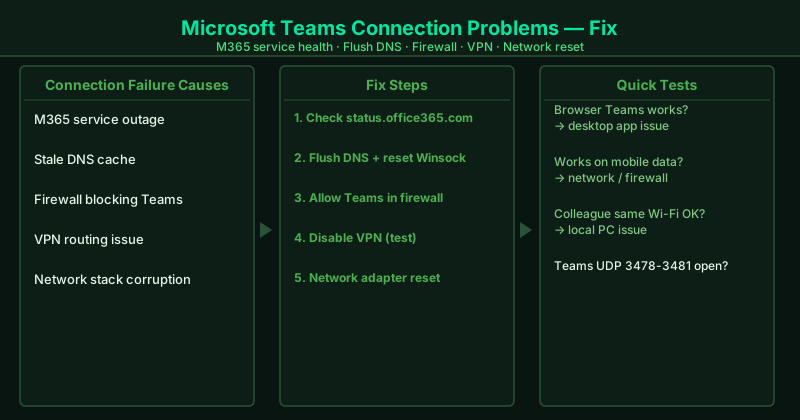
What causes Microsoft Teams connection problems
Microsoft 365 service incident — Teams is a cloud service running on Microsoft’s Azure infrastructure. When Microsoft experiences an outage or degradation in the Teams service, all users are affected simultaneously and no local fix can restore connectivity. Checking the service health page before troubleshooting saves significant time.
Firewall blocking Teams ports — Teams requires specific outbound ports to function: TCP port 443 for signaling and authentication, and UDP ports 3478–3481 for real-time audio and video media. A Windows Firewall rule, a third-party firewall, or a network-level firewall that blocks these ports produces “We couldn’t connect” errors identical to a complete network failure.
VPN routing conflict — VPN services route all traffic — including Teams real-time media — through a VPN server. VPN tunnels add latency, reduce available bandwidth, and can block UDP traffic entirely. Microsoft Teams’ media quality degrades significantly when routed through VPN, and some VPN configurations block Teams entirely. Microsoft recommends split tunneling specifically for Teams traffic.
Corrupted DNS cache — Teams connects to Microsoft’s servers by resolving DNS hostnames such as teams.microsoft.com and *.teams.microsoft.com. When the local DNS cache contains stale or incorrect entries for these hostnames — due to a network change, an ISP update, or a previous failed connection — Teams cannot resolve the server addresses and fails to connect.
Network stack corruption — The Windows TCP/IP stack and Winsock catalog can become corrupted after driver updates, software installations, or system errors. A corrupted network stack causes selective connectivity failures — some applications work while Teams cannot connect — because different applications use different network APIs, and the corruption may affect only specific API calls Teams relies on.
How to fix Microsoft Teams connection problems
Work through the steps in order. Step 1 takes under two minutes and determines whether further local troubleshooting is needed at all — if a Microsoft service incident is active, all other steps are unnecessary until the incident is resolved.
How to verify the fix
After completing the relevant steps, open Teams and send a message in a chat. Then join a meeting and confirm audio and video work correctly. Check that the Teams status indicator in the bottom-left corner shows “Connected” rather than an error state. For persistent connection monitoring, go to Teams Settings > Privacy and enable the diagnostic log option so any recurring failures generate logs you can share with IT support.
Step-by-step fix
Check Microsoft 365 service health
Open a browser and go to status.office365.com or admin.microsoft.com > Health > Service health (requires a Microsoft 365 account). Active incidents affecting Teams appear listed with their current status. If an incident is posted for Microsoft Teams, the connection problem originates on Microsoft's infrastructure — wait for Microsoft to post a resolution. Do not spend time troubleshooting local settings during an active service incident.
Flush DNS and reset the network stack
Open Command Prompt as administrator (right-click Start > Terminal Admin). Run these commands in order: ipconfig /flushdns, then netsh winsock reset, then netsh int ip reset. Restart your PC after running all three. Teams connects to Microsoft's servers using DNS-resolved URLs. Cached DNS entries pointing to old or unreachable IP addresses prevent Teams from establishing a connection even when the internet otherwise works.
Verify your firewall and antivirus allow Teams
In Windows Defender Firewall (search in Start), click Allow an app through Windows Defender Firewall. Scroll down and confirm Microsoft Teams is listed with both Private and Public checked. If it is not listed, click Change settings > Allow another app and browse to Teams.exe. For third-party antivirus software, add Teams to the exceptions list. Firewall rules that block Teams traffic are a leading cause of connection failures in home office and small business environments.
Test with VPN disabled
If you use a VPN, disconnect it and test whether Teams connects. Many corporate VPNs route Teams traffic through a tunnel that introduces latency or packet loss. Microsoft recommends using split tunneling to route Teams traffic directly to Microsoft's servers rather than through the VPN. Contact your IT department to configure split tunneling for the Teams traffic categories (UDP ports 3478–3481 and TCP port 443).
Reset the network adapter
Open Settings > Network & Internet > Advanced network settings > Network adapters. Right-click your Wi-Fi or Ethernet adapter and select Diagnose. If the diagnostic finds a problem, apply the recommended fix. Alternatively, go to Settings > Network & Internet > Advanced network settings > Network reset > Reset now. Network reset reinstalls all network adapters and resets all network settings to default — this fixes connection problems caused by corrupted TCP/IP stack settings but also removes saved Wi-Fi passwords.