
Microsoft Teams errors fall into five main categories: app launch failures, audio and microphone problems, camera and video issues, screen sharing failures, and connection errors. According to Microsoft’s official Teams troubleshooting documentation, most Teams failures are resolved by signing out and back in, clearing the local Teams cache, or selecting the correct device in Teams settings.
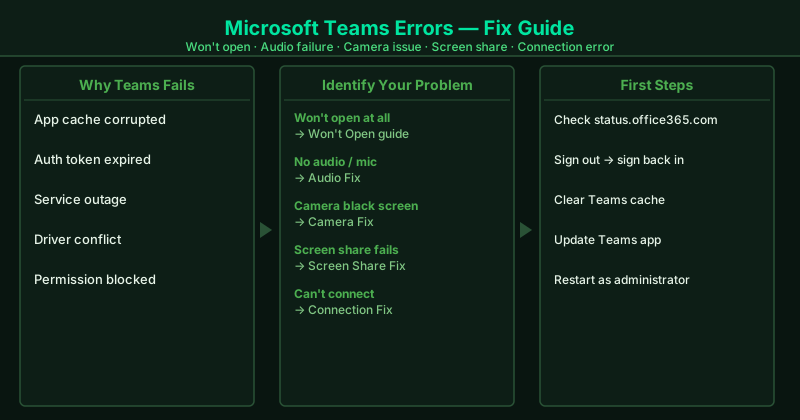
This hub covers the most common Microsoft Teams errors. Select the guide that matches your situation.
Fix guides in this pillar
Microsoft Teams Not Working — Fix
Teams stops functioning after an update, after a Windows change, or suddenly without any clear trigger — messages fail to send, meetings won’t load, or the app behaves erratically. This guide covers signing out and back in, clearing the Teams cache, checking for updates, verifying Microsoft 365 service status, and repairing or reinstalling Teams.
Best for: Teams suddenly stopped working, messages not sending, meetings not loading, Teams behaves erratically after a Windows or Teams update.
Microsoft Teams Audio Not Working — Fix
Teams audio fails during meetings — you cannot hear other participants, they cannot hear you, or audio cuts in and out unexpectedly. This guide covers selecting the correct audio device in Teams settings, fixing Windows microphone permissions, disabling audio enhancements, and updating your audio driver.
Best for: No sound in Teams meetings, microphone not working in Teams, Teams audio cuts out, Teams audio works in other apps but not in meetings.
Microsoft Teams Camera Not Working — Fix
Teams shows a black camera preview, displays “No camera found,” or shows a frozen image when you turn on your video. This guide covers granting camera permissions in Windows, closing apps that hold exclusive camera access, updating your webcam driver, and selecting the correct camera in Teams settings.
Best for: Teams camera black screen, camera preview absent in Teams Devices settings, “Camera is being used by another application” error, camera works in Windows Camera app but not in Teams.
Microsoft Teams Won’t Open — Fix
Teams does not launch when you click the icon — nothing appears, the loading screen disappears immediately, or the app crashes before showing the main window. This guide covers ending stuck Teams processes, clearing the Teams cache, repairing the installation, and reinstalling Teams from scratch.
Best for: Teams icon does nothing when clicked, Teams loading screen appears briefly then disappears, Teams crashes immediately on launch, Teams was working and then stopped opening after a Windows update.
Microsoft Teams Screen Share Not Working — Fix
The screen share button is greyed out, participants see a black screen instead of your content, or screen sharing stops after a few seconds. This guide covers enabling screen sharing permissions in Windows, updating your graphics driver, adjusting Teams meeting policies, and resolving GPU-related rendering failures.
Best for: Screen share button greyed out in Teams, participants see black screen during your screen share, screen share works briefly then stops, screen sharing works in Zoom but not in Teams.
Microsoft Teams Connection Problems — Fix
Teams shows “We weren’t able to connect” errors, disconnects from meetings repeatedly, or fails to reach Microsoft’s servers entirely. This guide covers firewall and antivirus rules that block Teams, proxy and VPN conflicts, DNS resolution failures, and network configuration fixes.
Best for: “We weren’t able to connect” Teams error, Teams disconnects from meetings repeatedly, Teams works on mobile data but not on office or home Wi-Fi, Teams connection drops when using a VPN.
How Teams works
Microsoft Teams uses WebRTC for real-time audio and video transmission during meetings, and Microsoft’s Azure infrastructure for message delivery, file storage, and presence updates. The Teams desktop application stores cached data in %AppData%\Microsoft\Teams — including cached UI assets, downloaded files, and authentication tokens. When this cache becomes corrupted, Teams may fail to launch, lose audio, or fail to connect even though the underlying network and Microsoft 365 account are healthy.
Teams authentication is handled through Microsoft 365 — the same account and token used by Outlook, SharePoint, and OneDrive. An expired or corrupted authentication token causes Teams to show “Something went wrong” errors or fail to load meetings, even after the app itself opens successfully. Signing out and back in forces a fresh token from Microsoft’s authentication servers.
When to contact Microsoft Support
If you have worked through the relevant fix guide and Teams still does not function correctly, contact Microsoft Support at support.microsoft.com. For business accounts, your IT administrator can open a Microsoft 365 support ticket through the admin center, which provides access to Teams diagnostic tools and backend log analysis not available to end users. Before contacting support, note the exact error message Teams displays, the time the problem began, and whether the problem affects all users or only your account — this information significantly speeds up the support process.