
Microsoft Teams screen share not working — whether the Share button is grayed out, participants see a black screen, or the sharing session crashes immediately — is most commonly caused by GPU hardware acceleration conflicting with Teams’ screen capture engine, an outdated display driver, or missing presenter permissions in the meeting. According to Microsoft’s Teams troubleshooting documentation, switching from Desktop sharing to Window sharing immediately identifies whether the issue is a permission or driver problem specific to full-desktop capture.
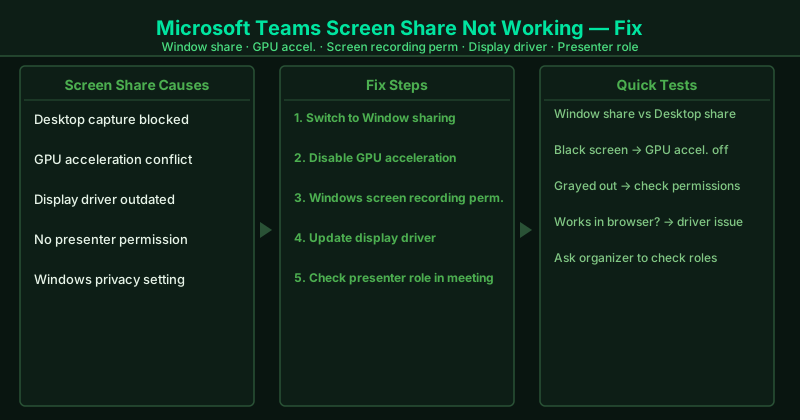
What causes Teams screen share to stop working
GPU hardware acceleration conflict — Teams uses GPU acceleration to render its interface efficiently. However, this same GPU pipeline occasionally interferes with the screen capture engine, producing a black screen for other participants when you attempt to share your desktop. Disabling GPU acceleration forces Teams to use a software-only rendering path that is fully compatible with all screen capture methods.
Outdated or incompatible display driver — Teams’ screen share relies on DirectX capture APIs that communicate directly with your GPU driver. After a Windows Update, a Teams update, or a GPU driver update, version mismatches between these components cause screen share to produce black screens or fail silently. Updating the display driver to the current version resolves the vast majority of post-update screen share failures.
Windows screen recording permission — Windows 11 introduced granular privacy controls for screen recording. If Teams does not have permission to capture the screen in Settings > Privacy & Security > Screenshots and screen recording, every screen share attempt shows a black screen to participants — with no error message visible to the presenter.
Missing presenter permission — Microsoft Teams meetings have role-based controls. Attendees cannot share their screen; only presenters and organizers can. When the organizer has set “Who can present” to a restrictive option, participants without the presenter role see the Share button grayed out.
DRM content protection — Windows applies hardware-level DRM protection to content from streaming services. When DRM-protected video is playing on screen, Teams’ capture API receives a black frame instead of the actual content. This is intentional operating system behavior, not a Teams bug.
How to fix Teams screen share not working
Work through the steps in order. Step 1 takes under 60 seconds and immediately identifies the category of failure — if Window sharing works but Desktop sharing does not, the remaining steps narrow down the specific cause.
How to verify the fix
In a Teams test meeting, click Share content and share your entire Desktop. Ask another participant to confirm they can see your screen and that it is updating in real time as you move windows. Then share a specific Window and confirm that also works. Check that the Share content button is not grayed out before attempting either test.
Step-by-step fix
Switch from Desktop sharing to Window sharing
In the Teams meeting, click Share content (the rectangle with an upward arrow). Instead of selecting Desktop (which shares your entire screen), select Window and choose the specific application you want to share. Window sharing uses a different capture API that works when Desktop sharing produces a black screen or fails entirely. If Window sharing works, the issue is specifically with full-desktop capture permissions.
Disable GPU hardware acceleration in Teams
Open Teams Settings (gear icon) > General. Scroll down and uncheck "Disable GPU hardware acceleration (requires restarting Teams)." Click the toggle, then quit Teams completely and relaunch. GPU acceleration occasionally conflicts with screen capture on systems with certain Intel, AMD, or NVIDIA driver versions, producing a black screen when attempting to share.
Grant screen recording permission in Windows
On Windows 11, some privacy settings restrict which applications can capture the screen. Open Settings > Privacy & Security > Screenshots and screen recording. Confirm Microsoft Teams is allowed. If the toggle is off, Teams will show a black screen when attempting to share your display.
Update your display driver
Open Device Manager > Display adapters > right-click your GPU > Update driver > Search automatically for drivers. For NVIDIA GPUs, use GeForce Experience; for AMD GPUs, use AMD Software: Adrenalin Edition; for Intel integrated graphics, visit Intel's Download Center. An outdated or corrupted display driver is a frequent cause of Teams screen share showing a black or flickering screen, particularly after a Windows update that changed DirectX components.
Check meeting presenter permissions
In the Teams meeting, only participants with presenter permissions can share their screen. Ask the meeting organizer to confirm your role. The organizer can change this in Meeting options > Who can present: set to Everyone or Specific people and add you. In some organizations, screen sharing is restricted by IT policy at the tenant level — contact your IT department if screen share is permanently unavailable.