
Microsoft Teams camera not working means Teams shows a black preview, displays “No camera found,” or presents a frozen image when you turn on your video in a meeting. According to Microsoft’s Teams troubleshooting documentation, most camera failures in Teams are caused by another application holding exclusive camera access, a Windows privacy setting blocking Teams, or a corrupted webcam driver.
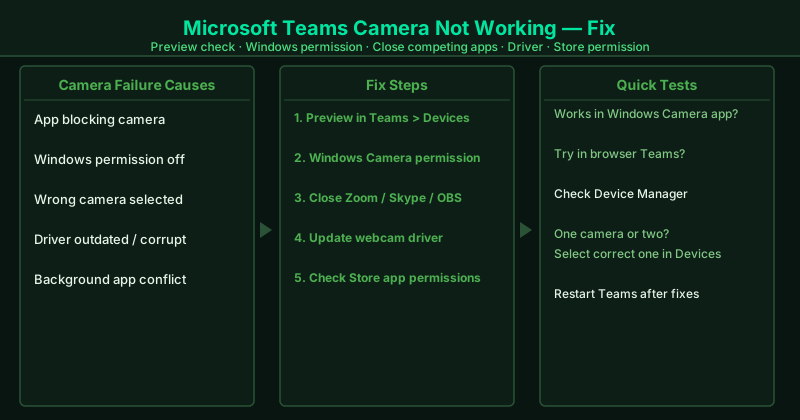
What causes Microsoft Teams camera to stop working
Another application holding exclusive camera access — On Windows, most consumer webcams allow only one application to access the camera at a time. When Zoom, Skype, WhatsApp, OBS, or a browser tab with an active video call is running, Teams receives a black frame or an explicit “camera in use” error. The competing application does not need to be in the foreground — it only needs to be running.
Windows camera permissions blocked — Windows 10 and 11 include privacy controls that can block individual applications from accessing the camera. A Windows Update, a privacy settings change, or a Teams reinstall can revoke Teams’ camera access. When this happens, Teams sees no camera at all — the preview is absent and the camera dropdown may show no devices.
Corrupted or outdated webcam driver — Webcam drivers manage the interface between Windows and the camera hardware. A driver corrupted by a Windows Update or a failed driver installation causes the camera to appear in Device Manager but fail to provide a working image. The Windows Camera app may work while Teams shows black, because each application interacts with the driver differently.
Hardware acceleration conflict — Teams uses GPU hardware acceleration to render its interface and process video. On certain GPU configurations, hardware acceleration causes the camera preview to fail or display a black screen, even though the camera driver and Windows permissions are both correct.
Wrong camera selected in Teams — On systems with both an integrated webcam and an external USB camera, Teams may default to the wrong camera — particularly after a USB device is plugged in or unplugged. The Teams camera dropdown must explicitly point to the intended device.
How to fix Microsoft Teams camera not working
Work through the steps in order. Step 1 takes under one minute and immediately confirms whether Teams has camera access at all.
How to verify the fix
After each step, open Teams Settings > Devices and check the Camera preview window. A live, moving image in the preview confirms Teams has full camera access. To verify the camera works in a real meeting, click your profile picture > Settings > Devices and confirm the preview shows your face clearly, then join a Teams test call or create a brief test meeting with a colleague to confirm your video appears to others.
Step-by-step fix
Check camera preview in Teams Devices settings
Click the gear icon in Teams (or click your profile picture > Settings) and go to Devices. Scroll down to the Camera section. If Teams has access to your camera, a live preview window displays what your camera sees. If the preview is black, grey, or shows 'No camera found,' Teams cannot access the camera. Use the Camera dropdown to select your camera if multiple devices are listed — laptops often detect both an integrated webcam and an external USB camera simultaneously, and Teams may default to the wrong one. If switching the selection does not produce a preview, continue to step 2 to fix the underlying access problem.
Grant camera permission to Teams in Windows
Press Win+I to open Windows Settings. Go to Privacy & Security > Camera. Confirm Camera access is On at the top of the page. Confirm Let desktop apps access your camera is also On. If Teams was recently installed, updated, or if a Windows Update ran recently, the camera permission for desktop apps may have been silently reset to Off. After enabling the permission, right-click the Teams icon in the taskbar notification area, select Quit to fully close Teams, then relaunch it. Teams reads camera permissions at startup — enabling the permission while Teams is already running does not take effect until Teams is restarted.
Close all other apps that may be using the camera
On Windows, only one application can access a physical camera at a time in most configurations. If another app holds the camera, Teams receives a black screen or a 'camera in use' error. Close the following applications completely — not just minimized: Zoom, Skype, WhatsApp Desktop, OBS Studio, Windows Camera, Discord, Google Meet (in any browser tab), and any other video communication or recording software. Open Task Manager (Ctrl+Shift+Esc), go to the Processes tab, and confirm none of these applications appear in the list. After closing all competing apps, restart Teams and check the camera preview in Settings > Devices.
Update or reinstall your webcam driver
Press Win+X and click Device Manager. Expand the Cameras section (or Imaging devices on older Windows versions). Right-click your webcam and select Update driver > Search automatically for drivers. If Windows reports the driver is current, visit your laptop or webcam manufacturer's website and search for the latest driver for your specific model. For external USB webcams from Logitech, Microsoft, Razer, or Elgato, download the driver from the manufacturer's support page rather than relying on Windows Update. After installing a new driver, restart your PC and test the Teams camera preview. A corrupted or outdated webcam driver is the most common cause of camera failure after a Windows Update, appearing as a black preview even though the camera hardware is physically working.
Disable hardware acceleration in Teams
Click your profile picture in Teams and go to Settings. Select General and scroll down to find Disable GPU hardware acceleration. Check this option and click the Restart Teams button that appears. Hardware acceleration uses your GPU to render the Teams interface and process video. On some GPU configurations — particularly with older AMD or integrated Intel graphics — hardware acceleration causes camera preview failures, black screens during video calls, and rendering glitches. Disabling it forces Teams to use CPU-based rendering, which is slower but eliminates GPU-related camera conflicts.