
Microsoft Teams won’t open — clicking the icon and seeing nothing happen, or watching Teams flash briefly then disappear — is most commonly caused by a stuck Teams background process left over from a previous crash, or a corrupted local cache that prevents the application from initializing. According to Microsoft’s official Teams troubleshooting documentation, ending all Teams processes in Task Manager and restarting the app resolves the majority of Teams launch failures.
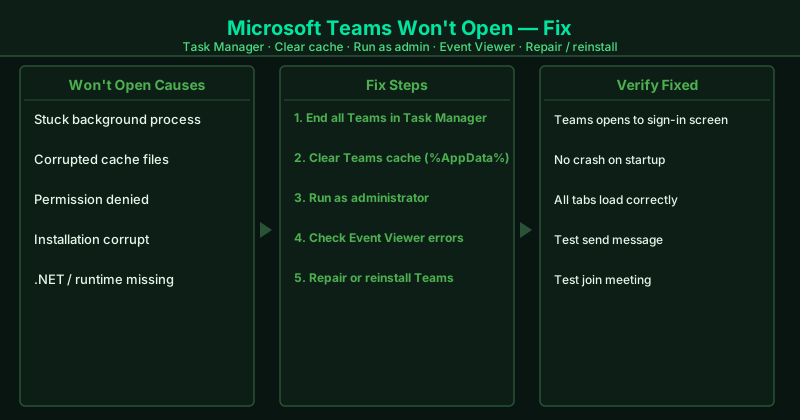
What causes Microsoft Teams not to open
Stuck background process — When Teams crashes or is closed abruptly, a Teams process can remain running in the background. This orphaned process holds file locks and port bindings that prevent a new Teams instance from starting. The new launch attempt silently fails because the system considers Teams already running.
Corrupted cache files — Teams stores a significant amount of cached data in %AppData%\Microsoft\Teams, including cached UI assets, authentication tokens, and database files. When these files become corrupted — due to an interrupted update, a disk write error, or an abrupt shutdown — Teams fails to read the cache on startup and crashes before displaying anything.
Insufficient permissions — In corporate environments, Teams may be installed with specific permission requirements. If your user account has restricted permissions due to a group policy change or a Windows Update that reset security settings, Teams may be blocked from accessing the files and network resources it needs to start.
Missing runtime components — Teams requires the .NET runtime and specific Visual C++ Redistributable packages to function. If these components are missing, corrupted, or at an incompatible version — which can happen after a system update or a partial installation — Teams fails at startup with no visible error to the user.
Corrupted installation — Teams update files are downloaded and applied automatically. A failed or interrupted update can leave Teams in a partially updated state where some files are at the new version and others are at the old version — producing startup crashes that neither cache clearing nor process killing can resolve.
How to fix Microsoft Teams not opening
Work through the steps in order. Step 1 takes under 60 seconds and resolves the large majority of Teams launch failures caused by stuck processes.
How to verify the fix
Teams should open to the sign-in screen or directly to your Teams workspace without crashing or showing a blank screen. Confirm all main tabs load correctly — Activity, Chat, Teams, Calendar, and Files. Send a test chat message and join a test meeting to confirm full functionality is restored.
Step-by-step fix
End all Teams processes in Task Manager
Press Ctrl+Shift+Esc to open Task Manager. On the Processes tab, look for any process named Microsoft Teams. There may be multiple — right-click each one and select End Task. Also end any ms-teams.exe, teams.exe, or Update.exe processes related to Teams. After all Teams processes are closed, wait 10 seconds, then open Teams from the Start menu or desktop shortcut. Teams frequently fails to open because a previous instance crashed and left a process running that blocks a new launch.
Clear the Teams cache
With Teams fully closed (confirmed in Task Manager), press Win+R and type %AppData%\Microsoft\Teams. Delete the contents of these folders: blob_storage, Cache, databases, GPUCache, IndexedDB, Local Storage, tmp. Leave the Teams folder itself and any .json files intact. This cache can become corrupted and prevent Teams from initializing. After clearing, relaunch Teams and allow it to rebuild the cache on startup.
Run Teams as administrator
Right-click the Teams icon in Start or on the desktop and select Run as administrator. If Teams opens successfully as administrator, a permissions issue is preventing normal launch. To fix permanently: right-click Teams > Properties > Compatibility tab > check "Run this program as an administrator" > Apply. This is particularly relevant when Teams is installed in a corporate environment with restricted user permissions.
Check Windows Event Viewer for errors
Press Win+S, search for Event Viewer and open it. Navigate to Windows Logs > Application. Look for error entries with Source "Microsoft Teams" or the time corresponding to when you tried to open Teams. The error description identifies the specific failure — common causes include a missing .NET runtime component, a Visual C++ redistributable conflict, or a corrupted Teams installation file.
Repair or reinstall Microsoft Teams
Go to Settings > Apps > Installed Apps, find Microsoft Teams, click the three dots > Modify or Advanced options > Repair. If Repair does not resolve the issue, uninstall Teams completely, restart your PC, then download and install the latest Teams from teams.microsoft.com. If your organization uses Microsoft 365, check with your IT department before reinstalling — some organizations deploy Teams through Microsoft Endpoint Manager and individual reinstalls may be overridden.