
Microsoft Teams not working means the application fails to perform its core functions — messages won’t send, meetings won’t load, or the app behaves erratically — despite appearing to open normally. According to Microsoft’s official Teams troubleshooting documentation, the most common causes are an expired authentication token, a corrupted local cache, an outdated Teams version, or a Microsoft 365 service incident.
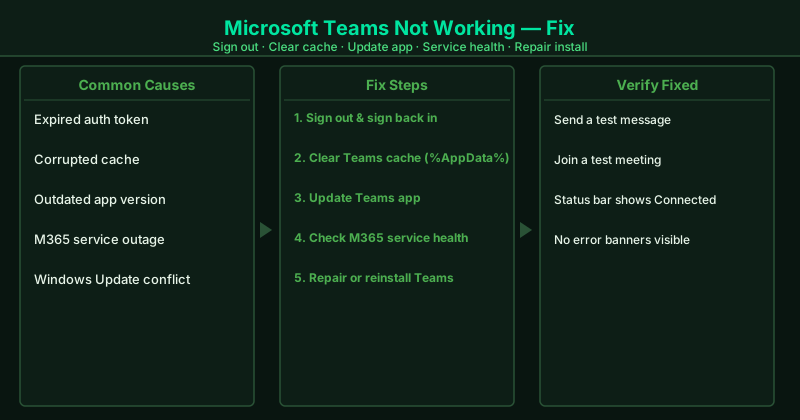
What causes Microsoft Teams to stop working
Authentication token expiry or corruption — Teams authenticates through Microsoft 365. When the stored token expires or becomes corrupted — which can happen after a long idle period, a network change, or an OS update — Teams loses its connection to Microsoft’s backend and stops functioning. Signing out and back in forces a fresh token.
Cache corruption — Teams stores significant amounts of data locally in %AppData%\Microsoft\Teams, including cached UI elements, downloaded files, message history fragments, and session data. When any of these become corrupted — from an abrupt shutdown, a disk write error, or a failed Teams update — Teams may fail to load content, freeze, or show blank screens.
Outdated app version — Microsoft updates Teams’ server-side infrastructure regularly. When the desktop app falls too far behind, it loses compatibility with the current API version and stops being able to send messages or join meetings, even though the app itself opens successfully.
Microsoft 365 service outage — Teams relies entirely on Microsoft’s cloud infrastructure. During a regional or global Teams outage, no local action will restore functionality. Service incidents can affect message delivery, meeting joining, file sharing, or presence — sometimes independently.
Windows Update conflicts — Major Windows Updates occasionally change system components that Teams depends on, including .NET runtime versions, security policies, or network adapter drivers. Teams may stop working immediately after a Windows Update completes, even though the update itself succeeded.
How to fix Microsoft Teams not working
Work through the steps in order. The majority of Teams failures are resolved at step 1 or step 2.
How to verify the fix
After completing each step, send a test message to a Teams contact or open a channel and post a message. Confirm the message delivers immediately without a spinning indicator. To verify meeting functionality, go to the Calendar tab and join any upcoming meeting, or create a test meeting and join it. If both message sending and meeting joining succeed, Teams is fully functional.
Step-by-step fix
Sign out of Teams and sign back in
Click your profile picture in the top-right corner of the Teams window and select Sign out. Wait 30 seconds after the sign-out completes. Reopen Teams and sign back in with your Microsoft 365 account. Signing out forces Teams to discard the current authentication token and request a fresh one from Microsoft's servers. An expired or corrupted authentication token is the most common cause of sudden Teams failures — messages not sending, meetings not loading, and presence not updating.
Clear the Microsoft Teams cache
Close Teams completely: right-click the Teams icon in the Windows taskbar notification area and select Quit. Confirm no Teams process is running in Task Manager. Press Win+R, type %AppData%\Microsoft\Teams, and press Enter. Inside this folder, open and delete all files inside these subfolders: blob_storage, Cache, databases, GPUCache, IndexedDB, Local Storage, and tmp. Do not delete the Teams folder itself or the settings.json file. Restart Teams and sign in. The cache rebuilds automatically. Clearing the cache resolves errors caused by corrupted temporary data — including blank screens, missing messages, and login loops.
Update Microsoft Teams
In Teams, click your profile picture in the top-right corner. If an 'Update available' option appears, click it to apply the update immediately. Otherwise, go to Settings > About Teams to see your current version, or click Help > Check for updates. Allow the update to download and install, then restart Teams when prompted. Outdated Teams versions gradually lose compatibility with Microsoft's backend services as Microsoft updates its servers — keeping Teams current prevents a growing category of failures that cannot be fixed by any local action.
Check Microsoft 365 service status
Sign in to admin.microsoft.com with your Microsoft 365 account and go to Health > Service health. Look for any active incidents listed under Microsoft Teams. If you do not have admin access, check downdetector.com for Microsoft Teams and look for a spike in reported issues in the past hour. When Microsoft's servers are degraded or experiencing an outage, no local troubleshooting will restore Teams — the only action is to wait for Microsoft to resolve the incident and monitor the status page for updates.
Repair or reinstall Microsoft Teams
Go to Settings > Apps > Installed Apps and search for Microsoft Teams. Click the three dots next to Teams and select Modify or Advanced options. If a Repair option is available, run it — Repair replaces missing or corrupted application files without removing your account or settings. If Repair is not available or does not resolve the problem, select Uninstall, restart your PC, then download and install the latest Teams version from teams.microsoft.com. Reinstalling Teams resolves corrupted executable or DLL files that cause Teams to fail in ways that signing out and clearing the cache cannot fix.