
Norton slowing down your computer means the system becomes noticeably sluggish after installing Norton 360 — startup takes longer, programs open slowly, file operations lag, or Task Manager shows Norton processes consuming sustained high CPU or disk usage. According to Norton’s official support documentation, the most impactful cause of Norton-related slowdowns is the scheduled full-system scan running during active use, combined with real-time scanning of high-activity folders that creates constant I/O competition with other applications.
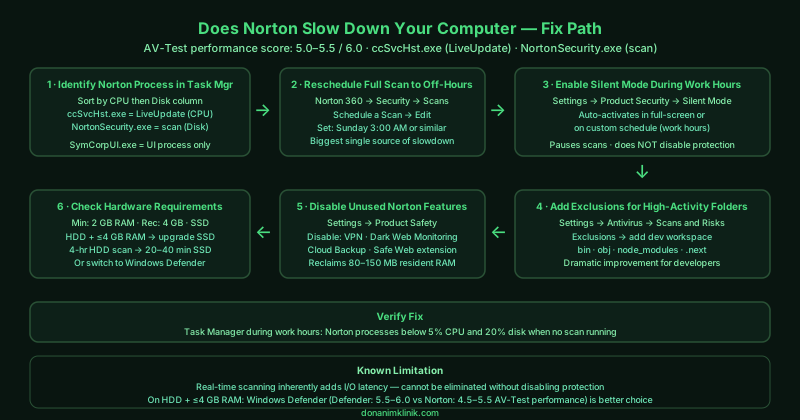
What causes Norton to slow down your computer
Full-system scan during working hours — Norton’s automatic full-system scan reads every file on the storage device sequentially. On a spinning hard drive, this fully saturates the drive’s read throughput for the duration of the scan (often 2–4 hours). Even on SSDs, the scan competes with active applications for I/O bandwidth, causing noticeable sluggishness during the scan window.
Real-time scanning of high-activity directories — Folders that see constant file creation, modification, and deletion — code compilers, download directories, game directories, video editing projects — are scanned by Norton’s real-time engine for every file operation. The cumulative overhead of thousands of scan events per hour creates measurable latency in affected applications.
Background LiveUpdate processes — Norton downloads and installs definition updates multiple times per day. The update installation process (ccSvcHst.exe) is CPU-intensive and competes with foreground applications. On slower processors, this can cause temporary but noticeable slowdowns lasting 1–3 minutes.
Feature-specific overhead — Norton 360 runs multiple background services beyond antivirus: the VPN daemon, Password Manager sync, Cloud Backup scheduler, and Dark Web Monitoring all consume memory and periodic CPU cycles even when not actively in use.
How to fix Norton slowing down your computer
Work through the steps in order. Step 2 (rescheduling the full scan) and step 3 (Silent Mode) provide the fastest improvement for most users.
How to verify the fix
After adjusting the scan schedule and exclusions, monitor CPU and disk usage in Task Manager during your normal work hours. Norton-related processes should remain below 5% CPU and below 20% disk during periods when no scan is actively running. If startup is slow, compare boot times before and after disabling the Smart Firewall startup entry in Task Manager’s Startup apps tab.
Known limitations
Optimising Norton’s settings reduces its performance impact but cannot eliminate it entirely — real-time scanning inherently adds latency to every file operation. On computers with 4 GB of RAM or less, or with a spinning hard drive rather than an SSD, Norton’s resource requirements leave insufficient headroom for smooth multitasking regardless of configuration. In these hardware configurations, switching to Windows Defender (built into Windows, no additional overhead) or Malwarebytes (on-demand scanner with no persistent background process beyond a lightweight service) is the more effective solution than optimising Norton. Norton’s official system requirements list 2 GB RAM as the minimum but do not account for the simultaneous memory demands of Windows 11, active applications, and Norton’s full feature suite.
Step-by-step fix
Identify what Norton process is using CPU or disk
Before changing any settings, confirm Norton is the actual cause of slowness. Open Task Manager (Ctrl + Shift + Esc) and click the CPU column to sort by CPU usage, then the Disk column. Norton-related processes include: NortonSecurity.exe (main engine), ccSvcHst.exe (shared component framework), SymCorpUI.exe (user interface), and NSSvcHst.exe (network scanner). If none of these appear in the top CPU or disk consumers during a slowdown, the performance issue may not be Norton-related. If ccSvcHst.exe shows sustained high CPU or disk usage, Norton is performing an active scan — the timing and scope of that scan should be adjusted.
Reschedule the full-system scan to off-hours
Open Norton 360. Go to Security > Scans > Schedule a Scan. Select Full System Scan and click Edit or Schedule. Set the scan to run on a specific day and time when the computer is idle — for example, Sunday at 3:00 AM. If the computer is off at the scheduled time, Norton will run the scan at next startup instead. The full-system scan reads every file on the hard drive and is the single biggest source of Norton-related disk I/O. Changing it from an automatic midday schedule to an overnight schedule eliminates the most common cause of daytime slowdowns immediately.
Enable Norton's Silent Mode during work hours
Norton includes a Silent Mode (also called Quiet Mode in some versions) that suppresses background scans and notifications while applications are running in full screen or while the system is under load. Open Norton 360 and go to Settings > Product Security > Silent Mode. Enable it and configure it to activate automatically when full-screen applications are running or on a custom schedule during work hours. Silent Mode does not disable real-time protection — it only pauses non-urgent background tasks such as definition updates and scheduled scans.
Add exclusions for trusted high-activity folders
Norton scans every file as it is read or written. Folders with constant file activity — project directories, download folders, game directories, and video editing working folders — are scanned thousands of times per hour during active use. Adding trusted folders as exclusions removes them from real-time scanning. Open Norton 360 > Settings > Antivirus > Scans and Risks > Exclusions / Low Risks. Add folders you create and control — never exclude system folders or the Downloads folder permanently. For software developers, excluding the project workspace and compiler output directories often produces dramatic performance improvements.
Disable unused Norton features
Norton 360 includes a suite of tools beyond antivirus — Dark Web Monitoring, Cloud Backup, Password Manager, VPN, and PC SafeCam. Each active feature consumes system resources. Open Norton 360 > Settings and review which features you actively use. Disable features you do not use: go to Product Safety > Browser Protection and disable Norton Safe Web if you use a browser with its own security (Chrome, Firefox, Edge all have built-in protection). Disable the VPN if you do not use it — NordVPN, ExpressVPN, and similar dedicated products perform better for VPN use cases anyway.
Check whether your hardware meets Norton's current requirements
Norton's hardware requirements have increased with each version. Norton 360 currently requires: 2 GB RAM minimum (4 GB recommended), a dual-core processor at 1 GHz or faster, and an internet connection for LiveUpdate. On computers with exactly 4 GB RAM and an SSD, Norton runs acceptably. On computers with 4 GB RAM and a spinning hard drive, Norton's real-time scanning creates significant I/O competition with the operating system. If the computer has 4 GB RAM or less and a hard drive (not SSD), upgrading to an SSD has more impact on performance than any Norton setting change — the SSD's random read speed eliminates most of the I/O bottleneck Norton creates.