
QuickBooks company file won’t open means QuickBooks launches normally but either cannot find your company file, displays an error when you select it, or opens a blank screen instead of your accounting data. According to Intuit’s company file troubleshooting documentation, the cause is almost always one of four things: a corrupted .ND support file, a changed or broken file path, a file locking conflict from an improper shutdown, or — in more serious cases — damage to the company file itself.
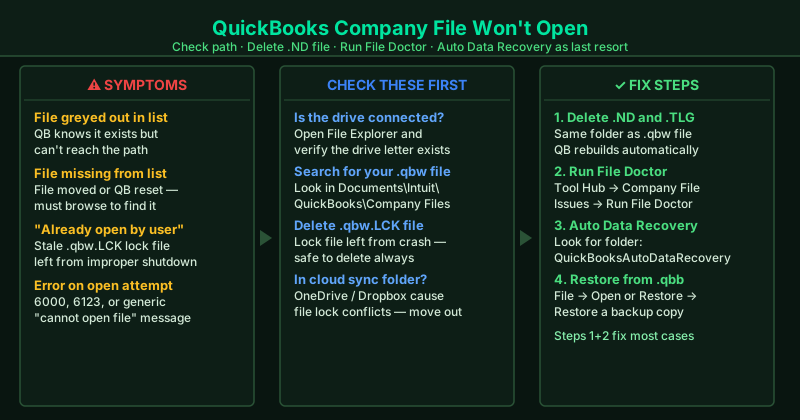
What causes the QuickBooks company file not to open
Corrupted .ND or .TLG support file — The .ND file stores the network location of the company file. If it points to the wrong location or becomes corrupted after a crash, QuickBooks cannot open the file even though it is sitting right there on the disk.
File path changed or drive letter reassigned — If the company file was moved, renamed, or was on a network drive that got remapped to a different drive letter, QuickBooks cannot find it. The file path stored in QuickBooks’s recent files list no longer matches the actual location.
Stale lock file (.qbw.LCK) — An improper shutdown leaves a lock file that tells QuickBooks the company file is already open by another user. QuickBooks refuses to open the same file twice and blocks access.
Company file stored in a cloud-synced folder — Cloud services like OneDrive and Dropbox hold files open for syncing. This conflicts directly with QuickBooks’s file locking system and prevents the company file from opening reliably.
Actual company file damage — The least common cause but the most serious: disk errors, power failures during a write, or a failed QuickBooks update can corrupt the company file’s internal structure. File Doctor detects this and recommends a restore.
How to fix the QuickBooks company file not opening
Work through the steps in order. Most file-opening failures are resolved at Step 2 or Step 3.
How to verify the fix
After each step, open QuickBooks and select your company file from the No Company Open screen. If your company data loads completely — showing your customer list, reports, and recent transactions — the fix worked. Once open, immediately create a backup: File > Back Up Company > Create Local Backup.
Step-by-step fix
Use the Recent Companies list to check if QuickBooks recognises the file
Open QuickBooks and on the No Company Open screen, look at the list of recent company files. If your company file appears greyed out, it means QuickBooks knows the file but cannot reach it — this points to a network or path issue, not file corruption. If the file does not appear at all, click Open a sample company to confirm QuickBooks itself is working, then use File > Open or Restore Company > Open a company file to browse to your .qbw file manually.
Delete the .ND and .TLG support files
Open File Explorer and navigate to the folder containing your QuickBooks company file (.qbw). Look for two support files with the same base name but different extensions: CompanyName.qbw.ND and CompanyName.qbw.TLG. Right-click each and delete them. The .ND file is the network descriptor — if it has an old or incorrect path stored, QuickBooks cannot open the company file. The .TLG file is the transaction log. Both are rebuilt automatically when you next open the company file. Your financial data is stored in the .qbw file and is not affected.
Run QuickBooks File Doctor from Tool Hub
Download and install QuickBooks Tool Hub from Intuit's official support page. Open Tool Hub and go to Company File Issues. Click Run QuickBooks File Doctor. Select your company file from the dropdown and choose Check your file. Enter your QuickBooks admin password when prompted. File Doctor runs two checks: it verifies network access to the file and scans the file for internal data damage. After the scan (2–5 minutes), try opening the company file again in QuickBooks.
Check whether the company file path has changed or the drive is disconnected
If QuickBooks shows a message that the file cannot be found or the path is not valid, the company file has been moved, renamed, or is stored on a drive that is no longer connected. Check that the drive letter used in the file path still exists (open File Explorer and look for the drive). If a network drive was remapped to a different letter, reconnect it using the same letter as before, or open QuickBooks and browse to the file's new location manually. Also ensure the file name has not been accidentally changed — QuickBooks is case-sensitive about file paths.
Attempt recovery using QuickBooks Auto Data Recovery
QuickBooks automatically maintains a recovery copy of your company file and transaction log. In File Explorer, open the folder where your company file is stored and look for a subfolder called QuickBooksAutoDataRecovery. Inside, you will find files ending in .qbw.adr and .tlg.adr. To use them: copy the .tlg.adr file to the same folder as your original .qbw file, rename it to CompanyName.qbw.tlg (remove the .adr extension), then open QuickBooks and try opening the company file. QuickBooks uses the recovered transaction log to rebuild recent entries.
Restore from your most recent QuickBooks backup
If File Doctor confirms the company file is severely damaged and Auto Data Recovery does not help, restore from your most recent backup. In QuickBooks, go to File > Open or Restore Company, select Restore a backup copy, and click Next. Choose Local backup and browse to your .qbb backup file — by default, backups are in Documents\Intuit\QuickBooks\Backup. Select the most recent backup and follow the prompts to restore it. After restoring, manually re-enter any transactions that occurred after the backup was made.