
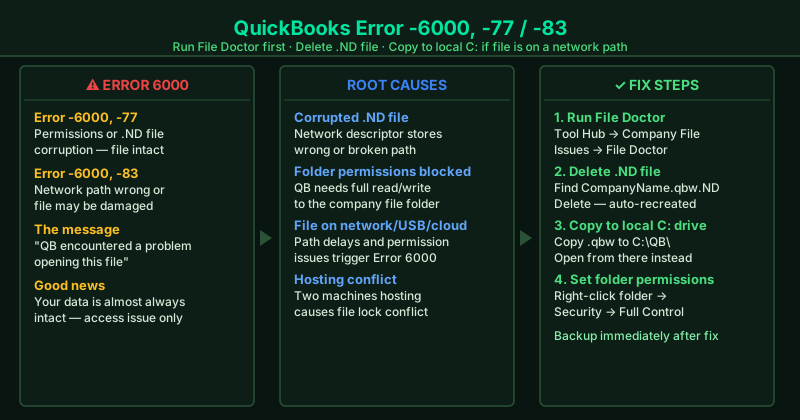
QuickBooks Error 6000 — most commonly appearing as -6000, -77 or -6000, -83 — means QuickBooks found your company file but cannot open it. The full error message reads: “We’re sorry. QuickBooks encountered a problem when trying to open this file.” Despite the alarming message, your company file is almost always undamaged. According to Intuit’s official Error 6000 documentation, the most common causes are a corrupted .ND network descriptor file, incorrect folder permissions, or the company file being stored on a network path that QuickBooks cannot fully access.
What causes QuickBooks Error 6000
Corrupted .ND (Network Descriptor) file — The .ND file tells QuickBooks where to find the company file on a network. If it becomes corrupted — from a crash, a Windows update, or an improper shutdown — QuickBooks cannot locate the file and raises Error 6000 even when the company file is perfectly intact.
Insufficient folder permissions — QuickBooks needs full read/write access to the folder containing the company file. When permissions are restricted — often after a Windows update or a new security policy — QuickBooks can see the file but cannot open or lock it, causing Error -6000, -77.
Company file on a network or external drive — Storing the company file on a network-mapped drive, a USB drive, or a cloud-synced folder (Dropbox, OneDrive) introduces path resolution delays and permission issues that trigger Error 6000.
Hosting conflict — When two or more computers on the network have QuickBooks multi-user hosting enabled, they interfere with each other’s file locking, causing 6000-series errors for all users.
Corrupted or damaged company file — Less common than the other causes, but a file damaged by an improper shutdown or disk error can also produce Error -6000, -83. File Doctor detects and can repair moderate damage.
How to fix QuickBooks Error 6000
Work through the steps in order. File Doctor (Step 1) and deleting the .ND file (Step 2) resolve the majority of Error 6000 cases.
How to verify the fix
After each step, open QuickBooks, go to File > Open or Restore Company, and select your company file. If QuickBooks opens the file without an error, the fix worked. If the error still appears, continue to the next step. Once QuickBooks opens successfully, immediately create a backup via File > Back Up Company > Create Local Backup.
Step-by-step fix
Run QuickBooks File Doctor from Tool Hub
Download and install QuickBooks Tool Hub from Intuit's official support site. Open Tool Hub and click Company File Issues. Select Run QuickBooks File Doctor. In the File Doctor window, choose your company file from the dropdown — or click Browse to find it manually. Select Check your file (middle option) and enter your QuickBooks admin password when prompted. The scan takes 2–5 minutes. File Doctor checks for and repairs network permission issues and .ND file corruption, which are the two most common causes of Error 6000.
Delete the .ND file and let QuickBooks rebuild it
Open File Explorer and navigate to the folder containing your QuickBooks company file (.qbw). In the same folder, find the file with the same name as your company file but with the extension .ND — for example, CompanyName.qbw.ND. Right-click it and delete it. The .ND file is a Network Descriptor that QuickBooks uses to locate the company file on a network. When it is corrupted or points to the wrong location, Error 6000 appears. QuickBooks automatically recreates the .ND file when you reopen the company file — your data is not affected.
Copy the company file to the local C: drive and open it from there
If your company file is stored on a network drive or an external drive, copy it to a local folder on your C: drive — for example, C:\QuickBooksData\. Open QuickBooks, go to File > Open or Restore Company, and browse to the file on the C: drive. If QuickBooks opens the file without Error 6000, the problem is with the network path or drive mapping, not the file itself. You can work locally and move the file back to the network once you fix the network permissions.
Set full permissions on the company file folder for all QuickBooks users
Right-click the folder containing your QuickBooks company file and select Properties. Go to the Security tab and click Edit. Make sure the user account Everyone (or at minimum the Windows user account that runs QuickBooks) has Full Control checked. Click Apply and OK. QuickBooks needs full read/write access to the company file folder, including permission to create and modify the .ND and .TLG support files. Missing permissions cause Error -6000, -77 on network locations.
Change the company file location to a folder without special characters in the path
Error 6000 occasionally appears when the path to the company file contains special characters, accented letters, or a path that is excessively long (over 210 characters). In QuickBooks, go to File > Open or Restore Company and note your current file path. If the path contains special characters or is very long, move the company file to a simple path such as C:\QB\CompanyName.qbw. Then open the file from the new location.
Turn off hosting on all workstations, keep it only on the host computer
If you use multi-user mode, hosting should be enabled on only one computer — the one that stores the company file. On every workstation (other machines on the network), open QuickBooks, go to File > Utilities. If you see Host Multi-User Access, leave it as-is (hosting is off). If you see Stop Hosting Multi-User Access, click it to turn hosting off on that workstation. Having hosting active on multiple computers causes both H202 and 6000-series errors.