
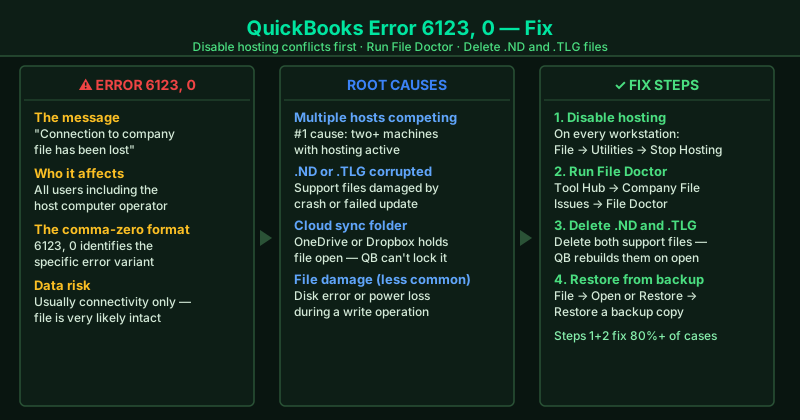
QuickBooks Error 6123, 0 appears as: “Connection to the QuickBooks company file has been lost,” or when QuickBooks refuses to open the company file at all. The number pair — 6123 followed by 0 — identifies this specific connection failure. According to Intuit’s Error 6123 documentation, the most frequent cause is a hosting conflict: two or more computers on the network are both set to host the company file, and they block each other from establishing a clean connection.
What causes QuickBooks Error 6123
Multiple computers hosting the company file — When more than one machine has QuickBooks multi-user hosting enabled, each tries to control access to the company file. The conflict breaks the connection and triggers Error 6123 for all users — including the one sitting at the correct host machine.
Corrupted .ND or .TLG support files — The .ND file stores the network path to the company file, and the .TLG file stores the transaction log. Corruption in either — from a crash, a failed update, or an abrupt shutdown — causes Error 6123 on the next open attempt.
Company file on a non-local or cloud-synced path — Storing the company file in a OneDrive, Dropbox, or Google Drive synced folder causes file locking conflicts. Cloud sync tools hold the file open while QuickBooks tries to do the same, breaking the connection.
Damaged company file — Severe cases of Error 6123 involve actual file corruption from a disk error, power loss during a write operation, or a failed QuickBooks update. File Doctor identifies these cases and recommends a restore.
How to fix QuickBooks Error 6123
Work through the steps in order. Step 1 and Step 2 together resolve over 80% of Error 6123 cases.
How to verify the fix
After each step, open QuickBooks and select your company file from the No Company Open screen or via File > Open or Restore Company. If QuickBooks opens the file without Error 6123, the fix worked. Once open, go to File > Back Up Company > Create Local Backup immediately to protect your data.
Step-by-step fix
Turn off multi-user hosting on all workstations
On every computer connected to your QuickBooks network — except the one that actually stores the company file — open QuickBooks and go to File > Utilities. If you see Stop Hosting Multi-User Access in the menu, click it to disable hosting on that machine. Repeat on every workstation. Error 6123 often occurs when two or more computers are simultaneously acting as hosts, creating a conflict over who controls the company file. After disabling hosting on all workstations, try opening the company file on the host computer.
Run QuickBooks File Doctor from Tool Hub
Download and open QuickBooks Tool Hub from Intuit's official support site. Click Company File Issues, then select Run QuickBooks File Doctor. In File Doctor, select your company file from the dropdown (or click Browse to find it). Choose Check your file and enter your QuickBooks admin password. The scan takes 2–5 minutes and repairs network permission issues, broken .ND files, and moderate company file damage that cause Error 6123.
Delete .ND and .TLG files and rescan with Database Server Manager
Open File Explorer and go to the folder containing your company file. Delete both the .ND file (e.g., CompanyName.qbw.ND) and the .TLG file (e.g., CompanyName.qbw.TLG). These files are automatically recreated — your data is safe. Then open QuickBooks Tool Hub > Network Issues > QuickBooks Database Server Manager, click Scan, and let it rebuild the network descriptor. This combination clears the most common cause of a broken connection.
Copy the company file to the desktop and open it from there
Copy your company file (.qbw) to your desktop or to C:\QuickBooksTest\. Open QuickBooks and go to File > Open or Restore Company, then browse to the copy on your desktop. If the file opens without Error 6123, the problem is with the original file location — a network path, a mapped drive, or a folder with restrictive permissions. Move the company file to a simple local path like C:\QB\ and open it from there going forward.
Restore the company file from your most recent backup
If File Doctor reports that the company file is damaged and cannot be repaired, restore it from your most recent QuickBooks backup (.qbb file). In QuickBooks, go to File > Open or Restore Company, select Restore a backup copy, and follow the prompts to locate your .qbb backup file. QuickBooks backup files are stored by default in Documents\Intuit\QuickBooks\Backup. After restoring, re-enter any transactions that were recorded after the backup was made.