
QuickBooks Error H202 appears when you try to switch QuickBooks to multi-user mode and see: “You are trying to work with a company file that is located on another computer, and the multi-user hosting for this file is not enabled on the other computer.” Despite what the message suggests, hosting is usually already enabled — the actual cause is a firewall, a stopped database service, or a network routing issue blocking communication between the workstation and the host computer. According to Intuit’s official H202 documentation, running the Network Diagnostic Tool resolves most cases automatically.
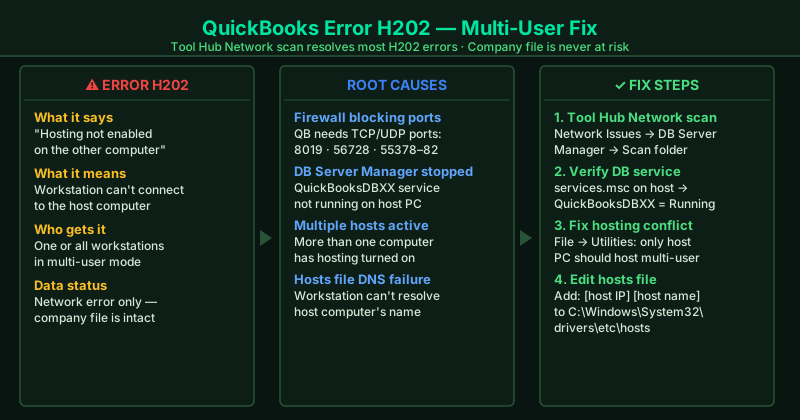
What causes QuickBooks Error H202
Windows Firewall blocking QuickBooks ports — QuickBooks multi-user mode communicates over TCP/UDP ports 8019, 56728, and 55378–55382. A Windows update, a security software install, or a policy change can block these ports without warning, cutting off all workstations from the host.
QuickBooks Database Server Manager not running — The database service on the host computer (QuickBooksDBXX in Windows Services) stops after a system crash, a Windows update, or an improper shutdown. Without this service, no workstation can access the company file in multi-user mode.
Hosting enabled on multiple computers — When more than one computer on the network has multi-user hosting turned on, QuickBooks becomes confused about which computer is the actual host and raises H202 on some or all machines.
Hosts file missing the host computer entry — Windows workstations resolve computer names to IP addresses using DNS or the local hosts file. If the host computer’s name is not resolvable — due to a DNS failure or a network configuration change — workstations raise H202 even though the host is running perfectly.
Third-party firewall or antivirus blocking traffic — Security software with network monitoring can intercept and block QuickBooks inter-process communication, triggering H202 even when Windows Firewall is correctly configured.
How to fix QuickBooks Error H202
Work through the steps in order. The Tool Hub Network Issues scan (Step 1) resolves the majority of H202 errors.
How to verify the fix
On the affected workstation, open QuickBooks, go to File menu, and select Switch to Multi-User Mode. If QuickBooks switches successfully and the company file opens without H202, the fix worked. Test from each workstation that previously showed the error.
Step-by-step fix
Run the QuickBooks Network Diagnostic Tool from Tool Hub
Download and install QuickBooks Tool Hub from Intuit's official support site. Open Tool Hub and click Network Issues. Select QuickBooks Database Server Manager. On the screen that appears, find your QuickBooks company file folder and click Scan. The tool checks your network setup, repairs firewall rules for QuickBooks, and restarts the database service. After the scan completes, try switching QuickBooks to multi-user mode again.
Verify QuickBooks Database Server Manager is running on the host computer
On the computer that hosts the company file (the host), press Windows + R, type services.msc, and press Enter. In the Services window, scroll down to find QuickBooksDBXX (where XX is your QuickBooks version year, e.g., QBDB32 for 2023). Right-click it and select Start if it is Stopped, or Restart if it is already Running. This service must be running on the host at all times for multi-user mode to work. Set its Startup type to Automatic so it starts with Windows.
Add QuickBooks firewall exceptions on the host computer
On the host computer, open Windows Defender Firewall (search for it in the Start menu) and click Advanced settings. Under Inbound Rules, check whether rules for QuickBooks ports already exist. If not, you need to add them: QuickBooks uses TCP and UDP ports 8019, 56728, 55378–55382. In Tool Hub, the Network Issues scan from Step 1 usually adds these automatically — but if H202 persists, manually create inbound and outbound rules for these ports in Windows Firewall Advanced settings.
Check that hosting is enabled only on the host computer
On every workstation (not the host), open QuickBooks, go to File menu, and look at Utilities. If you see Host Multi-User Access in the menu, click it to turn it on — but only on the host. On all other workstations, you should see Stop Hosting Multi-User Access (meaning hosting is already off on those machines). Having multi-user access enabled on more than one computer causes H202. Disable it on all workstations, leave it enabled only on the host.
Edit the Windows Hosts file to include the host computer name
On each workstation showing H202, press Windows + R, type C:\Windows\System32\drivers\etc, and press Enter. Right-click the file named hosts, open it with Notepad. At the bottom of the file, add a new line in this format: [Host IP address] [Host computer name]. For example: 192.168.1.10 ACCOUNTING-PC. Save the file. This tells the workstation exactly where to find the host, resolving cases where DNS lookup fails. To find the host's IP address, type ipconfig in Command Prompt on the host computer.
Temporarily disable third-party security software on all computers
Third-party antivirus or firewall programs — including Norton, McAfee, ESET, and Bitdefender — sometimes block QuickBooks network traffic even when Windows Firewall has the correct exceptions. Temporarily disable real-time protection on both the host and the affected workstations, then try multi-user mode again. If H202 disappears, the security software is the cause. Add QuickBooks (QBW32.exe and QBDBMGRN.exe) to the exclusion list in your security software settings.