
QuickBooks Online bank feed errors — from “Action required” prompts to a complete stop in transaction syncing — are almost always caused by an expired bank session token, a bank-side security change that requires re-authentication, or a broken integration between Intuit and your financial institution. According to Intuit’s bank feed documentation, clicking Update in the Banking section resolves the majority of sync errors.
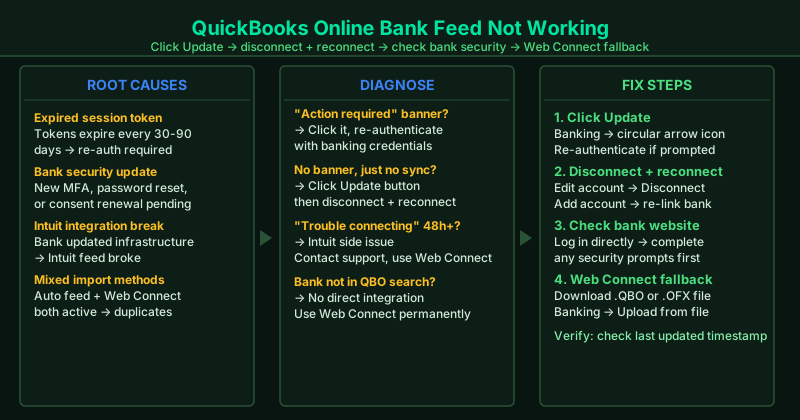
What causes QuickBooks Online bank feed errors
Expired session token — Bank feed connections use tokens that expire every 30 to 90 days depending on your bank. When a token expires, QBO loses the ability to pull transactions automatically and shows an authentication prompt.
Bank-side security update — Banks frequently add new security requirements — new MFA steps, mandatory password resets, or data-sharing consent renewals. When these are pending, QBO cannot connect using the previously saved credentials.
Intuit-bank integration break — Intuit maintains a direct data connection with each supported bank. When a bank updates its infrastructure, Intuit’s integration can break temporarily until Intuit’s banking team repairs it.
Mixed import methods — Using both the automatic bank feed and manual Web Connect import simultaneously causes the same transactions to appear twice in QBO.
How to fix QuickBooks Online bank feed errors
Work through the steps in order. The Update button (Step 1) resolves most feed errors caused by expired tokens and takes under one minute.
How to verify the fix
After reconnecting, go to QBO Banking and check that the last updated timestamp next to your bank account has refreshed to today’s date. Click into the For review tab and confirm that recent transactions from the past 24 hours are visible. If they appear, the bank feed is working again.
Step-by-step fix
Click Update to force a fresh bank sync
In QuickBooks Online, go to Transactions > Banking in the left menu. At the top of the Banking page, click the Update button — the circular arrow icon next to your bank accounts. This forces QBO to re-request transactions from your bank's servers immediately. If your bank requires re-authentication — for example, after a bank-side password change or a new multi-factor authentication requirement — a prompt will appear asking you to re-enter your banking username and password. Complete the re-authentication to restore the feed.
Disconnect and reconnect your bank account
In QBO Banking, click the pencil icon next to the bank account showing the error. Select Edit account info. At the bottom of the panel, check Disconnect this account on save, then click Save and close. After the account disconnects, click Add account and search for your bank by name. Sign in with your online banking credentials and reconnect the account. A fresh connection clears stale authentication tokens that accumulate over time and eventually prevent QBO from syncing transactions.
Check your bank's website for pending security actions
Many banks periodically add new multi-factor authentication requirements, mandatory password resets, or data-sharing consent renewal screens. When any of these are pending on the bank's side, QBO cannot connect using the existing saved credentials. Log directly into your bank's website — not through QBO — and check for any security alerts, confirmation prompts, or messages requiring action. Complete all required steps on the bank's website first, then return to QBO and click Update.
Import transactions manually using Web Connect
If the automatic bank feed remains broken for more than 24 hours, use Web Connect as a temporary fix to keep your books current. Log into your bank's website, navigate to your account history, and look for a Download transactions or Export option. Download in QuickBooks (.QBO) or OFX format for the period that is missing. In QuickBooks Online, go to Banking > Upload from file, drag in the downloaded file, and follow the prompts to match transactions to your QBO account.
Contact Intuit support for persistent connection errors
If the error message reads 'We're having trouble connecting to [Bank Name]' and persists for more than 48 hours despite reconnecting, the issue is on Intuit's side — their banking integration with your specific bank has broken. In QBO, click the ? (Help) icon and select Contact us. Report your bank name, account type, and the exact error message. Intuit maintains direct data connections with each financial institution and can escalate repairs through their banking partner network.