
QuickBooks Online login issues — from a persistent login loop to a locked account — are almost always browser or session problems, not account-level failures. According to Intuit’s official sign-in troubleshooting documentation, opening QBO in a private browser window is the fastest diagnostic step: if you can log in there but not in your regular browser, the fix is local and takes under two minutes.
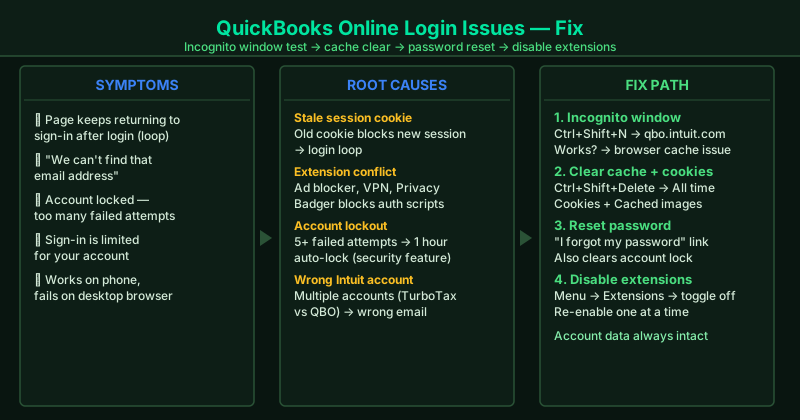
What causes QuickBooks Online login problems
Stale session cookies — QuickBooks Online uses browser cookies to maintain your login session. If a cookie from a previous session is corrupted or outdated — particularly after a QBO update — the login process fails and keeps looping back to the sign-in screen.
Browser extension interference — Ad blockers, tracking protectors, and VPN extensions can intercept or block the scripts QBO runs during authentication, preventing the login from completing even when credentials are correct.
Account lockout — After a set number of failed login attempts, Intuit automatically locks the account for 1 hour as a security measure. The lockout releases on its own or via a password reset.
Wrong email address — Users with multiple Intuit accounts sometimes attempt to log in with the wrong account’s email, resulting in “We can’t find that email” errors.
Intuit authentication service issue — A small percentage of login failures are caused by Intuit’s authentication servers being temporarily unavailable. Check status.intuit.com before extensive local troubleshooting.
How to fix QuickBooks Online login issues
Work through the steps in order. The private window test (Step 1) identifies within 60 seconds whether the issue is local or account-level.
How to verify the fix
After each step, go to qbo.intuit.com and attempt to sign in. If you reach the QuickBooks Online dashboard without being redirected back to the login page, the fix worked. Once logged in, navigate to Banking, Payroll, and Reports to confirm full access is restored.
Step-by-step fix
Open QBO in a private or incognito browser window
Open a new private or incognito window in your browser — Chrome: Ctrl+Shift+N; Firefox: Ctrl+Shift+P; Edge: Ctrl+Shift+N. Go to qbo.intuit.com and sign in with your Intuit credentials. Private windows start with no cached data and no extensions active. If you can log in from the private window but not your regular browser, the problem is with your browser's cached session cookies or a conflicting extension — not your Intuit account.
Clear your browser cache and cookies
In Chrome, press Ctrl+Shift+Delete. Set the time range to All time. Check Cookies and other site data and Cached images and files. Click Clear data. Close all browser windows, reopen Chrome, and go to qbo.intuit.com. Stale session cookies from a previous QBO session — especially after a QBO update — are the most common cause of login loops where the page keeps redirecting back to the sign-in screen after you enter your credentials.
Reset your Intuit account password
On the QuickBooks Online login page, click I forgot my password. Enter the email address linked to your Intuit account and click Continue. Check your inbox for a reset email from Intuit — if it does not arrive within 5 minutes, check your spam folder. Click the link and create a new password using at least 8 characters with a mix of letters, numbers, and symbols. After resetting, sign in at qbo.intuit.com with the new password. Resetting the password also clears most account restriction flags.
Unlock a locked Intuit account
If you see 'Your account has been locked' or 'Too many failed sign-in attempts,' your account is temporarily restricted after multiple wrong password entries. Wait 1 hour — the lockout clears automatically. If the account is still locked after 1 hour, use the Forgot my password link to reset the password, which also removes the lock. If your QBO account is managed by a company administrator, contact your admin — they can unlock your user account from within QBO under Settings > Manage users.
Disable browser extensions that interfere with QBO login
In Chrome, go to the three-dot menu > More tools > Extensions and toggle off all extensions. Reload qbo.intuit.com and attempt to sign in. Extensions most likely to break QBO login: ad blockers (uBlock Origin, AdBlock Plus), tracking protectors (Privacy Badger, Ghostery), and browser-based VPN or proxy extensions. These tools block the cookies and scripts that QBO uses during authentication. If disabling all extensions allows you to log in, re-enable them one at a time — testing the login after each — to find the specific culprit.