
QuickBooks Online won’t load — whether it shows a blank screen, a spinner that never completes, or simply refuses to open — is almost always a browser-side problem. According to Intuit’s loading troubleshooting documentation, cached files from a previous QBO version are the most common cause, and clearing the browser cache resolves the majority of cases.
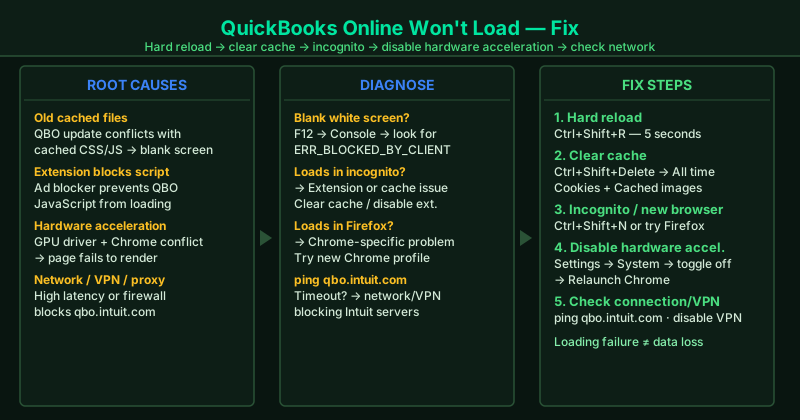
What causes QuickBooks Online to not load
Outdated cached files — QuickBooks Online updates its interface frequently. Old CSS and JavaScript files cached in your browser can conflict with a newer version, causing a blank screen or an incomplete page render.
Browser extension blocking a script — Ad blockers and script blockers can prevent a JavaScript file that QBO needs from loading, resulting in a blank page or a stalled load indicator.
Chrome hardware acceleration conflict — Certain combinations of graphics drivers and Chrome versions cause QBO’s interface to fail to render, producing a blank page even when the browser shows the URL has loaded.
Slow or blocked network — A high-latency connection, a VPN that intercepts HTTPS traffic, or a corporate firewall that blocks Intuit’s servers can prevent QBO from completing its initial load sequence.
Corrupt Chrome profile — A damaged browser profile accumulates broken cache entries and extension conflicts that persist even after a standard cache clear.
How to fix QuickBooks Online not loading
Work through the steps in order. A hard reload (Step 1) takes five seconds and fixes the most common case — try it before clearing all browser data.
How to verify the fix
After each step, navigate to qbo.intuit.com and wait for the full dashboard to appear — including the left navigation menu, the company name, and the main content area. A fully loaded dashboard confirms the fix worked. Click on Banking and then Payroll to verify secondary pages also load correctly.
Step-by-step fix
Hard reload the QBO page to bypass cached files
With the QuickBooks Online tab open in your browser, press Ctrl+Shift+R on Windows or Cmd+Shift+R on Mac. A hard reload forces the browser to download QBO's pages fresh from Intuit's servers instead of using any locally cached files. If the page was stuck on a blank screen or a partial load, a hard reload often resolves it immediately without clearing your full browser history.
Clear browser cache, cookies, and site data
In Chrome, press Ctrl+Shift+Delete. Set the time range to All time. Check Cookies and other site data and Cached images and files. Click Clear data. Close all Chrome windows completely, reopen Chrome, and navigate to qbo.intuit.com. Stale cached files from a previous QBO version are the most common cause of blank screens and loading failures — particularly after Intuit deploys a QBO update that conflicts with files already saved in your browser.
Test QBO in an incognito window or a different browser
Open Chrome incognito (Ctrl+Shift+N) and go to qbo.intuit.com. Incognito windows start with no cache, no cookies, and no active extensions. If QBO loads in incognito but not in your regular browser, the issue is a browser extension or a corrupted browser profile — not a QBO server problem. Also test in Firefox or Edge: if QBO loads in a different browser, the problem is Chrome-specific and not related to your QBO account.
Disable hardware acceleration in Chrome
Some graphics driver and Chrome version combinations conflict with Chrome's hardware acceleration, causing QBO's interface to fail to render or display as a blank page. In Chrome, go to Settings (the three-dot menu) > System. Toggle off Use hardware acceleration when available. Click Relaunch. Go to qbo.intuit.com and check if it loads. If disabling hardware acceleration resolves the issue, update your graphics drivers through Device Manager or your GPU manufacturer's website, then re-enable hardware acceleration.
Check your internet connection and disable proxy or VPN
A slow or unstable connection — or a proxy or VPN that intercepts HTTPS traffic — can prevent QBO from completing its initial page load. Open Command Prompt (Windows + R, type cmd) and run: ping qbo.intuit.com. You should see replies in under 100ms. If you see Request timed out or latency above 200ms, your connection or network routing is the issue. Temporarily disable any VPN and test again. On a corporate network, ask IT if qbo.intuit.com is whitelisted on the firewall.