
QuickBooks Tool Hub is a free repair utility from Intuit that combines the most common QuickBooks Desktop diagnostic tools under one interface. Instead of searching for individual tools for each error type, Tool Hub puts everything in one place: File Doctor for company file errors, the Network Diagnostic Tool for H202 and multi-user failures, the Install Diagnostic Tool for startup crashes, and the Password Reset Tool. According to Intuit’s official support documentation, downloading and running Tool Hub is the recommended first step for most QuickBooks Desktop error codes before attempting more complex repairs.
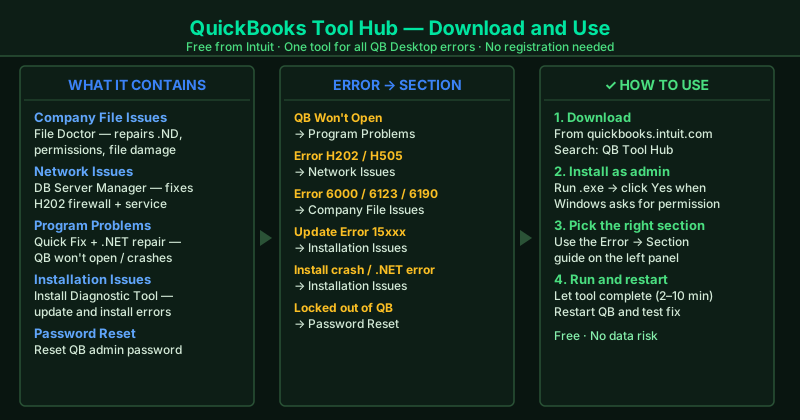
What QuickBooks Tool Hub contains
Company File Issues — Contains QuickBooks File Doctor, which repairs corrupted .ND files, network permission problems, and moderate company file damage. Use this for errors 6000, 6123, -6190, and other “company file won’t open” messages.
Network Issues — Contains QuickBooks Database Server Manager, which rescans the company file folder, restores Windows Firewall port rules for QuickBooks, and restarts the database service. Use this for Error H202, H505, and other multi-user mode failures.
Program Problems — Contains Quick Fix my Program (ends stuck QB background processes and clears temporary files) and the QuickBooks Install Diagnostic Tool (repairs .NET Framework, MSXML, and Visual C++ components). Use this when QuickBooks won’t open or crashes on startup.
Installation Issues — Contains the QuickBooks Install Diagnostic Tool for deeper installation repairs. Use this for errors during QuickBooks installation or program updates that Tool Hub’s Program Problems section doesn’t resolve.
Password Reset — Resets the QuickBooks admin password using the Automated Password Reset Tool. Use this when you are locked out of the admin account and cannot open a company file.
How to download and use QuickBooks Tool Hub
Tool Hub is a standard Windows installer and requires administrator rights to install and run repair tools properly.
How to verify Tool Hub is installed correctly
After installation, open Tool Hub from the Start menu or desktop shortcut. The main screen should show all five section tabs along the left panel. Navigate between sections and confirm each one loads correctly. If Tool Hub fails to open, right-click the shortcut and select Run as administrator. If Tool Hub installs but shows blank sections, uninstall and reinstall the latest version from Intuit’s official support page.
Step-by-step fix
Download QuickBooks Tool Hub from Intuit's official support page
Open your browser and go to Intuit's official QuickBooks support site (quickbooks.intuit.com). Search 'QuickBooks Tool Hub' to find the download page, or look for it under the Support section. Download the installer file (QuickBooksToolHub.exe). Save it to your desktop. Only download Tool Hub from Intuit's official support site — third-party versions may be outdated or unsafe. The download page shows the current version number; download the latest version for the most complete set of repair tools.
Install QuickBooks Tool Hub
Double-click the downloaded QuickBooksToolHub.exe file. If Windows asks for administrator permission, click Yes. Follow the on-screen prompts to complete the installation — accept the license agreement and choose the default installation path. Tool Hub installs to C:\Program Files (x86)\Intuit\QuickBooks Tool Hub\ by default and creates a desktop shortcut automatically. After installation, open Tool Hub from the desktop shortcut or by searching 'QuickBooks Tool Hub' in the Windows Start menu.
Choose the right section for your QuickBooks error
QuickBooks Tool Hub has five sections along the left panel, each targeting a different error type. Company File Issues: use for errors when opening a company file — run File Doctor to repair .ND corruption, network permissions, and moderate file damage (covers errors 6000, 6123, 6190). Network Issues: use for H202 and other multi-user connection errors — Database Server Manager rescans the company file folder and repairs firewall rules. Program Problems: use when QuickBooks won't open or crashes on startup — Quick Fix my Program ends stuck processes and clears temporary files. Installation Issues: use for errors during QuickBooks installation or update — Install Diagnostic Tool repairs .NET Framework, MSXML, and Visual C++. Password Reset: use to reset the QuickBooks admin password without reinstalling.
Run the appropriate tool and restart QuickBooks
After selecting the correct section, click the tool you need. Most tools take 2–10 minutes to complete. For Company File Issues and Network Issues, Tool Hub may ask you to browse to your company file folder — do so and click Scan. After the tool finishes, close Tool Hub. Restart your computer if Tool Hub recommends it. Then reopen QuickBooks and test whether the error is resolved. If the same error still appears, return to Tool Hub and run the next tool in the same section, or follow the specific fix guide for your exact error code.