
Zoom audio not working — whether no sound plays at all, your microphone is silent to others, or audio cuts in and out — is almost always caused by the wrong audio device being selected in Zoom or by Windows blocking Zoom’s access to your audio hardware. According to Zoom’s official audio troubleshooting documentation, running the speaker and microphone test inside Zoom’s Settings resolves the majority of audio failures in under two minutes.
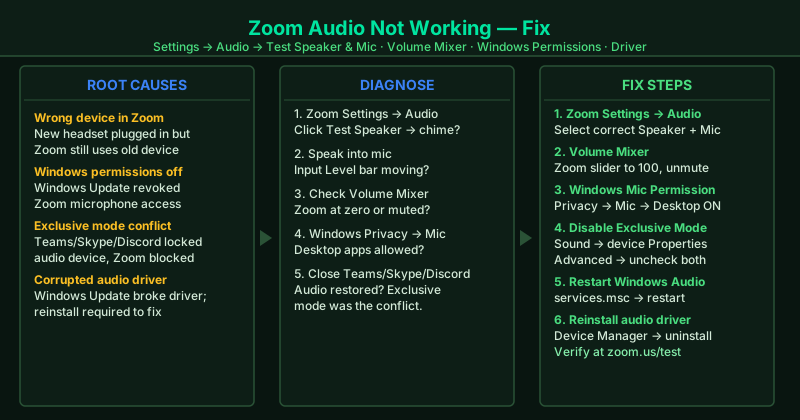
What causes Zoom audio to stop working
Wrong device selected in Zoom — When you plug in new headphones, a USB headset, or a Bluetooth device, Windows may change the default audio device while Zoom continues using the previously selected device. Zoom does not automatically switch — you must select the new device manually inside Zoom’s audio settings.
Windows audio permissions blocked — A Windows Update or privacy setting change can revoke Zoom’s microphone access without notification. When this happens, Zoom can play speaker audio but the microphone bar shows no input, and other participants cannot hear you.
Exclusive mode conflict — Communication apps including Microsoft Teams, Skype, Discord, and some game launchers request exclusive control of the audio device. When they hold exclusive mode, Zoom cannot access the same device simultaneously.
Windows Audio service failure — The Windows Audio and Windows Audio Endpoint Builder services can enter an error state after a driver update, a sleep/wake cycle, or a USB device change. When either service fails, all audio on the computer stops working — not just Zoom.
Outdated or corrupted audio driver — Audio drivers occasionally become corrupted after Windows Updates. A corrupted driver causes audio to fail in ways that cannot be resolved by changing settings — reinstalling the driver is required.
How to fix Zoom audio not working
Work through the steps in order. Step 1 takes under two minutes and identifies whether the problem is inside Zoom or in Windows.
How to verify the fix
After completing a step, open Zoom Settings > Audio and run the Speaker Test and Microphone Test. The speaker test should play a chime through your selected output device. The microphone level bar should move when you speak. If both tests pass, join a test meeting at zoom.us/test to confirm audio works end-to-end in a live session.
Step-by-step fix
Test your audio inside Zoom settings
Open the Zoom desktop app. Click your profile picture in the top-right corner, then click Settings > Audio. Under Speaker, click Test Speaker — you should hear a short chime. Under Microphone, speak into your mic and watch the Input Level bar move. If the speaker test plays no sound or the microphone bar shows no movement, Zoom is using the wrong audio device. Use the dropdown menus to select the correct Speaker and Microphone, then test again. Most Zoom audio failures are resolved at this step.
Check that Zoom is not muted in Windows Volume Mixer
Right-click the speaker icon in the Windows taskbar and select Open Volume Mixer. Look for Zoom in the list of applications. If the Zoom slider is at zero or Zoom is muted (indicated by a crossed-out speaker icon), raise the slider to 100 and click the mute icon to unmute. Windows can mute individual applications independently of the system volume — Zoom may be silenced in the mixer even when your system volume is at full.
Grant Zoom permission to use your microphone in Windows
Press Windows + I to open Settings. Go to Privacy & Security > Microphone. Confirm that Microphone access is turned On at the top. Scroll down and confirm that both Let apps access your microphone and Let desktop apps access your microphone are set to On. If Zoom does not appear in the app list, it falls under the desktop apps toggle — make sure that toggle is enabled. After adjusting permissions, restart Zoom.
Disable Exclusive Mode for your audio device
Right-click the speaker icon in the taskbar and select Sounds. Go to the Playback tab, select your default speaker or headphones, and click Properties. Go to the Advanced tab. Uncheck both 'Allow applications to take exclusive control of this device' and 'Give exclusive mode applications priority.' Click OK. Repeat this process on the Recording tab for your microphone. Exclusive mode allows applications like communication platforms and games to lock the audio device, preventing Zoom from accessing it.
Restart the Windows Audio service
Press Windows + R, type services.msc, and press Enter. Scroll down to Windows Audio. Right-click it and select Restart. Also restart Windows Audio Endpoint Builder in the same list. These two services manage all audio routing on your PC. If they have entered an error state — which happens after driver updates, system sleep/wake cycles, or USB device changes — restarting them restores normal audio function without requiring a full reboot.
Update or reinstall your audio driver
Press Windows + X and click Device Manager. Expand Sound, video and game controllers. Right-click your audio device and select Update driver > Search automatically for drivers. If Windows reports the driver is current but audio still does not work, right-click the device again, click Uninstall device, check 'Delete the driver software for this device,' and click Uninstall. Restart your computer — Windows will reinstall the audio driver automatically. A corrupted or outdated audio driver is the most common cause of Zoom audio failure that persists after all other steps.