
Zoom errors fall into four main categories: audio and sound problems, camera and video failures, microphone issues, and connectivity errors. According to Zoom’s official support documentation, most Zoom failures are resolved by updating the Zoom app, reselecting the correct audio or video device in Zoom’s settings, or restarting the app entirely.
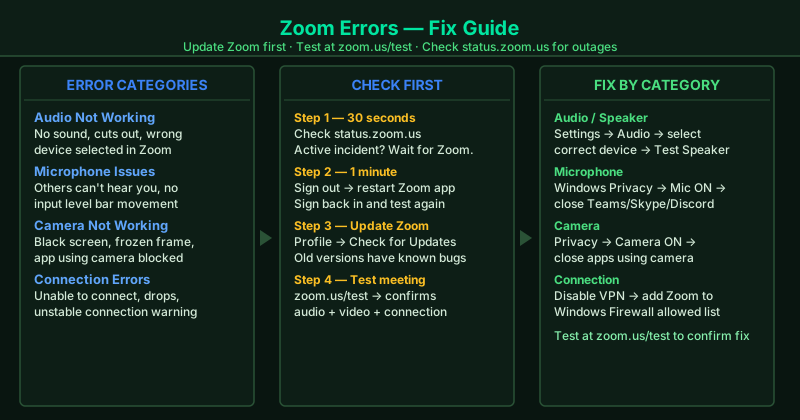
This hub covers the most common Zoom errors. Select the guide that matches your situation.
Fix guides in this pillar
Zoom Audio Not Working — Fix
Zoom shows no audio during meetings — you cannot hear other participants and they cannot hear you, or audio cuts in and out unexpectedly. This guide covers selecting the correct audio device in Zoom, fixing Windows audio permissions, resolving exclusive mode conflicts, and reinstalling Zoom’s audio drivers.
Best for: No sound in Zoom meetings at all, Zoom audio cuts out mid-meeting, Zoom audio works in other apps but not in Zoom, Zoom shows “No Audio” on the toolbar.
Zoom Meeting No Sound — Fix
You join a Zoom meeting and hear nothing — other participants are talking but no sound reaches your speakers or headphones. This guide covers fixing Zoom’s speaker selection, adjusting Windows audio output settings, and resolving conflicts where Windows routes Zoom audio to the wrong output device.
Best for: Joined a Zoom meeting but cannot hear anyone, Zoom audio was working and then stopped, headphones connected but Zoom audio still comes from the wrong device, Zoom volume is at 100% but no sound.
Zoom Microphone Not Working — Fix
Other participants in your Zoom meeting cannot hear you, or your microphone shows no activity in Zoom’s audio settings. This guide covers granting microphone permissions in Windows, selecting the correct input device in Zoom, fixing driver conflicts, and resolving the muted-at-host level problem.
Best for: Mic muted at the Zoom toolbar but still not heard after unmuting, green microphone level bar shows no movement, other participants hear static or cutting out, microphone works in other apps but not Zoom.
Zoom Speaker Not Working — Fix
Zoom’s speaker test plays no sound, or you can hear other Zoom participants through your computer speakers but not through your headphones — or the reverse. This guide covers Zoom’s speaker selection, Windows default playback device settings, and audio driver fixes.
Best for: Zoom speaker test produces no sound, headphones connected but Zoom plays through built-in speakers instead, Zoom speaker worked yesterday but not today, changing the speaker in Zoom settings has no effect.
Zoom Camera Not Working — Fix
Zoom shows a black screen, a frozen frame, or “Camera is being used by another application” when you try to turn on your video. This guide covers granting camera permissions in Windows, closing apps that hold the camera, updating your webcam driver, and fixing Zoom’s camera selection.
Best for: Zoom camera black screen, “Camera is being used by another application” error, camera preview works in Windows Camera app but not in Zoom, camera worked previously but stopped after a Windows or Zoom update.
Zoom Can’t Connect — Fix
Zoom fails to connect to a meeting, shows “Unable to connect to Zoom,” or keeps dropping you from meetings due to connection problems. This guide covers firewall and antivirus rules that block Zoom, proxy settings that interfere with Zoom’s servers, and network configuration fixes.
Best for: “Unable to connect to Zoom” error when joining a meeting, Zoom connects but immediately disconnects, Zoom works on mobile data but not on your office or home Wi-Fi, “Your connection is unstable” warning throughout the entire meeting.