
Zoom meeting no sound — joining a call and hearing nothing while participants are visibly talking — is almost always caused by Zoom sending audio to a different output device than the one you are listening through, or by Zoom not having joined computer audio for the current session. According to Zoom’s support documentation, selecting the correct speaker inside Zoom’s Audio settings and running the built-in speaker test resolves this in under a minute.
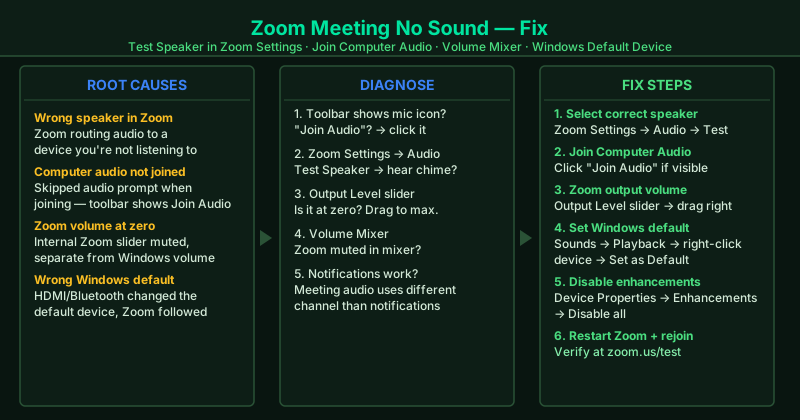
What causes no sound in Zoom meetings
Wrong speaker selected in Zoom — Zoom remembers the last audio device you used. If you plugged in new headphones, connected a USB speaker, or used a different audio output since the last meeting, Zoom may still be routing audio to the previous device — which is now disconnected or inactive.
Computer audio not joined — Zoom requires you to explicitly join computer audio at the start of each meeting. If you dismiss or skip the audio prompt when joining, you enter the meeting in a listen-only state with no audio connection at all.
Zoom volume muted or at zero — Zoom maintains its own internal volume setting independent of Windows system volume. The Zoom speaker volume can be set to zero inside the app even when the Windows volume is at 100%.
Wrong Windows default playback device — When Zoom’s speaker is set to “Same as System,” it follows the Windows default playback device. If Windows recently switched the default to a device you are not using (a TV connected via HDMI, a monitor with built-in speakers, or a recently disconnected headset), Zoom audio plays to that device instead.
Audio enhancements interference — Windows audio enhancement features — noise suppression, equalizer, virtual surround — can conflict with Zoom’s audio processing pipeline and cause meeting audio to be suppressed or silenced entirely.
How to fix Zoom meeting no sound
Work through the steps in order. Step 1 takes under 60 seconds and identifies the correct speaker for Zoom without leaving the app.
How to verify the fix
After each step, run the Speaker Test in Zoom Settings > Audio. The test chime should play through your intended output device. Then join a Zoom test meeting at zoom.us/test — select “Test Computer Audio” when prompted and confirm you can hear the recorded playback of your own voice.
Step-by-step fix
Test the speaker inside Zoom and select the correct output
Open the Zoom desktop app. Click the gear icon (Settings) in the top-right corner, then click Audio. Under Speaker, click Test Speaker. A chime should play through your audio output. If you hear nothing, open the Speaker dropdown and switch to a different device — for example, switch from 'Speakers (Realtek)' to your headphones, or vice versa. After selecting a new device, click Test Speaker again. If the chime plays through the device you want to use, click OK. This single step resolves the majority of 'no sound in Zoom' problems.
Confirm Zoom has joined the meeting with computer audio
At the bottom-left of the Zoom meeting window, look at the microphone icon on the toolbar. If it shows 'Join Audio' instead of a microphone icon, Zoom has not connected to your computer's audio for this session. Click Join Audio and select Computer Audio. Without joining computer audio, you are in the meeting but completely silent — you cannot hear others and they cannot hear you. This happens when you join a meeting quickly and skip the audio prompt.
Check Zoom's volume is not at zero
In a Zoom meeting, hover over the arrow next to the microphone icon on the toolbar and click Audio Settings. Under Speaker, drag the Output Level slider to the right to increase Zoom's speaker volume. Additionally, right-click the speaker icon in the Windows taskbar and open Volume Mixer. Confirm the Zoom slider is at 100 and not muted. Zoom has its own internal volume control separate from Windows system volume — both must be set correctly for sound to play.
Set your preferred device as the Windows default playback device
Right-click the speaker icon in the Windows taskbar and select Sounds. On the Playback tab, right-click the device you want Zoom to use — your headphones, USB speaker, or built-in speakers — and select Set as Default Device. Also click Set as Default Communication Device. Click OK. When Zoom's speaker is set to 'Same as System' in its settings, it follows the Windows default playback device. If Windows is routing audio to the wrong device, changing the Windows default immediately affects Zoom.
Disable audio enhancements that may interfere with Zoom
Right-click the speaker icon in the taskbar and select Sounds. On the Playback tab, select your speaker or headphone device and click Properties. Go to the Enhancements tab (or Advanced tab on some systems). Check 'Disable all enhancements' and click OK. Audio enhancement features including noise suppression, bass boost, and virtual surround sound can conflict with Zoom's own audio processing and cause sound to become silent, distorted, or intermittent during meetings.
Restart Zoom and rejoin the meeting
Close Zoom completely — right-click the Zoom icon in the system tray and select Exit. Reopen Zoom and rejoin the meeting. When Zoom restarts it re-initializes its connection to the audio hardware. Zoom occasionally loses its audio session state during long meetings, driver updates running in the background, or when the computer wakes from sleep mid-meeting. Rejoining is the fastest way to restore audio when it stops mid-meeting.