
Zoom camera not working — showing a black screen, a frozen image, or the error “Camera is being used by another application” — is most commonly caused by another application holding exclusive control of the camera, Windows privacy settings blocking Zoom’s camera access, or a webcam driver that became incompatible after a Windows Update. According to Zoom’s official video troubleshooting documentation, checking the camera preview in Zoom Settings > Video immediately reveals whether Zoom can access the camera at all.
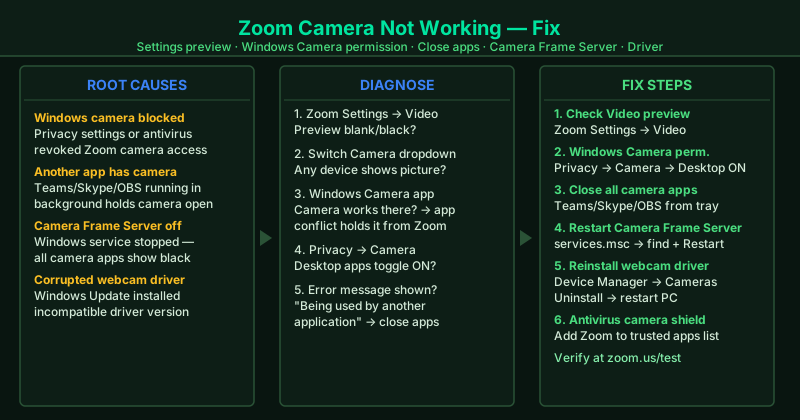
What causes Zoom camera to stop working
Windows camera permissions blocked — Windows 10 and 11 require explicit permission for each application to access the camera. A Windows Update, a privacy tool, or an antivirus camera-protection feature can revoke Zoom’s camera access without any visible notification, causing Zoom to show a black screen.
Another app holding the camera — Most webcams and built-in laptop cameras allow only one application to use them at a time. When Microsoft Teams, Skype, Discord, OBS, or any other app opens the camera — even while running minimized in the background — Zoom cannot access it and displays a black screen or an “in use” error.
Windows Camera Frame Server stopped — The Camera Frame Server service manages camera access for all applications on Windows 10 and 11. When this service stops running, every camera application shows a black screen simultaneously, even though the camera hardware is physically working.
Outdated or corrupted webcam driver — Camera drivers occasionally become corrupted after Windows Updates. A corrupted driver causes the camera to fail in all apps, or specifically fail in Zoom while other apps appear to work — a symptom of a partial driver failure where basic access works but the frame delivery pipeline is broken.
Antivirus camera shield blocking Zoom — Security software with webcam protection blocks all unauthorized camera access. If Zoom is not on the software’s trusted list, every Zoom video session is silently blocked at the driver level.
How to fix Zoom camera not working
Work through the steps in order. Step 1 takes under 30 seconds and directly confirms whether Zoom can access any camera device on your system.
How to verify the fix
In Zoom Settings > Video, the camera preview should show a live picture of yourself. Then join a test meeting at zoom.us/test and confirm your video appears in the preview window before clicking “Join with Video.” Ask a colleague to confirm they can see your video feed once inside the meeting.
Step-by-step fix
Check the camera preview in Zoom settings
Open the Zoom app. Click the gear icon in the top-right corner and select Video. A preview of your camera should appear immediately. If the preview is black, blank, or shows an error message, Zoom cannot access the camera in its current configuration. Open the Camera dropdown and try selecting a different device from the list — if you have a built-in webcam and an external USB webcam, both appear here. After selecting each device, wait two seconds for the preview to update. If any device shows a live picture, that is the camera you should use.
Grant Zoom camera access in Windows Privacy settings
Press Windows + I to open Settings. Navigate to Privacy & Security > Camera. Confirm that Camera access is toggled On at the top of the page. Scroll down and confirm Let desktop apps access your camera is also set to On. Windows 10 and 11 control camera access per-application — a Windows Update, antivirus software, or a privacy tool can revoke camera access for Zoom without notification. After enabling access, restart Zoom and check the camera preview again.
Close all other apps that use the camera
Close Microsoft Teams, Skype, Discord, Google Meet, OBS Studio, the Windows Camera app, and any other application that might be accessing the camera. Then restart Zoom. On most systems, only one application can use the camera at a time. When another app holds the camera open, Zoom receives the 'Camera is being used by another application' error and shows a black screen. Even if the other app appears closed, check the system tray for Teams, Skype, or OBS running in the background and close them from there.
Start or restart the Windows Camera Frame Server service
Press Windows + R, type services.msc, and press Enter. Scroll down to Windows Camera Frame Server. If its status is not 'Running,' right-click it and select Start. If it is running, right-click and select Restart. This service manages access to all camera devices on Windows 10 and 11. When it stops — after a system update, a software conflict, or a driver change — all camera applications including Zoom show a black screen even though the camera hardware itself is working correctly.
Update or reinstall your webcam driver
Press Windows + X and click Device Manager. Expand Cameras (or Imaging devices on some systems). Right-click your webcam and select Update driver > Search automatically for drivers. If Windows reports the driver is up to date but the camera still does not work, right-click the camera device and select Uninstall device. Check 'Delete the driver software for this device' and click Uninstall. Restart your computer — Windows will reinstall the webcam driver automatically. For external USB webcams, also try a different USB port and a different USB cable.
Disable camera privacy features in your antivirus or security software
Security software including Bitdefender, Kaspersky, ESET, and Norton include a webcam protection feature that blocks unauthorized camera access. Open your security software's settings and look for Camera Shield, Webcam Protection, or Application Privacy. Add Zoom to the list of trusted applications or temporarily disable the webcam protection feature to test. If Zoom's camera starts working when the security feature is disabled, the fix is to add Zoom as a trusted application — not to leave the protection permanently disabled.