
Zoom can’t connect — showing “Unable to connect to Zoom,” dropping from meetings, or displaying persistent “connection unstable” warnings — is most commonly caused by a firewall rule blocking Zoom’s required ports, a VPN routing Zoom traffic through a server that restricts media connections, or a corporate network proxy intercepting Zoom’s HTTPS connections. According to Zoom’s official connectivity troubleshooting guide, testing on a mobile hotspot is the fastest way to determine whether the problem is local network configuration or a Zoom service issue.
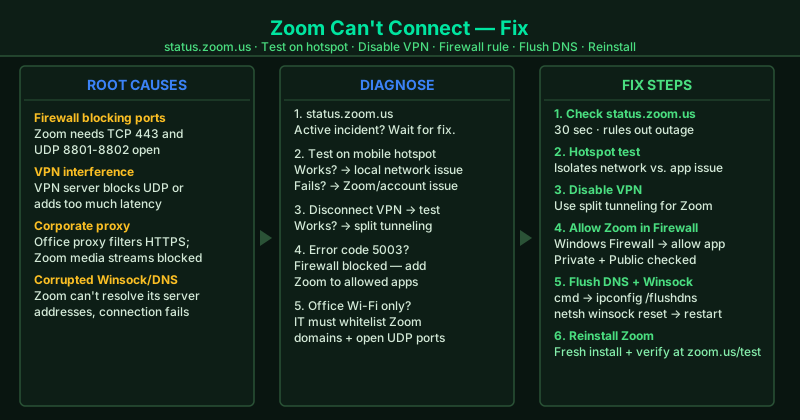
What causes Zoom to fail to connect
Firewall blocking Zoom’s ports — Zoom uses TCP port 443 for signaling and UDP ports 8801-8802 for media transmission. Windows Firewall or a third-party firewall blocking these ports produces “Unable to connect” errors that look identical to a Zoom outage.
VPN interference — VPN services route all traffic through a VPN server. When the VPN server is in a different region, adds latency, or blocks UDP traffic, Zoom’s media streams cannot be transmitted — causing connection failures or extreme instability during meetings.
Corporate network proxy — Office networks frequently route traffic through a web proxy that authenticates users and filters content. Zoom’s real-time media connections (WebRTC and UDP streams) are often incompatible with proxy configurations, causing Zoom to connect initially but fail to transmit audio and video.
Corrupted Winsock or DNS cache — A corrupted Windows network stack (Winsock) or stale DNS entries prevent Zoom from resolving and connecting to its server addresses. Other websites may appear to work normally while Zoom-specific connections fail.
Zoom installation corruption — A Zoom update that was interrupted, a partial installation, or corrupted Zoom files can cause persistent connection failures that cannot be resolved by changing settings. Reinstalling Zoom restores the correct binaries and connection certificates.
How to fix Zoom can’t connect
Work through the steps in order. Steps 1 and 2 take under three minutes combined and determine whether the problem is with Zoom’s infrastructure or your local network — this distinction determines whether any further troubleshooting is necessary.
How to verify the fix
Join the Zoom test meeting at zoom.us/test. The test meeting verifies your connection end-to-end, including media server connectivity. If the test meeting connects successfully and audio/video work correctly, your Zoom connectivity is fully restored.
Step-by-step fix
Check Zoom's status page for an active incident
Open a browser and go to status.zoom.us. Active service incidents appear at the top of the page. Zoom connectivity failures — 'Unable to connect to Zoom,' meeting join errors, or persistent instability — can be caused by a Zoom infrastructure problem affecting all users. If an incident is listed, no local troubleshooting will help. Wait for Zoom to post a resolution and try again. The status page also shows planned maintenance windows that may cause temporary connectivity failures.
Test Zoom on a mobile hotspot
Enable the hotspot on your smartphone, connect your computer to the hotspot's Wi-Fi, and try joining a Zoom meeting. If Zoom connects successfully on the mobile hotspot but fails on your regular network (home Wi-Fi, office network, or wired Ethernet), the problem is your local network — your router, ISP, firewall, or VPN is blocking Zoom's connection. Continue troubleshooting your network configuration from Step 3 onward. If Zoom also fails on the hotspot, the problem is with your Zoom account or the Zoom app installation.
Temporarily disable your VPN and test Zoom
If you use a VPN — whether a personal VPN service or a corporate VPN — disconnect it and try joining Zoom. VPNs route all your traffic through a VPN server, which can add latency, reduce bandwidth, or block the ports that Zoom requires. Zoom's video conferencing uses UDP ports 8801-8802 and TCP port 443, which some VPN configurations block. If Zoom works after disconnecting the VPN, check your VPN provider's documentation for a 'split tunneling' feature that excludes Zoom traffic from the VPN tunnel.
Add Zoom as an allowed app in Windows Firewall
Press Windows + S and search for 'Allow an app through Windows Firewall.' Click the result and then click 'Change settings.' Scroll through the list and find Zoom Video Conference. If Zoom is not listed, click 'Allow another app,' browse to the Zoom executable (typically C:\Users\[YourName]\AppData\Roaming\Zoom\bin\Zoom.exe), and add it. Check both Private and Public checkboxes for Zoom. Windows Firewall blocking Zoom's outbound connections produces 'Unable to connect' errors that appear identical to a network outage.
Flush DNS and reset the Winsock catalog
Open Command Prompt as administrator — search for cmd, right-click, select Run as administrator. Run the following commands one at a time, pressing Enter after each: ipconfig /flushdns — then — netsh winsock reset — then — netsh int ip reset. Restart your computer after all three commands complete. A corrupted Winsock catalog or stale DNS cache can prevent Zoom from resolving its server addresses and establishing connections, causing 'Unable to connect' errors even when other websites load normally.
Disable proxy settings if Zoom traffic is being routed through a proxy
Press Windows + I, go to Network & Internet > Proxy. Under Manual proxy setup, confirm Use a proxy server is set to Off. Under Automatic proxy setup, confirm Automatically detect settings is Off unless your network administrator specifically requires it. Open Zoom Settings > Advanced and confirm that 'Use proxy to connect to Zoom service' is unchecked unless you have a specific proxy requirement. Proxy configurations that require authentication or that filter HTTPS traffic prevent Zoom from connecting to its media servers.
Reinstall Zoom using the latest version from Zoom's website
Open Windows Settings > Apps and uninstall Zoom from the installed apps list. Restart your computer. Download the latest Zoom installer from zoom.us/download and install it. A corrupted Zoom installation can cause persistent connectivity failures — particularly the 'Zoom is unable to detect your camera or audio' errors combined with connection problems — that settings adjustments cannot fix. The latest Zoom version also contains updated certificates and server connection logic that resolves compatibility issues introduced by network security changes.