
Zoom speaker not working — whether the speaker test plays no chime, meeting audio plays through the wrong output device, or Zoom audio disappears while everything else on your computer sounds fine — is almost always caused by the wrong output device being selected in Zoom or by Windows routing Zoom’s audio to an inactive or unexpected playback device. According to Zoom’s official audio documentation, running the built-in speaker test in Zoom Settings identifies the active device immediately.
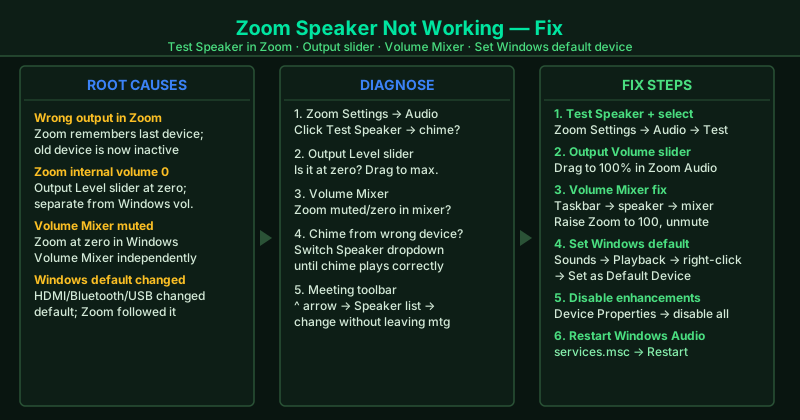
What causes the Zoom speaker to stop working
Wrong output device in Zoom — Zoom stores the speaker device from the last session. When you connect or disconnect headphones, a USB speaker, or a Bluetooth device, Windows may reassign the default audio output — but Zoom keeps using the previously remembered device, which may no longer be active.
Zoom’s internal volume at zero — Zoom has a separate speaker volume control inside its settings. This slider can be set to zero by an accidental drag or by a Zoom app update that resets audio preferences — causing complete silence even when Windows volume is at maximum.
Windows Volume Mixer muting Zoom — Windows allows individual applications to be muted independently of system volume. Zoom appearing at zero or muted in the Volume Mixer produces complete silence without any indication inside the Zoom app itself.
Wrong Windows default playback device — Connecting an HDMI monitor, TV, Bluetooth device, or USB speaker causes Windows to automatically switch the default playback device. When Zoom uses “Same as System,” it follows this change and begins playing audio through the newly connected device instead of your usual speakers.
Windows Audio service failure — The Windows Audio service manages all audio routing. When it enters an error state, audio output stops across all applications. Restarting the service restores function without requiring a system reboot.
How to fix Zoom speaker not working
Work through the steps in order. Step 1 takes under 60 seconds and directly identifies whether Zoom is using the correct output device.
How to verify the fix
Run the speaker test in Zoom Settings > Audio — you should hear the chime through your intended output device. Then join a test meeting at zoom.us/test and confirm you can hear the recorded playback of your voice, which confirms the speaker is working end-to-end in a live Zoom session.
Step-by-step fix
Run the Zoom speaker test and select the correct output device
Open the Zoom app. Click the gear icon in the top-right corner, then click Audio. Under Speaker, click Test Speaker. A short chime should play. If you hear nothing, open the Speaker dropdown and select a different device from the list. Common options include your built-in laptop speakers, headphones, USB speaker, HDMI output (for monitors with built-in speakers), or a Bluetooth device. After selecting each device, click Test Speaker again until you hear the chime. Once you identify the correct device, it stays selected for all future Zoom meetings.
Adjust Zoom's speaker volume slider
In Zoom Settings > Audio, look for the Output Level slider directly below the Speaker dropdown. Drag it all the way to the right (maximum). This slider controls Zoom's internal speaker volume independently of the Windows system volume. If this slider is set to zero, you will hear no sound from Zoom regardless of how high your Windows volume is set. This is a common misconfiguration — Zoom occasionally resets this slider after an app update.
Check Windows Volume Mixer and confirm Zoom is not muted
Right-click the speaker icon in the Windows taskbar and select Open Volume Mixer. Look for the Zoom entry in the application list. Confirm the Zoom volume bar is not at zero and is not showing a muted icon (crossed-out speaker). Windows mutes applications independently — your system volume can be at 100% while Zoom specifically is muted or at zero in the mixer. Drag the Zoom slider to 100 and click the speaker icon if it shows as muted.
Set the correct device as the Windows default playback device
Right-click the speaker icon in the taskbar and select Sounds. On the Playback tab, right-click your preferred speaker or headphone device and select Set as Default Device. Also click Set as Default Communication Device. When Zoom's speaker setting is 'Same as System,' it uses whichever device Windows has set as default. If Windows recently changed the default — because you connected an HDMI monitor, a TV, or a Bluetooth device — Zoom may be routing audio to that new device instead of your speakers or headphones.
Disable audio enhancements on your playback device
In the Windows Sounds dialog (right-click the speaker icon > Sounds), go to the Playback tab. Select your speaker or headphone device and click Properties. Go to the Enhancements tab. Check 'Disable all enhancements' and click Apply, then OK. Audio enhancement features — spatial sound, bass boost, loudness equalization, virtual surround — can suppress or distort Zoom's speaker output in ways that make audio appear silent or very faint. Disabling them forces the audio to pass through without modification.
Restart the Windows Audio service
Press Windows + R, type services.msc, and press Enter. Find Windows Audio in the list. Right-click it and select Restart. Also restart Windows Audio Endpoint Builder the same way. Close the Services window. Open Zoom and run the speaker test again. The Windows Audio services manage all audio routing. When they enter an error state — which can happen after a driver update, a sleep/wake cycle, or a USB device change — audio output stops working across all applications, not just Zoom.