
Zoom microphone not working — other participants cannot hear you, or your microphone shows no input in Zoom’s audio settings — is most commonly caused by Windows blocking Zoom’s microphone access, the wrong input device being selected in Zoom, or another application holding exclusive control of the microphone. According to Zoom’s official microphone troubleshooting guide, checking the Input Level bar in Zoom’s audio settings confirms within seconds whether Zoom is receiving your audio.
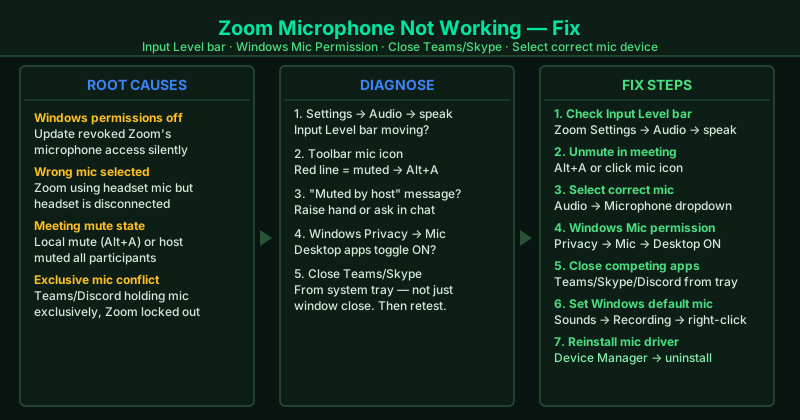
What causes the Zoom microphone to stop working
Windows microphone permissions revoked — Windows 10 and 11 control which apps can access the microphone through the Privacy & Security settings. A Windows Update, a group policy change, or a manual settings change can revoke Zoom’s microphone permission without any visible notification.
Wrong microphone device selected — Zoom stores the microphone device from the last session. If you switch from a headset to a built-in microphone, connect a new USB device, or disconnect your usual mic, Zoom continues trying to use the previously selected device — which may no longer be active.
Meeting mute state — Zoom has two separate mute controls: your local mute (Alt+A) and the host’s mute. Both must be inactive for your microphone to transmit. Being muted at the host level is a common source of confusion because the toolbar icon looks the same whether you muted yourself or the host muted you.
Exclusive microphone access conflict — Microsoft Teams, Skype, and Discord request exclusive control of the microphone when they are running. When one of these holds exclusive access, Zoom cannot initialize the same microphone and the Input Level bar shows no movement.
Corrupted audio driver — A corrupted input device driver causes the microphone to fail in all applications or specifically fail in Zoom due to driver-level permissions. Reinstalling the driver is the only fix when all other steps do not resolve the issue.
How to fix Zoom microphone not working
Work through the steps in order. Step 1 takes under 30 seconds and immediately tells you whether the problem is the device or the meeting state.
How to verify the fix
In Zoom Settings > Audio, watch the microphone Input Level bar while speaking normally. The bar should show green movement in sync with your voice. Then join the Zoom test meeting at zoom.us/test, speak for 10 seconds when prompted, and confirm you can hear your own voice played back in the recording.
Step-by-step fix
Check the microphone Input Level bar in Zoom settings
Open the Zoom app. Click the gear icon (Settings) in the top-right corner, then click Audio. Under Microphone, speak into your mic while watching the Input Level bar. If the bar moves when you speak, Zoom is receiving your audio and the issue may be that you are muted in the meeting. If the bar does not move at all, Zoom is not receiving input from your microphone — continue to the next steps. The Input Level bar is the fastest way to confirm whether the problem is the microphone device or the meeting mute state.
Confirm you are not muted in the meeting
In the Zoom meeting, look at the microphone icon in the bottom-left toolbar. A red line through the microphone means you are muted locally. Click the icon or press Alt+A (Windows) to unmute yourself. Also look for a message at the top of the screen that says 'The host has muted you' — when a host mutes all participants, only the host can unmute you, or you must request to unmute. These are two separate mute states and both must be cleared for your microphone to transmit audio.
Select the correct microphone in Zoom
In Zoom Settings > Audio, open the Microphone dropdown. If it shows 'Same as System' or a device name that is not your actual microphone, select the correct device from the list. After selecting, speak and watch the Input Level bar. If you have a USB microphone, headset with a mic, or built-in laptop microphone, each appears as a separate entry. Common wrong selections: selecting the speaker device instead of the microphone, or selecting a virtual audio device created by software like VoiceMeeter.
Grant Zoom microphone access in Windows Privacy settings
Press Windows + I to open Settings. Navigate to Privacy & Security > Microphone. Confirm 'Microphone access' is toggled On. Scroll down and ensure 'Let desktop apps access your microphone' is turned On. If Zoom recently appeared in an app list with access denied, toggle it to allowed. Windows can revoke microphone permissions during a Windows Update or when a new privacy policy is applied by your organization — this is the most common reason Zoom's microphone suddenly stops working after an update.
Check that another app is not holding exclusive microphone access
Close all other applications that use a microphone: Microsoft Teams, Skype, Discord, Google Meet, and voice assistants (Cortana, Alexa app). Then restart Zoom. Communication applications frequently request exclusive access to the microphone device — when they hold exclusive control, Zoom cannot access the same input device simultaneously. You can confirm this is the cause if Zoom's microphone starts working immediately after closing one specific application.
Set your microphone as the Windows default recording device
Right-click the speaker icon in the Windows taskbar and select Sounds. Go to the Recording tab. Right-click your microphone device and select Set as Default Device and also Set as Default Communication Device. Click OK. When Zoom's microphone is set to 'Same as System,' it uses the Windows default recording device. If the wrong device is set as default — a webcam's built-in mic, a disconnected headset still listed, or a virtual device — Zoom picks up nothing.
Update or reinstall the microphone driver
Press Windows + X and click Device Manager. Expand Audio inputs and outputs. Right-click your microphone device and click Update driver > Search automatically for drivers. If no update is found but the microphone still does not work, right-click the device and click Uninstall device. Check 'Delete the driver software for this device' and click Uninstall. Restart your computer — Windows reinstalls the driver automatically on reboot. For USB microphones, also try a different USB port. A corrupted driver is the least common cause but explains failures that persist after all settings-based fixes.