
Bluetooth headphones not connecting on Windows 11 means the headphones are paired in Bluetooth settings but audio does not play through them, the connection fails at pairing, or the headphones show as connected but only one audio profile works. According to Microsoft’s official Bluetooth troubleshooting documentation, the most common cause is Windows not automatically switching the audio output to the headphones, or a Bluetooth audio profile negotiation failure that prevents stereo audio from working.
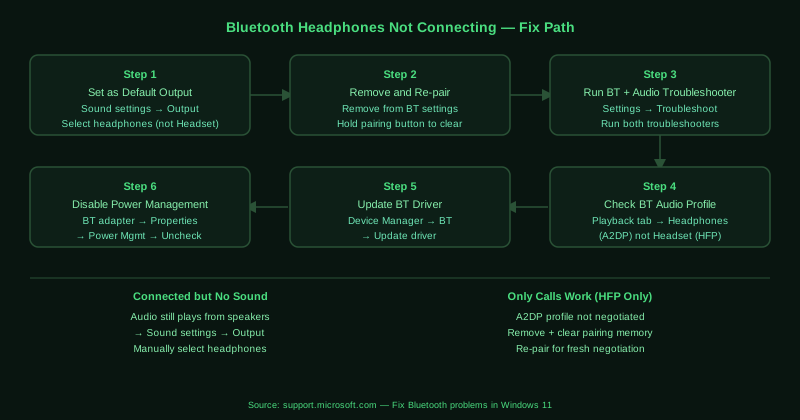
What causes Bluetooth headphones not connecting on Windows 11
Audio output not switched to headphones — Windows does not always switch the audio output device automatically when Bluetooth headphones connect. The headphones are connected over Bluetooth but audio continues to play through speakers or the previous output device because Windows Sound settings still points to the old device.
Bluetooth audio profile negotiation failure — Bluetooth headphones use multiple profiles: A2DP for high-quality stereo audio and HFP/HSP for hands-free calling. If Windows negotiates only the Headset profile and not the Headphones (A2DP) profile, audio quality is reduced or stereo does not work. This often happens with stale pairing data.
Stale pairing data — When headphones have been paired with multiple devices, the pairing keys stored on the headphones and in Windows can become inconsistent. The connection may succeed at the Bluetooth level while the audio stack fails to initialise correctly.
Outdated Bluetooth driver — Older Bluetooth drivers may not correctly negotiate Bluetooth 5.0 audio codecs (aptX, AAC, LDAC) used by newer headphones, causing audio quality issues or connection failures for specific headphone models.
How to fix Bluetooth headphones not connecting on Windows 11
Work through the steps in order. Step 1 (setting the correct audio output) resolves the most common case.
How to verify the fix
After each step, open a media player or browser and play audio — confirm sound comes from the Bluetooth headphones and not the PC speakers. Verify both left and right channels work. For headphones with a microphone, make a test call or use Settings > System > Sound > Input to confirm the microphone receives audio.
Known limitations
Microsoft’s Bluetooth driver and troubleshooter do not support proprietary high-resolution audio codecs such as aptX HD, LDAC, and Sony LDAC. On Windows 11, Bluetooth audio quality is limited to the SBC codec unless the laptop manufacturer includes codec extensions in their Bluetooth driver. If headphones support aptX or LDAC but audio quality is lower than expected, the Windows Bluetooth driver may not include the required codec — check the laptop manufacturer’s driver package for codec support documentation, as there is no Windows-level fix for missing codec support.
Step-by-step fix
Set headphones as the default audio output
Right-click the speaker icon in the taskbar and select Sound settings. Under Output, click the Choose where to play audio dropdown and select your Bluetooth headphones. If the headphones appear in the list as two entries — one for stereo audio (Headphones) and one for hands-free calling (Headset) — select the Headphones entry for the best audio quality. The Headset profile uses a lower quality audio codec to reserve bandwidth for the microphone. If the headphones do not appear in the output list, they are not fully connected — return to Settings > Bluetooth & devices and check the connection status.
Remove the device and re-pair in fresh pairing mode
Open Settings > Bluetooth & devices. Click the three-dot menu next to the headphones and select Remove device. On the headphones, reset the pairing memory — for most headphones, hold the pairing button for 5–10 seconds until the LED indicator changes behaviour or a voice prompt announces the list was cleared. Put the headphones into pairing mode (LED usually flashes rapidly), then click Add device in Windows and pair them fresh. Clearing stale pairing data from both sides allows Windows to negotiate the correct Bluetooth audio profiles.
Run the Bluetooth and Playing Audio troubleshooters
Open Settings > System > Troubleshoot > Other troubleshooters. Run both the Bluetooth troubleshooter and the Playing Audio troubleshooter. The Bluetooth troubleshooter checks the adapter and connection state, while the Playing Audio troubleshooter checks the audio stack and output device selection. Running both covers driver issues at the Bluetooth level and audio routing issues at the Windows audio level. Apply any fixes suggested and restart your computer.
Check the Bluetooth headphone profile in Sound settings
Right-click the speaker icon and select Sound settings. Click More sound settings to open the classic Sound window. In the Playback tab, check whether your Bluetooth headphones appear as two separate entries: one labelled Headphones (for A2DP stereo audio) and one labelled Headset (for HFP hands-free profile). Right-click the Headphones entry and select Set as Default Device. If only the Headset entry appears, the A2DP profile may have failed to negotiate — remove the device and re-pair to allow Windows to renegotiate both profiles.
Update the Bluetooth driver
Open Device Manager (right-click Start > Device Manager). Expand Bluetooth. Right-click your Bluetooth adapter and select Update driver > Search automatically for drivers. If Windows finds no update, visit your laptop or motherboard manufacturer's website and download the latest Bluetooth driver for your specific model. Bluetooth audio quality and profile negotiation improved significantly between driver versions — an outdated driver may not correctly support the audio profiles used by newer headphones.
Disable Bluetooth power management
In Device Manager under Bluetooth, right-click your Bluetooth adapter, select Properties, and go to the Power Management tab. Uncheck Allow the computer to turn off this device to save power. This prevents Windows from cutting power to the Bluetooth adapter during idle periods, which can interrupt headphone audio and cause the connection to drop mid-use. This setting is particularly important when using headphones for music or calls and the computer enters an idle state.