
Bluetooth errors on Windows 11 range from complete adapter failure to connection drops, pairing failures, and devices that connect but produce no audio. According to Microsoft’s official Bluetooth troubleshooting documentation, most Windows 11 Bluetooth problems fall into three categories: missing or corrupted Bluetooth driver, wrong Bluetooth service state, and device pairing conflicts.
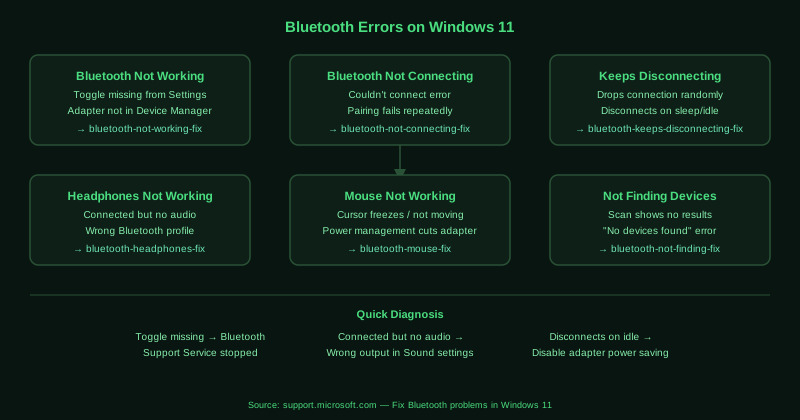
This hub covers the most common Bluetooth errors on Windows 11. Select the guide that matches your situation.
Fix guides in this pillar
Bluetooth Not Working on Windows 11 — Fix
Bluetooth toggle is missing in Settings, the Bluetooth adapter does not appear in Device Manager, or Bluetooth was working and stopped without explanation. This guide covers re-enabling the Bluetooth adapter, reinstalling the Bluetooth driver, and restarting the Bluetooth Support Service.
Best for: Bluetooth toggle missing from Settings, Bluetooth adapter not in Device Manager, Bluetooth stopped working after Windows Update, no Bluetooth option anywhere in Windows 11.
Bluetooth Not Connecting on Windows 11 — Fix
The device appears in the Bluetooth scan list but fails to connect, shows “Connection failed” or “Couldn’t connect,” or the connection drops immediately after pairing. This guide covers removing and re-pairing the device, clearing the Bluetooth cache, and fixing driver conflicts.
Best for: Bluetooth device visible but won’t connect, “Couldn’t connect” error message, pairing fails repeatedly, connection drops immediately after connecting.
Bluetooth Keeps Disconnecting on Windows 11 — Fix
Bluetooth devices connect successfully but disconnect after a few minutes or seconds, or disconnect when the computer is idle. This guide covers disabling Bluetooth power saving, adjusting USB selective suspend settings, and updating the Bluetooth driver.
Best for: Bluetooth disconnects every few minutes, drops connection when idle, disconnects on wake from sleep, headphones cut out randomly.
Bluetooth Headphones Not Connecting on Windows 11 — Fix
Bluetooth headphones appear in the device list but audio does not play through them, the connection fails at pairing, or headphones connected but only one audio service is active. This guide covers selecting the correct audio output, fixing headphone profiles, and clearing the Bluetooth pairing cache.
Best for: Bluetooth headphones paired but no audio, headphones show connected but sound plays elsewhere, only one earbud works, headphones paired but no microphone.
Bluetooth Mouse Not Working on Windows 11 — Fix
Bluetooth mouse is connected but does not move the cursor, disconnects randomly, or will not pair at all. This guide covers disabling power management for the Bluetooth adapter, re-pairing the mouse, and fixing HID device driver issues.
Best for: Bluetooth mouse connected but not responding, mouse cursor freezes, mouse disconnects while using it, Bluetooth keyboard not working.
Bluetooth Not Finding Devices on Windows 11 — Fix
The Bluetooth scan in Windows 11 shows no devices, or specific devices do not appear in the list even when in pairing mode. This guide covers restarting the Bluetooth discovery scan, resetting the device’s pairing mode, and fixing Bluetooth adapter visibility settings.
Best for: No devices appear when scanning, “No Bluetooth devices found,” device not showing up in Bluetooth list, device visible on phone but not on PC.