
Bluetooth keeps disconnecting on Windows 11 means Bluetooth devices drop the connection repeatedly — after a period of inactivity, during use, or when the computer wakes from sleep — and must be reconnected manually each time. According to Microsoft’s official Bluetooth troubleshooting documentation, the most common cause is Windows power management settings that cut power to the Bluetooth adapter during idle periods, severing all active connections.
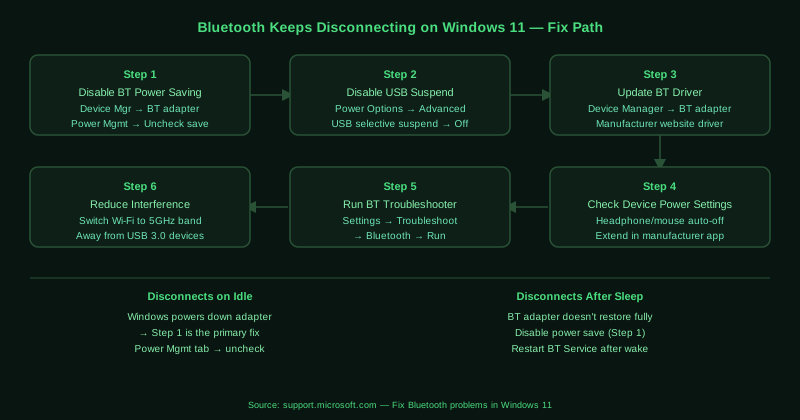
What causes Bluetooth keeps disconnecting on Windows 11
Bluetooth adapter power management — Windows 11 power management can cut power to the Bluetooth adapter during idle periods to save energy. When this happens, all active Bluetooth connections drop simultaneously. This setting is enabled by default on battery-powered laptops and is the most common cause of Bluetooth disconnections.
USB selective suspend — Bluetooth adapters connected internally or externally via USB are subject to USB selective suspend, which powers down USB devices during inactivity. When the adapter powers down, connected Bluetooth devices lose their connection.
Outdated Bluetooth driver — Older Bluetooth drivers often contain power management bugs that cause the adapter to enter a low-power state at incorrect intervals. Manufacturer driver updates frequently include fixes for specific disconnection patterns observed on particular hardware.
Radio interference — Bluetooth and 2.4GHz Wi-Fi share the same frequency band. Heavy simultaneous use of both can cause the Bluetooth signal to drop temporarily, appearing as a disconnection. USB 3.0 devices also emit interference on the 2.4GHz band that can affect nearby Bluetooth adapters.
How to fix Bluetooth keeps disconnecting on Windows 11
Work through the steps in order. Step 1 (power management setting) resolves the majority of cases.
How to verify the fix
After applying the power management change, leave a Bluetooth device connected for 30 minutes without using it — this is the typical interval Windows would have powered down the adapter under the previous settings. If the device remains connected and responsive, the fix worked. Also test by putting the computer to sleep and waking it, then checking whether the Bluetooth device reconnects automatically.
Known limitations
Microsoft’s Bluetooth power management settings cannot address radio range limitations. Bluetooth has a practical range of approximately 10 metres under ideal conditions — walls, metal furniture, and other devices reduce this significantly. If a Bluetooth device disconnects only when the user moves to a specific location or distance from the computer, the disconnection is caused by range rather than Windows settings and requires moving the computer or device closer together. Additionally, Bluetooth version mismatches — for example, a Bluetooth 5.2 device connecting to a Bluetooth 4.0 adapter — can cause instability that manifests as frequent disconnections, and the only complete solution is upgrading the adapter to a version compatible with the device.
Step-by-step fix
Disable power management for the Bluetooth adapter
Open Device Manager (right-click Start > Device Manager). Expand Bluetooth. Right-click your Bluetooth adapter — usually named after the manufacturer such as Intel Wireless Bluetooth, Realtek Bluetooth, or Qualcomm Atheros Bluetooth — and select Properties. Go to the Power Management tab and uncheck Allow the computer to turn off this device to save power. Click OK. Windows uses this setting to cut power to the Bluetooth adapter during idle periods to save battery, which drops all active Bluetooth connections. Disabling it keeps the adapter powered continuously.
Disable USB selective suspend for the Bluetooth adapter
If the Bluetooth adapter connects via USB internally (common in desktops with USB Bluetooth dongles and some laptops), USB selective suspend can power it down while connected devices are inactive. Open Control Panel > Hardware and Sound > Power Options. Click Change plan settings next to your active power plan, then Change advanced power settings. Expand USB settings > USB selective suspend setting and set it to Disabled. Click Apply and OK. Restart your computer and test whether Bluetooth disconnections stop.
Update the Bluetooth driver
Open Device Manager, expand Bluetooth, right-click your Bluetooth adapter, and select Update driver > Search automatically for drivers. If no update is found, visit your laptop or motherboard manufacturer's support website and download the latest Bluetooth driver for your specific model. Older Bluetooth drivers often have power management bugs that cause random disconnections — manufacturer updates frequently include fixes for specific disconnect patterns.
Prevent Bluetooth devices from sleeping independently
Some Bluetooth devices — particularly headphones and keyboards — have their own power-saving behaviour that puts them to sleep after a period of inactivity. This can appear as a Windows disconnection but is actually the device powering down its Bluetooth radio. Check the device manufacturer's app or documentation for a power-saving or auto-off setting and extend or disable it. For Bluetooth mice, check the mouse settings in the manufacturer's companion software.
Run the Bluetooth troubleshooter
Open Settings > System > Troubleshoot > Other troubleshooters. Find Bluetooth and click Run. The troubleshooter checks the Bluetooth driver, service status, and adapter configuration, and can detect power management conflicts that cause disconnections. After applying any suggested fixes, restart your computer and test Bluetooth stability. The troubleshooter also checks for Windows Update Bluetooth driver packages that may include stability improvements.
Check for Wi-Fi and Bluetooth interference
Bluetooth and Wi-Fi both operate on the 2.4GHz radio band. When both are in heavy use simultaneously — downloading files while a Bluetooth device is connected, for example — they can interfere and cause Bluetooth to drop. If your router supports 5GHz Wi-Fi, switch your computer's Wi-Fi connection to the 5GHz band. This moves Wi-Fi to a different frequency and eliminates the overlap. Alternatively, open Device Manager, expand Network adapters, right-click your Wi-Fi adapter, select Properties > Advanced, and look for a Bluetooth Collaboration or Coexistence setting — enable it if available.