
Bluetooth not connecting on Windows 11 means a Bluetooth device appears in the scan list or was previously paired but Windows displays “Couldn’t connect,” the connection fails silently, or the device connects briefly then immediately disconnects. According to Microsoft’s official Bluetooth troubleshooting documentation, the most common causes are stale pairing data preventing the connection handshake, the Bluetooth Support Service in an incorrect state, or a driver conflict with specific device Bluetooth profiles.
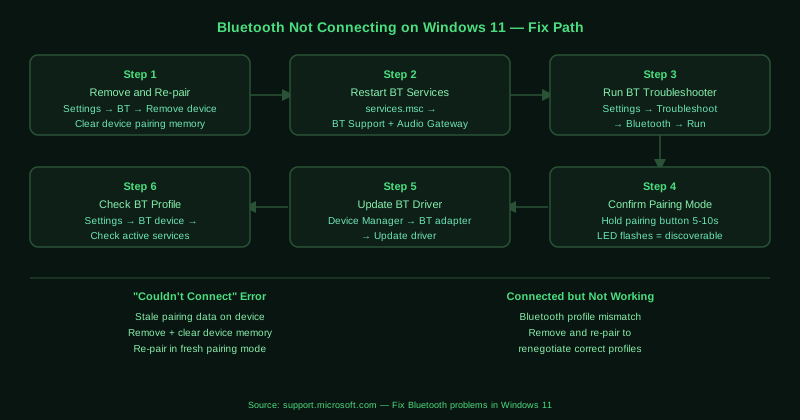
What causes Bluetooth not connecting on Windows 11
Stale pairing data — When a Bluetooth device is paired with multiple computers or had a failed connection, the pairing information stored on the device or in Windows becomes inconsistent. Windows attempts the connection using the old pairing key, the device rejects it, and the “Couldn’t connect” error appears.
Device not in pairing mode — Bluetooth devices only accept connections during an active pairing window, typically 30–60 seconds. If the pairing window expired before the Windows connection completed, the connection fails even though the device appears in the list.
Bluetooth driver conflict — The Windows Bluetooth stack communicates with devices through specific Bluetooth profiles. An outdated driver may not correctly negotiate profiles for newer Bluetooth 5.0+ devices, causing connection failures for those devices while older devices connect normally.
Bluetooth service state error — The Bluetooth Support Service occasionally enters a corrupted state after sleep, update, or crash recovery, causing all new connection attempts to fail without clearing the existing device list.
How to fix Bluetooth not connecting on Windows 11
Work through the steps in order. Step 1 (remove and re-pair) resolves the majority of cases.
How to verify the fix
After re-pairing, open Settings > Bluetooth & devices and confirm the device shows as Connected. For headphones, play audio and verify it comes through the Bluetooth device. For a mouse, move it and confirm the cursor responds. If the device shows Connected but does not function, the connection profile negotiation may have failed — remove and re-pair again to renegotiate.
Known limitations
Microsoft’s Bluetooth troubleshooter cannot diagnose hardware-level radio interference or range limitations. In environments with many 2.4GHz devices — dense Wi-Fi networks, USB 3.0 hubs, microwave ovens — Bluetooth connection failures may be caused by radio congestion rather than any Windows configuration problem. Physical separation from interference sources is the only solution in these cases. Additionally, some Bluetooth devices implement proprietary connection protocols that require companion software from the manufacturer — without this software installed, the device may show as connected in Windows while remaining non-functional.
Step-by-step fix
Remove the device and re-pair it
Open Settings > Bluetooth & devices. Find the device that is not connecting and click the three-dot menu next to it, then select Remove device. Confirm the removal. On the Bluetooth device itself, clear its pairing memory — the method varies by device: for most headphones and speakers, hold the pairing button for 5–10 seconds until the LED flashes rapidly or you hear a voice prompt indicating the pairing list was cleared. Then set the device to pairing mode and select Add device in Windows to pair it fresh. Stale pairing data on either the device or Windows is the most common cause of connection failure.
Restart the Bluetooth Support Service
Press Windows + R, type services.msc, and press Enter. Scroll down to Bluetooth Support Service. Right-click it and select Restart. Also restart Bluetooth Audio Gateway Service if it appears in the list — this service handles audio over Bluetooth for headphones and speakers. After restarting both services, open Settings > Bluetooth & devices, toggle Bluetooth off and back on, and try connecting the device again.
Run the Bluetooth troubleshooter
Open Settings > System > Troubleshoot > Other troubleshooters. Find Bluetooth and click Run. The troubleshooter checks the Bluetooth stack configuration, service status, and driver integrity, and can detect pairing conflicts that prevent connection. Apply any fixes it suggests and restart your computer. Then attempt to pair and connect the device again.
Ensure the device is in pairing mode and within range
A Bluetooth device can only connect if it is actively in pairing mode — most devices leave pairing mode after 30–60 seconds if no connection is made. Put the device into pairing mode immediately before selecting it in Windows. Confirm the device is within 10 metres of the computer and there are no large metal objects between them. Bluetooth operates on the 2.4GHz radio band — USB 3.0 devices, microwaves, and dense Wi-Fi networks on the same band can cause interference that prevents pairing.
Update the Bluetooth driver
Open Device Manager (right-click Start > Device Manager). Expand Bluetooth. Right-click your Bluetooth adapter and select Update driver > Search automatically for drivers. If Windows finds no update, visit your laptop or motherboard manufacturer's website and download the latest Bluetooth driver for your specific model. An outdated or mismatched Bluetooth driver can cause connection failures for specific device types — particularly newer Bluetooth 5.0 and 5.2 devices connecting to a system with an older driver.
Check for device-specific Bluetooth profile conflicts
Some Bluetooth devices present multiple Bluetooth profiles — for example, a headset may offer both a Hands-Free Profile (HFP) for calls and an Advanced Audio Distribution Profile (A2DP) for stereo audio. Windows sometimes connects to the wrong profile, causing the connection to appear successful but produce no audio or functionality. Open Settings > Bluetooth & devices, click on the connected device, and check which services are enabled. If incorrect services are active, remove the device and re-pair it — Windows will renegotiate the profiles.