
Bluetooth not finding devices on Windows 11 means the Bluetooth scan runs in Settings but no devices appear, specific devices fail to show up even when in pairing mode, or “No nearby Bluetooth devices were found” is displayed. According to Microsoft’s official Bluetooth troubleshooting documentation, the most common causes are the Bluetooth discovery scan entering a failed state after sleep or a driver event, or the device not being in active pairing mode during the scan window.
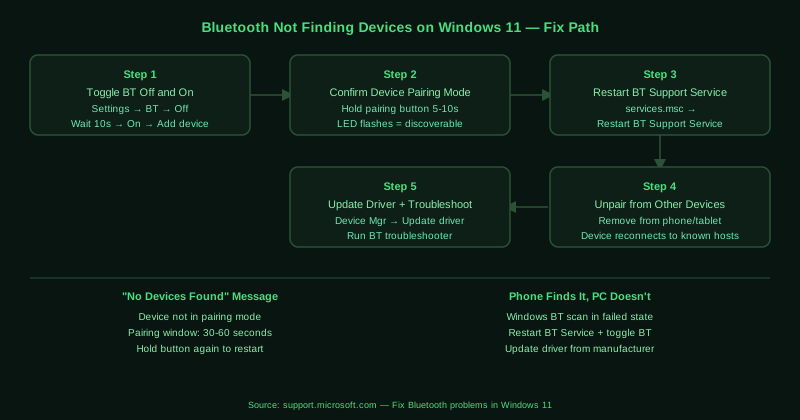
What causes Bluetooth not finding devices on Windows 11
Device not in pairing mode — Bluetooth devices are only discoverable during an active pairing window. If the device has previously been paired with another device (phone, tablet, another computer), it automatically attempts to reconnect to that device rather than entering discoverable mode. The Windows scan cannot find a device that is not broadcasting its discoverable signal.
Bluetooth scan in failed state — The Windows Bluetooth discovery scan process can enter a failed state after sleep, a driver event, or a service restart. In this state, the scan appears to run (the spinner is visible) but does not detect any devices. Restarting the Bluetooth Support Service and toggling Bluetooth resets the scan.
Outdated Bluetooth driver — Older Bluetooth drivers may have reduced discovery range or compatibility issues with specific Bluetooth versions, causing certain devices to be invisible during scanning while others are found normally.
How to fix Bluetooth not finding devices on Windows 11
Work through the steps in order. Steps 1 and 2 (toggle reset and pairing mode confirmation) resolve the majority of cases.
How to verify the fix
After restarting the Bluetooth service and toggling Bluetooth, click Add device and put the target device in pairing mode. The device should appear within 10–20 seconds. If it appears and you can click it to begin pairing, the scan fix worked. Monitor whether the device connects successfully after appearing — if it appears but does not connect, refer to the Bluetooth not connecting guide for the next step.
Known limitations
Microsoft’s Bluetooth troubleshooter cannot detect devices that are actively connected to another host. Some Bluetooth devices — particularly headphones and speakers — only enter discoverable mode when they have no active connections. If the device is connected to a phone or another computer, it does not appear in the Windows scan regardless of what Windows-side fixes are applied. The only solution is to disconnect or unpair the device from all other hosts before scanning from Windows. Additionally, Bluetooth scan range is physically limited to approximately 10 metres under ideal conditions — devices further away or separated by walls and metal obstacles may not appear even when functioning correctly.
Step-by-step fix
Toggle Bluetooth off and on to reset the scan
Open Settings > Bluetooth & devices. Toggle Bluetooth to Off, wait 10 seconds, then toggle it back to On. Click Add device > Bluetooth. The discovery scan restarts and should detect nearby devices. Toggling Bluetooth resets the Bluetooth adapter's radio state and clears any failed scan process that was running. If the device still does not appear, confirm it is in pairing mode — most Bluetooth devices have a pairing indicator (flashing LED or audio cue) that shows when they are discoverable.
Confirm the device is in pairing mode
A Bluetooth device only appears in the Windows scan when it is actively in pairing mode. If the device has already been paired with another computer or phone, it may not enter pairing mode automatically — it may connect to the previously paired device instead. Put the device into pairing mode manually: for most headphones, press and hold the pairing button for 5–10 seconds until the LED flashes rapidly. For keyboards and mice, press the pairing button or check for a pairing mode switch. The pairing window typically lasts 30–60 seconds.
Restart the Bluetooth Support Service
Press Windows + R, type services.msc, and press Enter. Scroll to Bluetooth Support Service. Right-click it and select Restart. Also restart Bluetooth Audio Gateway Service if it is present. After restarting the services, open Settings > Bluetooth & devices, toggle Bluetooth off and on, and try Add device again. The Bluetooth Support Service manages the device discovery scan — restarting it clears any state that was preventing new devices from appearing.
Remove the device's existing pairing from all connected devices
If the Bluetooth device was previously paired with another computer, phone, or tablet, it may automatically attempt to reconnect to that device instead of entering discoverable mode. Most Bluetooth devices prioritise reconnecting to a known device over entering pairing mode. Disconnect the device from all other paired computers and phones — check Bluetooth settings on each and remove the device. Once the device has no active connections to prioritise, it enters discoverable mode more reliably.
Update the Bluetooth driver and run the troubleshooter
Open Device Manager (right-click Start > Device Manager). Expand Bluetooth. Right-click your Bluetooth adapter and select Update driver > Search automatically for drivers. If no update is found, download the Bluetooth driver from your laptop or motherboard manufacturer's website. Then run the Bluetooth troubleshooter: Settings > System > Troubleshoot > Other troubleshooters > Bluetooth > Run. The troubleshooter checks whether the adapter's device discovery scan is functional and can detect configuration issues that prevent devices from appearing.