
Bluetooth not working on Windows 11 means the Bluetooth toggle is missing from Settings, the Bluetooth adapter does not appear in Device Manager, or Bluetooth stopped functioning after a Windows update or sleep cycle. According to Microsoft’s official Bluetooth troubleshooting documentation, the most common causes are the Bluetooth Support Service stopped, the Bluetooth adapter disabled in Device Manager, or a Windows Update replacing the manufacturer Bluetooth driver with an incompatible generic version.
What causes Bluetooth not working on Windows 11
Bluetooth Support Service stopped — The Bluetooth Support Service manages all Bluetooth connections and must be running continuously. This service occasionally stops after sleep, hibernation, or a failed Windows Update without displaying any visible error, causing the Bluetooth toggle to disappear from Settings.
Bluetooth adapter disabled — The Bluetooth adapter can be disabled in Device Manager either manually or by certain driver installations. A disabled adapter does not appear in Bluetooth settings and produces no error message.
Missing or corrupted Bluetooth driver — Windows Update sometimes installs a generic Microsoft Bluetooth driver that does not fully initialise the specific Bluetooth chip in the device. The chip may be detected by Windows but non-functional until the correct manufacturer driver is installed.
Hardware-level Bluetooth disabled — Some laptops allow Bluetooth to be disabled via a physical switch, keyboard shortcut, or BIOS setting. When disabled at hardware level, Bluetooth does not appear in Windows regardless of driver status.
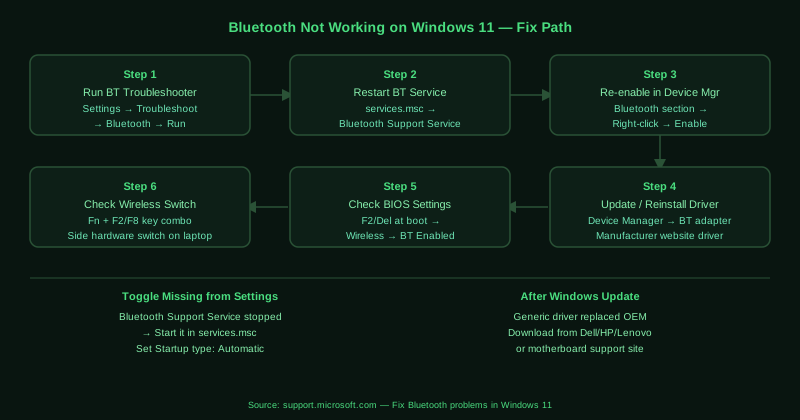
How to fix Bluetooth not working on Windows 11
Work through the steps in order. Steps 1 and 2 (troubleshooter and service restart) resolve the majority of cases.
How to verify the fix
After each step, open Settings > Bluetooth & devices and confirm the Bluetooth toggle appears and is set to On. Click Add device and confirm the scan starts — the spinner should appear and any nearby devices in pairing mode should appear in the list. If the toggle appears but no devices are found, the fix worked but there may be a separate pairing issue.
Known limitations
Microsoft’s Bluetooth troubleshooter and driver reinstall process cannot recover from a physically failed Bluetooth adapter. A Bluetooth chip that has failed due to hardware damage, manufacturing defect, or electrical fault will not appear in Device Manager even after driver reinstalls and will not be detected by any troubleshooter. If all software fixes fail and the adapter never appears in Device Manager — including after checking for hidden devices — the Bluetooth hardware has likely failed and requires hardware replacement or a USB Bluetooth adapter as a substitute. Additionally, some older laptop models do not have Windows 11 Bluetooth drivers available from the manufacturer, and the Windows generic driver may be the only available option regardless of compatibility issues.
Step-by-step fix
Run the Bluetooth troubleshooter
Open Settings > System > Troubleshoot > Other troubleshooters. Find Bluetooth and click Run. The troubleshooter checks the Bluetooth adapter status, verifies the Bluetooth Support Service is running, and scans for driver issues. It also checks for Windows Update Bluetooth driver packages. Follow any prompts and apply the fixes it suggests. Restart your computer after the troubleshooter completes and check if Bluetooth appears in Settings.
Restart the Bluetooth Support Service
Press Windows + R, type services.msc, and press Enter. In the Services window, scroll down to Bluetooth Support Service. Right-click it and select Restart. If the service is stopped, right-click it and select Start instead. Also check that the Startup type is set to Automatic — right-click the service, select Properties, and change the Startup type to Automatic if it is set to Manual or Disabled. The Bluetooth Support Service manages all Bluetooth connections in Windows and must be running for Bluetooth to work.
Re-enable the Bluetooth adapter in Device Manager
Open Device Manager (right-click Start > Device Manager). Expand the Bluetooth section. If your Bluetooth adapter appears with a downward-pointing arrow icon, it is disabled — right-click it and select Enable device. If the adapter shows a yellow exclamation mark, the driver has an error. If no Bluetooth section appears at all, click View > Show hidden devices and check again. Also check under Other devices for a Bluetooth-related entry with a yellow mark.
Update or reinstall the Bluetooth driver
In Device Manager under Bluetooth, right-click your Bluetooth adapter and select Update driver > Search automatically for drivers. If Windows finds no update, visit your laptop manufacturer's support website (Dell, HP, Lenovo, ASUS, etc.) and download the Bluetooth driver for your specific model and Windows 11. To reinstall the current driver, right-click the adapter and select Uninstall device, then restart your computer — Windows reinstalls the driver automatically on reboot. Manufacturer-specific Bluetooth drivers often resolve issues that the generic Microsoft driver cannot.
Check the Bluetooth adapter in BIOS settings
Some laptops allow Bluetooth to be disabled at the firmware level. Restart your computer and enter the BIOS or UEFI settings (typically by pressing F2, F10, Del, or Esc during startup — the key is shown briefly at boot). Look for a Wireless or Bluetooth section and confirm Bluetooth is enabled. If Bluetooth was disabled in BIOS, no amount of Windows-level configuration restores it until re-enabled here.
Use the hardware wireless switch or keyboard shortcut
Many laptops have a physical wireless switch or a keyboard shortcut (often Fn + F2, Fn + F8, or a dedicated wireless key) that toggles all wireless radios including Bluetooth. If this switch is off, Bluetooth is disabled at the hardware level and does not appear in Windows at all. Check the keyboard for a wireless or airplane mode key and ensure it is not engaged. Some laptop models also have a separate physical switch on the side.