
A Canon printer that is not responding receives the print command from Windows but does not act on it. The printer may be powered on, connected, and showing no error — yet jobs accumulate in the queue without printing.
According to Canon’s official troubleshooting documentation, a non-responding printer is almost always a communication issue between Windows and the printer, not a hardware failure. The most common causes are a blocked print queue, a stalled Print Spooler service, or a lost connection.
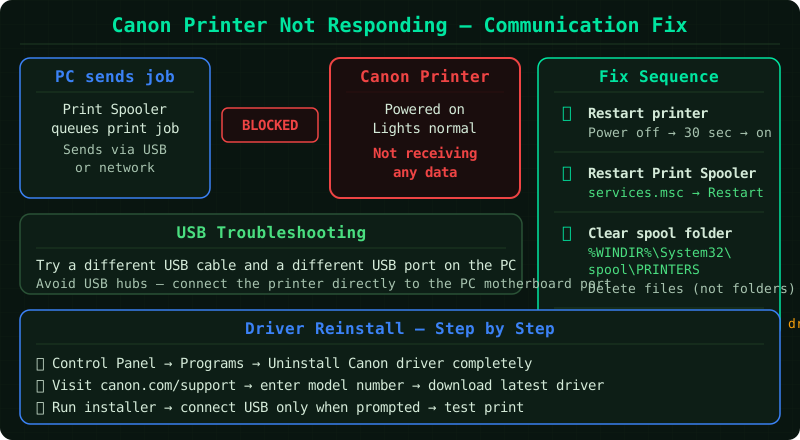
What causes Canon printer not responding
Canon printers stop responding to print commands for specific reasons:
- Stuck print job in the queue — one failed job blocks all subsequent jobs
- Print Spooler service stalled — the Windows service managing printer communication has stopped or frozen
- Lost USB or wireless connection — Windows still recognises the printer but cannot reach it
- Wrong default printer — Windows is routing jobs to a different device
- Driver corruption — after a Windows update, the Canon driver may be incompatible
How to fix Canon printer not responding
Step 1 — Restart the printer and the Print Spooler
The first step is to reset the communication path between Windows and the Canon printer.
Restart the printer:
- Press the Power button to turn the Canon printer off
- Wait 30 seconds
- Press the Power button to turn it back on
- Wait for the printer to complete its startup and show a ready status
Restart the Print Spooler:
- Press Win+R, type
services.msc, press Enter - Scroll to Print Spooler in the list
- Right-click it and select Restart
- The service stops and restarts — this typically takes 10–15 seconds
After both restarts, try sending a single test print. In many cases this alone restores the printer’s response.
Step 2 — Clear all stuck print jobs
A single stuck job holds the entire queue. Even if you can see the printer is ready, Windows will not send new jobs until the queue is cleared.
- Go to Settings → Bluetooth & devices → Printers & scanners
- Click your Canon printer
- Select Open print queue
- Press Ctrl+A to select all jobs
- Press Delete or right-click and select Cancel All Documents
If jobs refuse to delete, stop the Print Spooler first:
- In
services.msc, right-click Print Spooler and select Stop - Open File Explorer and navigate to
C:\Windows\System32\spool\PRINTERS\ - Delete all files in this folder (do not delete the folder itself)
- Return to
services.mscand Start the Print Spooler again
Step 3 — Check the physical or wireless connection
A lost connection causes Windows to hold jobs in the queue indefinitely.
For USB-connected Canon printers:
- Unplug the USB cable from the printer
- Unplug the USB cable from the computer
- Wait 15 seconds
- Reconnect the cable — try a different USB port on the computer if available
- Windows should detect the printer and reinstall it automatically
For wireless Canon printers:
- Check the wireless light on the printer’s control panel — it should be solid, not blinking
- If blinking, run the Wi-Fi Setup from the printer’s menu to reconnect
- Print the Network Status Sheet (Settings → Network Settings → Print Status Sheet) to confirm the printer has an IP address
Step 4 — Set the Canon as the default printer
If Windows is set to manage the default printer automatically, it may have switched the default to another device — Microsoft Print to PDF, OneNote, or a previously connected printer. Jobs sent to the Canon then go to the wrong destination.
- Go to Settings → Bluetooth & devices → Printers & scanners
- Scroll down and turn off Let Windows manage my default printer
- Click your Canon printer
- Click Set as default
Send a test print immediately after setting the default to confirm the printer responds.
Step 5 — Reinstall the Canon driver
If the printer remains unresponsive after the above steps, the driver is the likely cause — particularly after a recent Windows feature update.
- Go to Settings → Bluetooth & devices → Printers & scanners
- Click your Canon printer and select Remove device
- Go to support.usa.canon.com and search for your specific Canon model
- Download the latest full software and driver package
- Run the installer and follow all prompts
- When the installer asks to connect the printer, do so via USB first to complete the installation, then switch to wireless if preferred
How to verify the fix
- Go to Settings → Bluetooth & devices → Printers & scanners and confirm the Canon shows Ready
- Right-click the printer and select Print test page (in Printer Properties)
- Confirm the test page prints within 30 seconds of the command
Common Questions
Canon printer says ready but does not print. If the printer shows Ready and accepts the job but produces nothing, check the ink levels and run a nozzle check. A printer with an empty cartridge may show Ready but refuse to print.
Canon printer not responding after Windows update. Windows updates sometimes replace manufacturer drivers with generic versions. Go to Device Manager (right-click Start → Device Manager), expand Printers, right-click the Canon printer, and select Update driver → Search automatically. If Windows installs a generic driver, uninstall it and reinstall the full Canon driver from canon’s support site.
Canon printer not responding on one computer but works on another. This confirms the printer hardware is functioning. The issue is with the driver or connection settings on the affected computer. Remove the printer from that computer, download the latest Canon driver, and reinstall from scratch.