
Epson printers lose their Wi-Fi connection after a router change, password update, or network reset. The printer’s wireless light may blink or remain off, and Windows shows the printer as offline or unavailable.
According to Epson’s official wireless troubleshooting documentation, the most common causes are stale network credentials stored on the printer, 5 GHz band incompatibility, and router security settings that conflict with the printer’s wireless adapter.
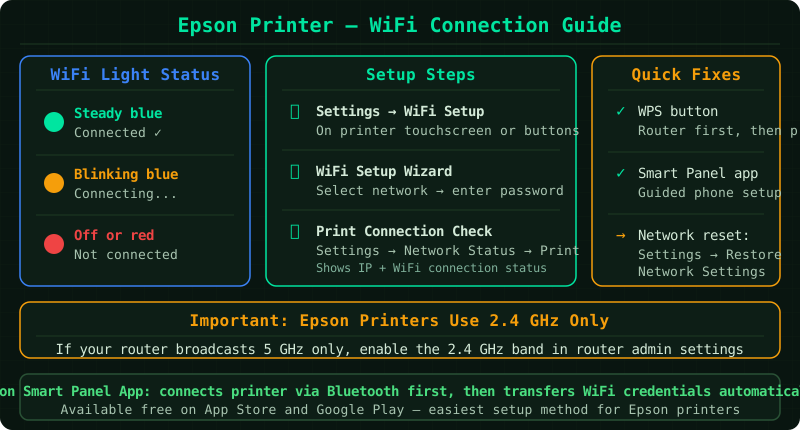
What causes Epson printer Wi-Fi connection failures
Epson printers store the network name (SSID) and password internally. Connection failures occur when:
- The Wi-Fi password changed — the printer still holds the old credentials
- The router was replaced — even with the same SSID, a new router has a different configuration
- 5 GHz band only — Epson consumer models (EcoTank, WorkForce, Expression) support only 2.4 GHz
- Router security type incompatibility — WPA3 or mixed WPA/WPA2 can block some Epson models
- Temporary network error — the printer’s wireless adapter locked after a power interruption
How to fix Epson printer not connecting to Wi-Fi
Step 1 — Restart the printer and router
Epson’s official support guide lists a full restart as the first required step for any wireless connection issue. Many connection failures are temporary and clear on their own after a restart.
- Press the Power button to turn off the Epson printer
- Unplug the router’s power cable from the wall
- Wait 60 seconds
- Plug the router back in and wait until the internet and Wi-Fi lights are stable (30–60 seconds)
- Turn on the Epson printer and wait for the startup sequence to finish
Check the wireless light on the printer:
- Solid blue/green — connected
- Blinking — attempting to connect or not connected
- Off — wireless is disabled
If the light is off, wireless may have been disabled. Press and hold the Wi-Fi button on the printer for 3 seconds to re-enable it.
Step 2 — Run the Epson Wi-Fi Setup Wizard
If the printer did not automatically reconnect after the restart, use the built-in setup wizard to manually enter your network credentials.
On the printer’s control panel:
- Press Home (or the menu button)
- Navigate to Wi-Fi Setup or Network Settings
- Select Wi-Fi Setup Wizard
- The printer scans for nearby networks — select your home or office Wi-Fi network
- Enter the Wi-Fi password carefully (it is case-sensitive)
- Wait for the printer to confirm the connection
After the setup completes, print the Network Status Sheet from Settings → Network Settings → Print Status Sheet to confirm the connection details and IP address.
Step 3 — Reset network settings and reconnect
If the Setup Wizard fails or shows a connection error, the printer’s stored network configuration may be causing conflicts. A network settings reset clears all stored Wi-Fi profiles.
- On the control panel, go to Settings → Network Settings
- Select Restore Default Settings or Wi-Fi Setup → Other Methods → Restore Wi-Fi Default Settings
- Confirm the reset — the printer restarts its wireless adapter
- Run the Wi-Fi Setup Wizard again to reconnect
This step is necessary when the SSID or password has changed and the previous credentials are interfering with the new connection attempt.
Step 4 — Check Wi-Fi band and router security settings
Band compatibility: Epson consumer printers — including EcoTank (ET series), WorkForce, and Expression models — support only the 2.4 GHz Wi-Fi band. If your router broadcasts exclusively on 5 GHz, the printer cannot connect.
- Log into your router admin page (usually
192.168.1.1or192.168.0.1) - Go to Wireless Settings
- Confirm the 2.4 GHz band is active and broadcasting
- If your router uses a single SSID for both bands, create a separate SSID for 2.4 GHz
Security settings: Some Epson models have difficulty connecting to networks using WPA3 or mixed WPA/WPA2 security.
- In your router’s wireless security settings, set the security type to WPA2-Personal (AES) for the 2.4 GHz network
- Try connecting the Epson printer again using the Setup Wizard
Step 5 — Use Epson Connect Printer Setup
Epson Connect is Epson’s cloud printing platform. If the basic wireless setup steps do not resolve the issue, the Epson Connect setup utility can re-register the printer and restore full wireless functionality.
- On the Windows PC, go to epson.com and search for Epson Connect Printer Setup
- Download and run the utility
- Select your Epson printer from the list
- Follow the prompts to sign into or create an Epson account and register the printer
- The tool reinstalls the wireless driver and reconnects the printer to the network
How to verify the fix
- Print the Network Status Sheet: Settings → Network Settings → Print Status Sheet
- Confirm the sheet shows: Connection Type: Wi-Fi, your correct SSID, and an assigned IP address
- On Windows, go to Settings → Bluetooth & devices → Printers & scanners and confirm the Epson printer shows Ready
- Send a test print
Common Questions
Epson printer connects to Wi-Fi but Windows still shows it offline. After reconnecting to Wi-Fi, the printer may have a new IP address that Windows does not recognise. Open Devices and Printers, right-click your Epson printer, go to Printer Properties → Ports, and update the IP address to match the one shown on the Network Status Sheet.
Epson printer keeps disconnecting from Wi-Fi. A printer that repeatedly disconnects usually has a signal strength problem or an IP address that changes with every connection. Check signal strength on the Network Status Sheet — if signal is weak, move the router or printer closer. To stop the IP from changing, log into your router and assign a static IP to the printer using DHCP reservation (bind the IP to the printer’s MAC address).
Epson printer won’t connect to Wi-Fi after Windows update. Windows updates can change network adapter settings or replace Epson drivers with generic versions. Reinstall the full Epson driver from epson.com, then run the Wi-Fi Setup Wizard again.