
External hard drive not showing up means you connect a portable hard drive to your computer and it does not appear in File Explorer, even though the drive spins up or its activity light comes on. The drive may be completely invisible, or it may appear in Disk Management without being accessible. According to Microsoft’s storage troubleshooting documentation, the most common causes are a missing drive letter, an uninitialised disk, a faulty USB cable, or a driver problem.
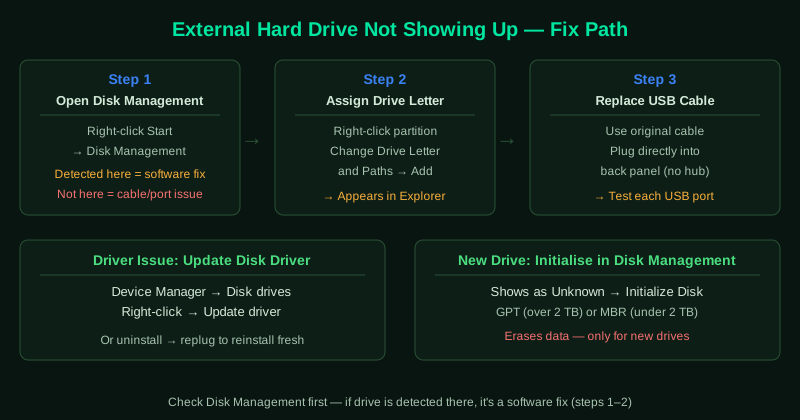
What causes an external hard drive not to show up
No drive letter assigned — Windows assigns each storage device a letter (E:, F:, G:, etc.) to make it accessible in File Explorer. If the letter was lost or conflicts with another device, the drive exists in Disk Management but is invisible in File Explorer.
Uninitialised disk — New external hard drives shipped without partitions need to be initialised and formatted before Windows can use them. Until initialised, they appear in Disk Management as Unknown.
Insufficient power — Bus-powered external hard drives require up to 900 mA from a USB 3.0 port. USB hubs, front panel ports, and laptops in power-saving mode may deliver less, causing the drive to fail to spin up fully.
Faulty USB cable — A cable with broken internal wires can pass enough current to power the drive’s indicator light while failing to maintain a stable data connection.
Corrupted or missing disk driver — The operating system driver for the external hard drive’s USB bridge chip can become corrupted after an abrupt removal or a failed Windows update.
How to fix external hard drive not showing up
Work through the steps in order. Steps 1 and 2 resolve most cases when the drive has been working before and stopped unexpectedly.
How to verify the fix
After each step, unplug the drive, wait 10 seconds, and reconnect it.
Known limitations
Microsoft’s official documentation does not address drives that use hardware encryption (such as Western Digital My Passport with WD Security). These drives require the manufacturer’s unlocking software before Windows can assign them a drive letter — Disk Management will show them as unallocated even after correct drive letter assignment attempts. Additionally, bus-powered external drives with failing USB bridge chips will appear and disappear intermittently in a way that mimics cable or port faults but cannot be resolved by any software fix — the enclosure needs replacement. If the drive appears in File Explorer with the correct capacity and you can browse its files, the fix worked. If the drive appears but shows errors when you open files, run CHKDSK from Command Prompt: chkdsk X: /f /r (replace X with the drive letter). If the drive makes unusual sounds — clicking, grinding, or repeated spinning — see Seagate External Hard Drive Not Working — Fix or consult a data recovery specialist.
Step-by-step fix
Open Disk Management and check if the drive is detected
Right-click the Start button and select Disk Management. Look at the list of disks at the bottom of the window. Your external hard drive should appear as a removable disk or as Disk 1, Disk 2, etc. If it appears here without a drive letter (shown as Unallocated or with no letter next to the partition), Windows has detected the hardware but has not made it accessible in File Explorer. If the drive does not appear in Disk Management at all, the problem is at the hardware or driver level — continue to step 3.
Assign a drive letter to the external hard drive
In Disk Management, right-click the partition on your external hard drive and select Change Drive Letter and Paths. If no letter is assigned, click Add and choose any available letter (D through Z). If a letter is already assigned, click Change and choose a different letter. Click OK. Open File Explorer — your external hard drive should now appear. Drive letter conflicts happen when the same letter is assigned to two devices or when the letter was previously used by a network drive.
Try a different USB cable and port
External hard drives require more power than flash drives. A faulty or low-quality USB cable can deliver enough power to spin the drive but not enough for stable data communication. Unplug the drive and try a different USB cable — use the original cable if you have been using a replacement, or try a high-quality cable rated for USB 3.0. Also try plugging directly into a USB port on the back of a desktop computer (back ports are connected directly to the motherboard) rather than front panel ports or USB hubs.
Update the disk driver in Device Manager
Open Device Manager (right-click Start > Device Manager). Expand Disk drives. Find your external hard drive — it may appear with the manufacturer's name or as a generic USB storage device. Right-click it and select Update driver > Search automatically for drivers. If Windows finds no update, right-click and select Uninstall device, then unplug the drive, wait 30 seconds, and plug it back in. Windows reinstalls the driver fresh. If the drive does not appear in Disk drives, look under Universal Serial Bus controllers for Unknown USB Device entries.
Initialise a new or reformatted drive
If you are connecting a brand new external hard drive for the first time and it does not appear in File Explorer, it may need to be initialised. In Disk Management, if the drive appears as Unknown with Unallocated space and a prompt to initialise appears, click OK. Select MBR (for drives under 2 TB used with older systems or GPT (for drives over 2 TB or modern systems). After initialising, right-click the Unallocated space and select New Simple Volume to create a partition and format the drive. This process erases any existing data.
Check power supply for bus-powered drives
External hard drives that are powered via USB (bus-powered) rather than a separate power adapter depend entirely on the USB port for power. Laptops in battery-saving mode and USB hubs sometimes deliver insufficient power. If your drive has a Y-cable (two USB connectors), plug both connectors into the computer. If the drive has a separate power adapter socket, connect the adapter. Use a powered USB hub if a direct port is not available.